
Have you installed Apple’s latest operating system updates, the 26 versions, on your personal devices? I hope you’re not using a metered internet connection. Because if you are, or if you started downloading using your mobile data thinking “oh come on, how much could it be,” I can guarantee you that you’ll burn through your data cap.
Depending on the device you use and the operating system version installed on it, these figures may vary, but for macOS 26 you’ll need to download approximately 15 GB; for iOS 26, approximately 10 GB of data.
If you work as an Apple system administrator, you shouldn’t see the matter as limited only to the consumption of the internet access quota at your home or office. If all the Apple devices you manage in corporate environments try to move to versions like macOS 26, iOS 26, iPadOS 26, etc. all at once, it will seriously degrade your organization’s network performance. Imagine you send the macOS 26 update to 200 users working in the same office. Yes, you guessed correctly, this can create a bit of trouble.
So What’s the Solution?
There are basically two solutions. The first is to prevent users from doing the operating system update for a while. And then to do the updates piece by piece. First the Marketing unit, then HR, etc. We explained how you can prevent users from being able to do operating system updates in our article titled Deferring Software Updates… You can read it there.
But the solution more suitable for corporate use will be to use macOS’s Content Caching service. Caching Server was one of the services found in MacOS X Server, Apple’s old server operating system. After Apple withdrew from the server market in terms of hardware and software, it moved some server services to the Client operating system. Caching Server is one of them. After the remote work rate increased following the COVID pandemic, this service’s popularity decreased a bit. But it is still frequently used at times when operating system updates will be distributed in bulk.
What Does This Content Caching Do?
Content Caching is a service that facilitates the distribution of operating system, software, and application updates published by Apple, as well as iCloud data. It roughly works as follows:
1. The Content Caching service is activated on a Mac. This Mac registers itself with Apple as a caching server.
2. A user on the same network as the Mac that will provide the Content Caching service downloads some application update.
3. The downloaded application is downloaded from Apple’s servers to the user’s device. But at the same time, if there is a Content Caching server on the network, a copy of the application is also added to that server.
4. When a second user wants to download the same application, Apple checks the request coming to it from the same IP block, and if there is a Content Caching server registered to it on that network, it directs the second user to this server.
5. The second, third, and subsequent users download the same application not through Apple’s servers, but from a server located on the local network.
In terms of end-user experience, the process is completely the same as downloading an application from the App Store. That is, if your users have the authority to download applications with their personal Apple Account, they can still download applications as usual. And they will not notice where the application installed on their device came from.
On the other hand, if the content of the downloaded application is around a size like 100 MB, users probably won’t understand the difference between downloading the application from Apple’s servers and downloading it over the local network. But with large files like an operating system, there is an obvious difference.
How Do I Use It?
As I mentioned in the lines above, the Caching Server service was located in Apple’s server environments in the old days. After Apple discontinued its server product line, some server services were completely discontinued and we were advised to use third-party solutions. Some services were also incorporated into the macOS operating system we use every day. The Content Caching service is among the features incorporated into the client operating system.
To activate the Content Caching service, all you need to do is go to the > System Settings > General > Sharing section, activate the switch next to the Content Caching option, and restart your computer. From the moment you do this, the Mac you use begins to cache all downloads made from Apple within its network environment. For example, when you download the Adobe Lightroom application from Adobe’s site or from within the Creative Cloud application, this download is not included in the cache scope. But if you download the same application from the App Store, it is cached.

Depending on the number of Mac users in your organization, you can also use an old Intel-processor Mac to be able to use the Content Caching service. Or you can put an affordable Mac mini to work for this. But on the other hand, Apple also provides us with the tools necessary to use this service in a distributed structure. When you click the info icon next to the Content Caching service, a screen opens where you can see this service’s settings.
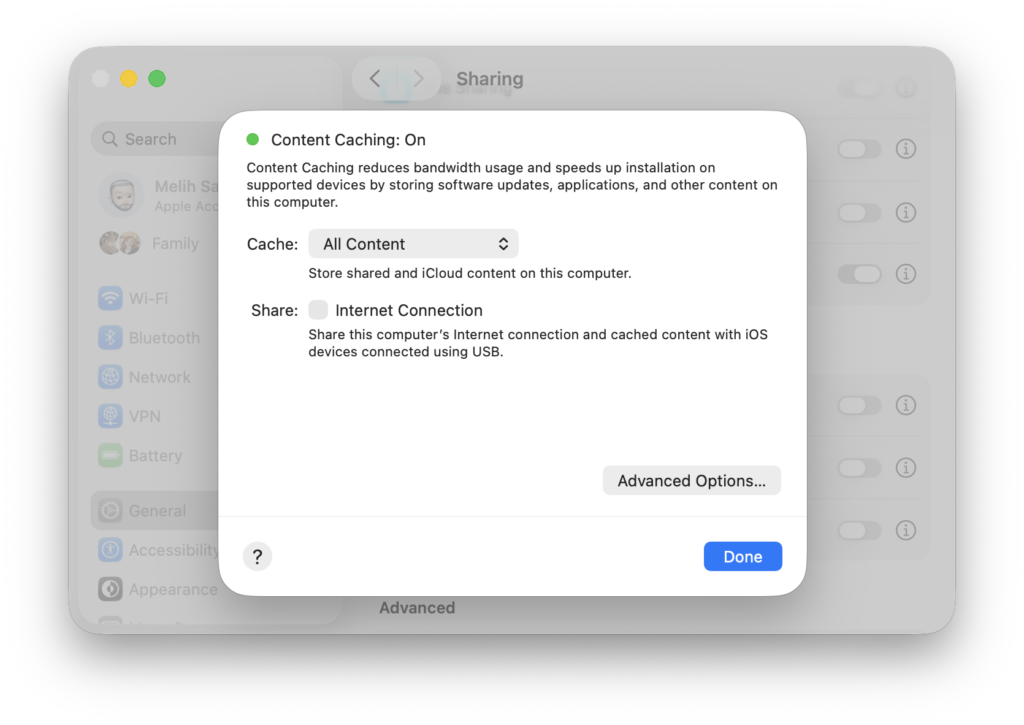
On the first screen that opens, you can select which data will be served under the Cache heading. Only Shared Content, which you can select from this field, covers all operating system and application updates published by Apple. Only iCloud Content, on the other hand, ensures that the content users store on iCloud with their personal Apple accounts (for example, photos) is also included in the cache scope. If you want to use the Content Caching service in a corporate environment only for OS and software updates, using the Only Shared Content option will be sufficient.
To access more detailed features, you must click the Advanced Options button. In macOS Sequoia and earlier, this option’s name appears only as Options. You can reach the Advanced Options option by holding down the Option key on the keyboard and clicking the Options option. This structure changed with macOS Tahoe and now we can see only the Advanced Options option.
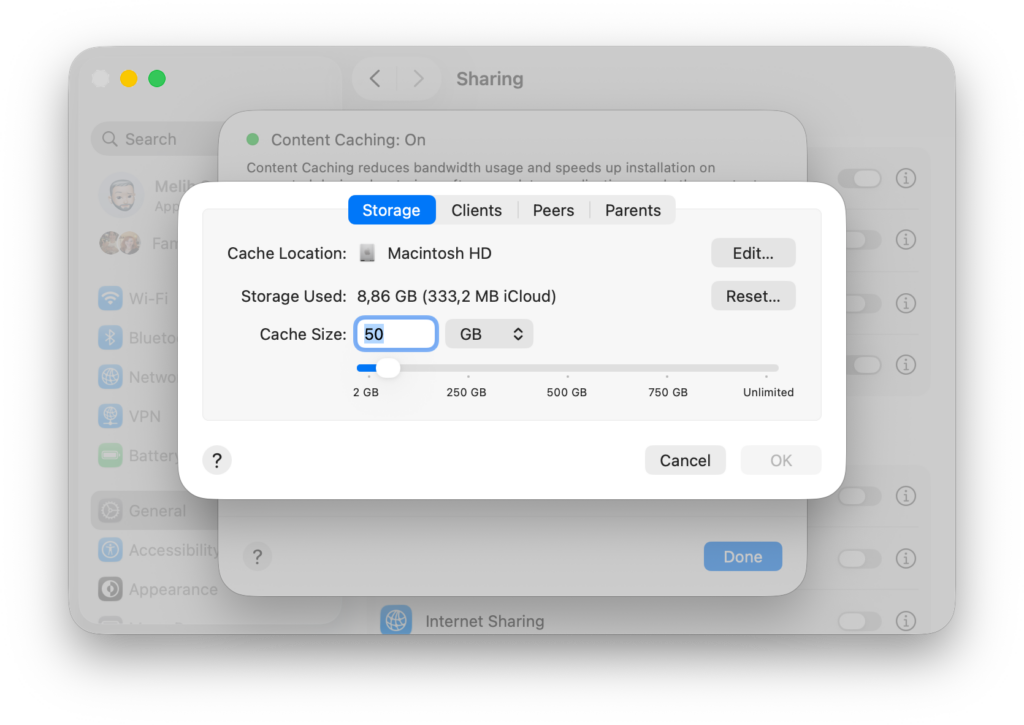
On the page that opens after clicking the Advanced Options option, you have 4 main headings: Storage, Clients, Peers, and Parents. These options enable the Content Caching feature to be used not on a single server computer, but in a distributed structure.
Storage
Under the Storage heading, you can determine how much disk capacity on the disk of the computer that activates the Content Caching service will be allocated to the caching job. If there is another disk connected to your computer, or if your disk contains more than one partition, you can choose on which disk the cache data will be stored. The Cache Location option can only be visible when a second disk is connected.
Even if you pull the Cache Size slider all the way to the right, that is, to the Unlimited option, macOS does not allocate all of the free disk capacity to cache data. It leaves as much free space as the operating system can work healthily with.
Clients
Under the Clients section, you can select which networks the cache content held on the computer you use can be served to. For example, if you select the Devices using the same public IP address option from the Cache Content for menu, all devices under the same public IP address can benefit from the service you provide. But for example, if you have ensured that Macs in your organization get an IP in a certain IP address range, you can also provide the caching service only for a certain IP address range. This way, for example, you ensure that a user who has connected to the company Wi-Fi network with their personal iPhone cannot benefit from the Content Caching service to update their Angry Birds game.
Peers
Under the Peers section, you can find options related to sharing the cache data held on the computer on which you provide the Content Caching service with other Content Caching server devices. Just as under the Clients heading, you can share cache data with all devices on the network or only with devices in a certain range. This option is important in terms of access to cache data being possible across the organization (High Availability).
Parents
Under the Parents section, you can specify your preferences regarding how data sharing can be done among more than one Content Caching server. You can add the addresses of Parent servers on your network that contain a larger cache data under the Parent IP Addresses section. This way, when a request comes regarding an application that the Content Caching server you use does not have, it will check the parent servers.
You can make your preference regarding which of the other servers on the network it can reach and how, under the Parent Policy heading. First Available will make it use whichever of the servers in the list it can reach first. Random selects the other servers in a random order. Round Robin makes it check all the servers in the list in order. Sticky Available makes it use the first reachable server on the list. It will prefer the same server every time. Until that server becomes unreachable. The Hash option, on the other hand, can be preferred to reduce the total amount of data held on all Content Caching servers. With this option, for example, while the cache data belonging to the Microsoft Word application is held only on the server with address 192.168.1.100, the Slack application is held only on the server with address 192.168.1.205. This way, the data belonging only to Microsoft Word does not take up space on every server. The Hash option is used to bring together the requested application and the server where that application’s cache data is held.

How Can I See the Cached Applications?
You can’t. You can’t see them one by one as application names or update numbers. The only thing you can see will be the information of how much data has been cached and how much data has been served. You can reach this information under the Cache tab via the Macintosh HD / Applications / Utilities / Activity Monitor application. The Cache tab here can only be visible if the Content Caching service is active on a Mac.
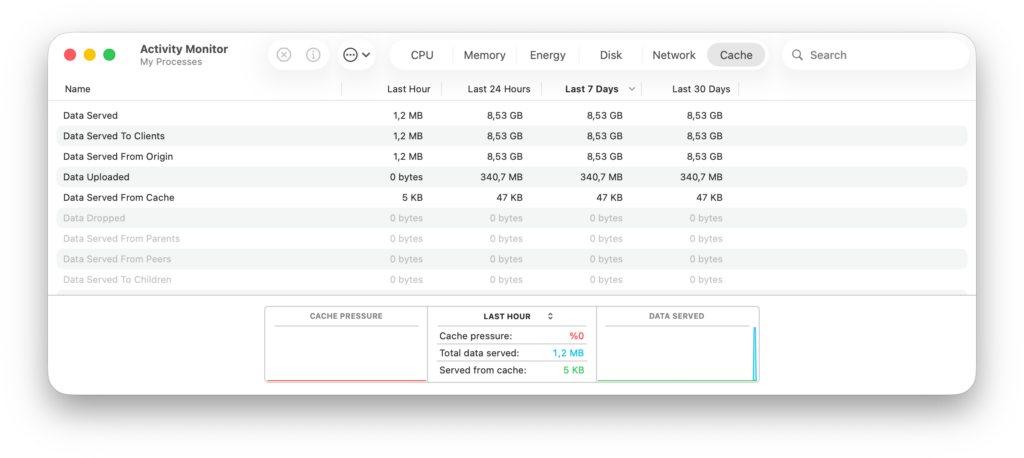
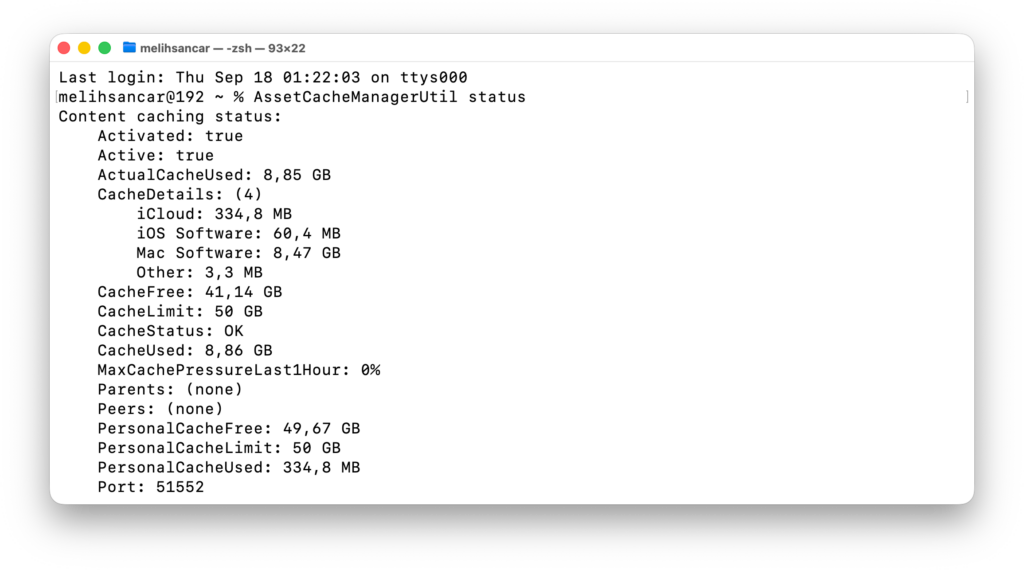
In addition to Activity Monitor, you can also see statistical data regarding the cache data with the assetcachemanagerutil command via Terminal. If you open the Terminal application and type the line below, you can get information about the cache data on the current server.
AssetCacheManagerUtil statusBy typing just AssetCacheManagerUtil, you can also see what kind of options you have regarding this CLI application.
How Do I Use It with MDM?
If your users do not have the right to download and install applications with their personal Apple Account, and you distribute applications via MDM, then a single Content Caching server on your network will speed up your application and update distribution processes.
If we don’t count Custom and Enterprise applications, the only source for installing applications on iPhones or iPads is the App Store. For mobile devices managed with MDM too, you can purchase and distribute all of the applications using the VPP program via Apple Business Manager. The same scenario applies to Macs as well, of course. In addition, the App Store is not the only source from which we can install applications on Macs. In the device management process with MDM, we can also use VPP applications, PKG / DMG applications, .app-extension application files, and benefit from various application installation repertoires.
If the application you will distribute is a VPP application, that is, it’s found on the App Store, you can benefit from the Content Caching service. In case you distribute VPP applications to users with MDM, you actually deliver to users not the application itself, that is, the PKG or APP-extension file, but the information that it has been licensed. The managed device that receives this licensing information will pull the application from the App Store itself.
If you have a Content Caching server, managed devices, after receiving information about an application assigned to them via MDM, pull the application data from the App Store or, if available, from the Content Caching server.
So in summary, even if you distribute your applications via MDM, the Content Caching service will make your life easier for VPP applications and updates.
Configuration via MDM
Some MDM vendors include the payloads necessary for the Content Caching service to be turned on on client devices. If there is a Content Caching option within the MDM solution you use, you can prepare all the details I explained in the lines above via MDM as well and send them to the devices that will be used as servers.
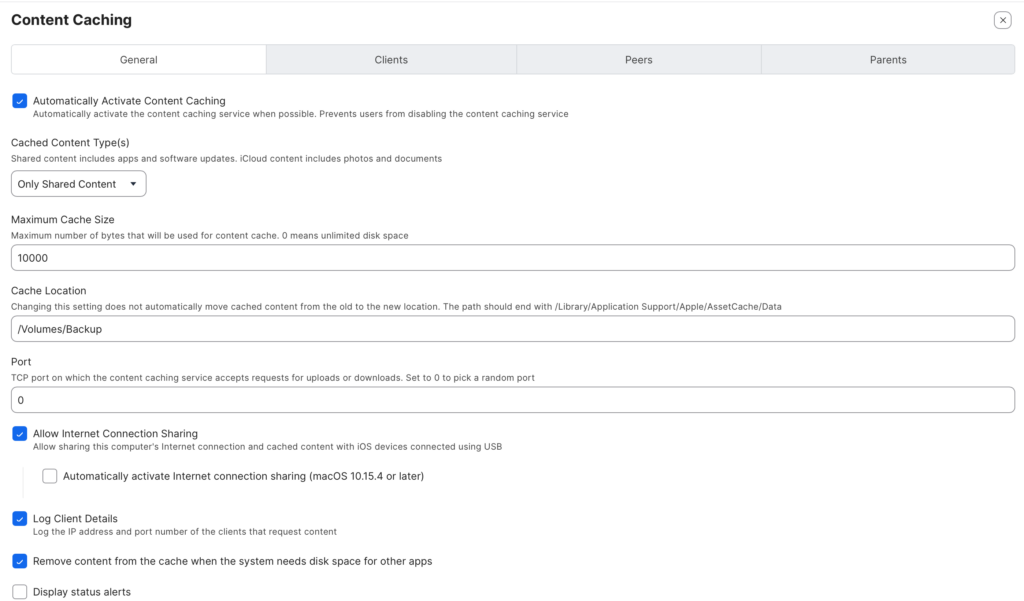
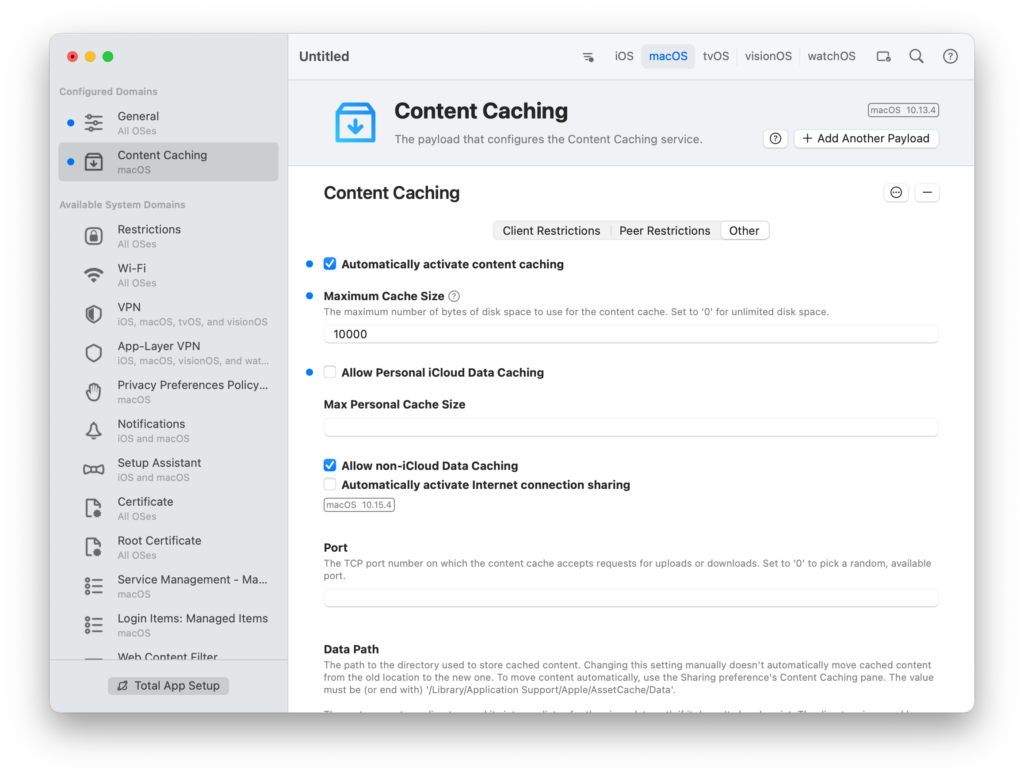
And if you couldn’t find similar options in the MDM solution you use, you can make the configuration necessary for the Content Caching service via an application like iMazing Profile Editor and distribute it with the MDM you want.
Leave a Reply