

As you know, we’ve become unable to buy a kilo of tomatoes from the grocer without using AI tools. The use of AI tools increases efficiency by automating business processes end to end. Used in this respect, it can both reduce the need for humans for jobs that can be automated and prevent errors that can occur due to the human factor.
But there’s also the marketing side of the business. Since AI is currently the coin of the realm, the keywords “AI” or “Artificial Intelligence” have become indispensable in the marketing communication of technology-focused products and services. So much so that when some company needs to coat a product that actually can’t show a very good sales performance in the market with sugar and offer it to the market again, it can immediately make a small AI update and make a fuss about it. The aim is to be able to emphasize “We haven’t fallen behind in the AI race either, we’re very up to date.”

Kandji, one of the Apple-focused MDM solutions we’ve known and used with pleasure for a long time, went through a restructuring a while ago. They changed their name to Iru and started supporting the Windows and Android platforms in addition to Apple devices. There was an important detail they emphasized during this transition. They were saying that Iru was made entirely for the AI era.
The first AI adaptations of MDM and UEM solutions were generally adding a chat-bot as a module and giving basic commands through it. In some solutions, you can also have these chat-bots produce a script or XML that you can use for management. You can get some basic management information by chatting with Iru AI, Iru‘s built-in chat-bot, too.
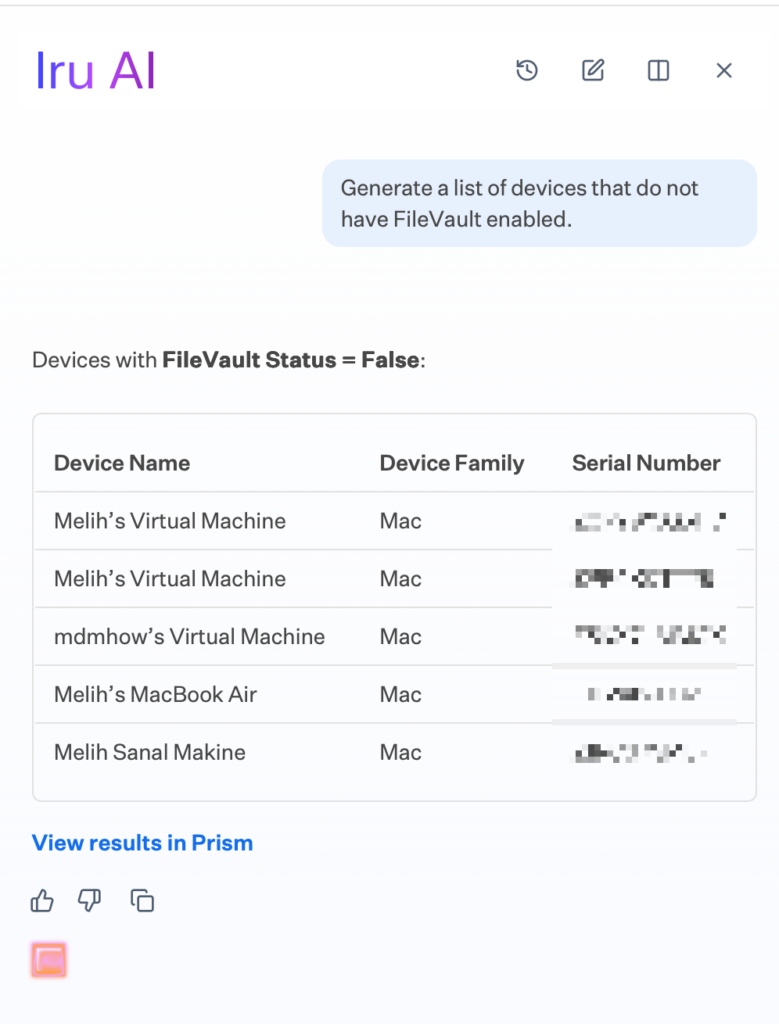
But in general, these kinds of usages proceed a bit more one-directionally. You can benefit from AI tools only as much as the MDM / UEM solution you use offers you.
What’s Possible with Iru MCP?
First let me explain for those who don’t know. MCP (Model Context Protocol) is a standard used to connect AI models to 3rd-party tools and various external sources. The AI assistant inside the MDM tool you use is limited to giving answers to the questions you ask. You need to manually do what it suggests with the answers you get from it. I can give an example of this from another MDM solution, Hexnode. In the screenshot below, Hexnode‘s AI assistant Genie is asked to write a bash script to change the management account’s password. Genie writes this and leaves the rest to the user. It even adds instructions below about how to distribute this code.
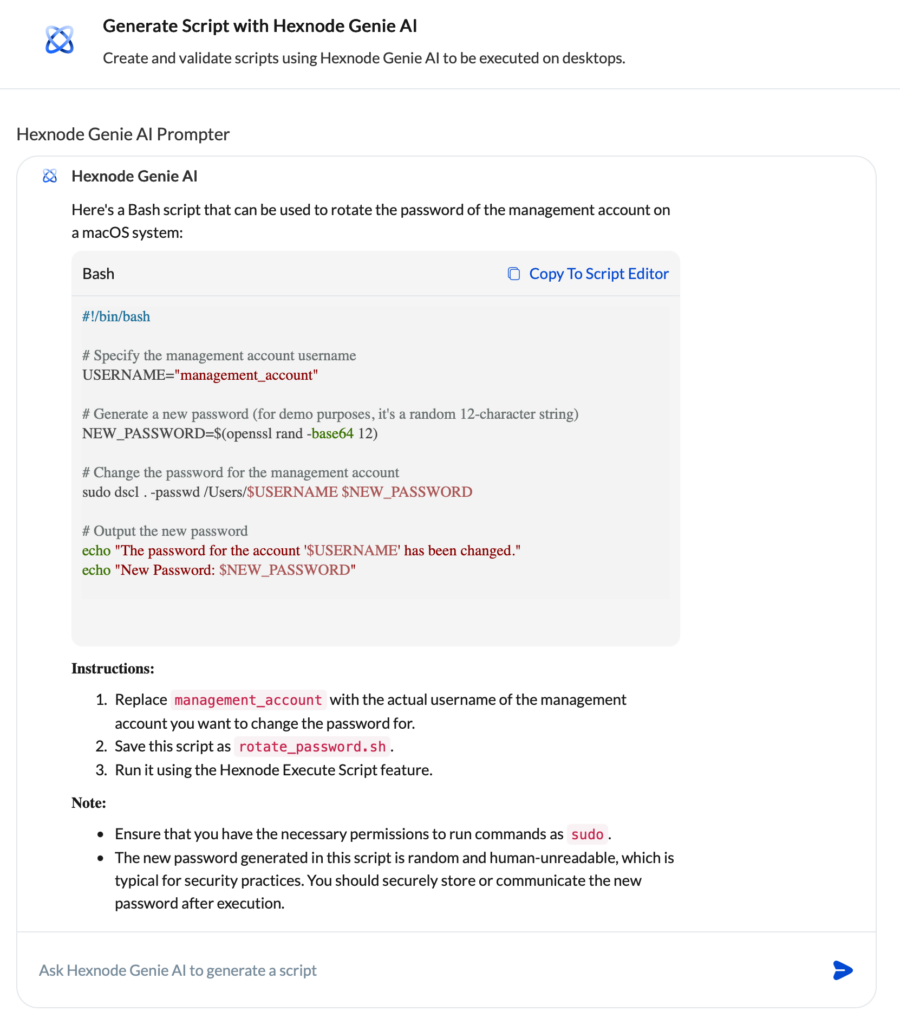
Thanks to the MCP protocol, the AI assistant you use (Claude, ChatGPT, Gemini, etc.) can connect to your MDM. And it can carry out some tasks for you. The authority over which areas it can access is also entirely yours. It doesn’t even stay limited to only carrying out the commands you’ll give. It can be used for various automations. For example:
• Notify a Slack user or an email group of the operation done
• Take a user ticket assigned via ServiceNow
• Carry out the requested command. (for example, reset the user’s iPhone password)
So How?
You can prepare these kinds of automations with Iru MCP. For these, you first need to connect Iru to the AI tool you use via the MCP channel and set the permissions of which areas the AI tool can access within Iru. Here we’ll connect Iru and Claude to each other. To be able to do this, we need to create an API Token.
1. In Iru, select the Access option from the Preferences section.
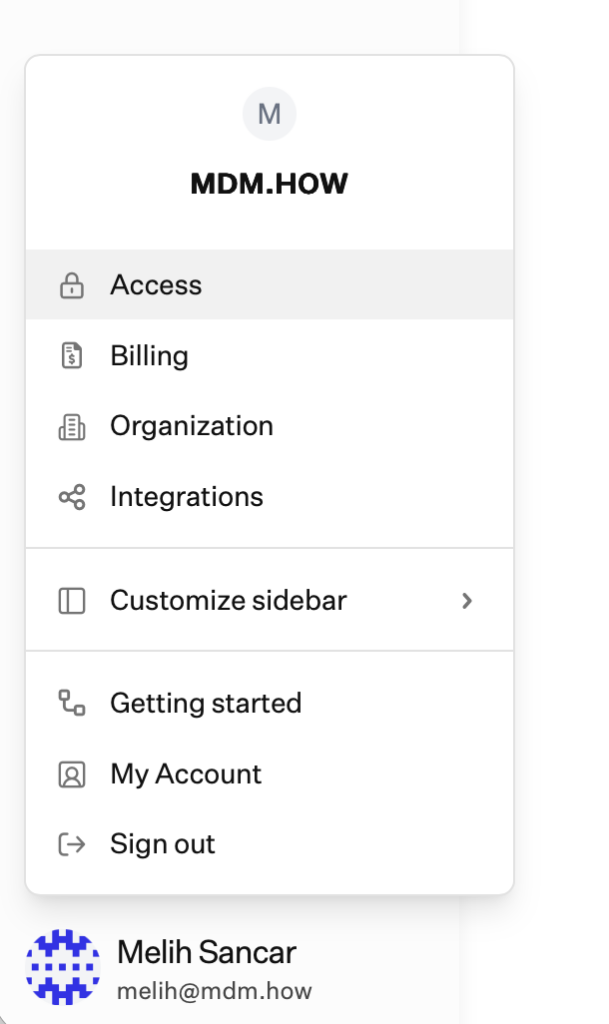
2. From the page that opens, go to the API Tokens tab.
3. Click the Add Token button.
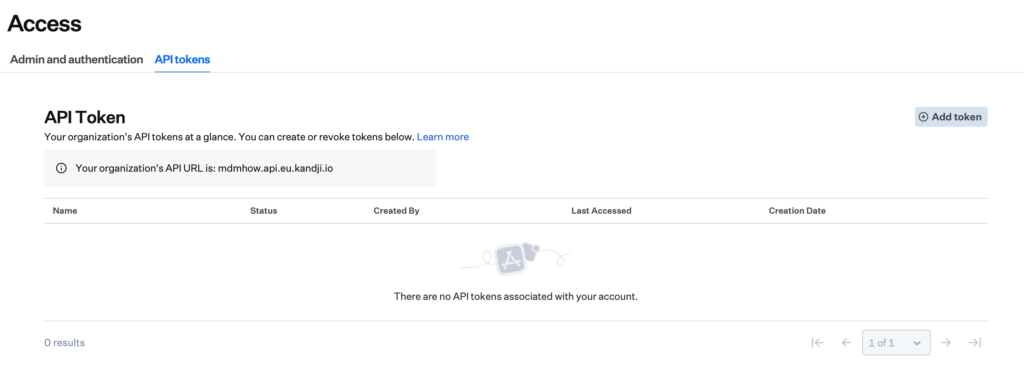
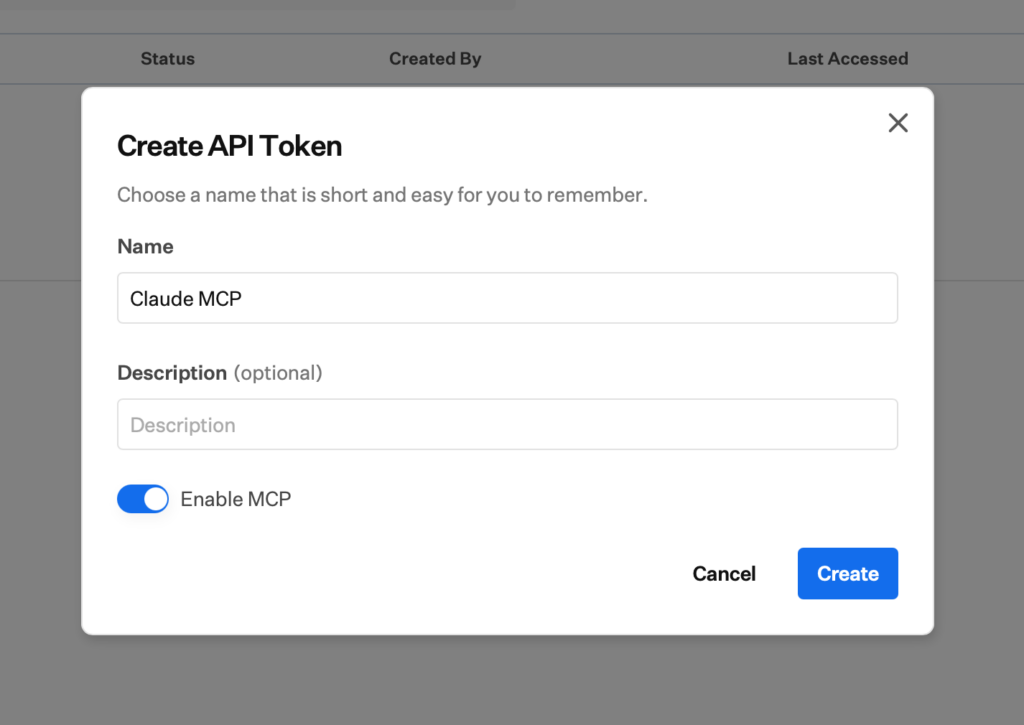
4. From the page that opens, give this Token a name and check the Enable MCP option. And click the Create button.
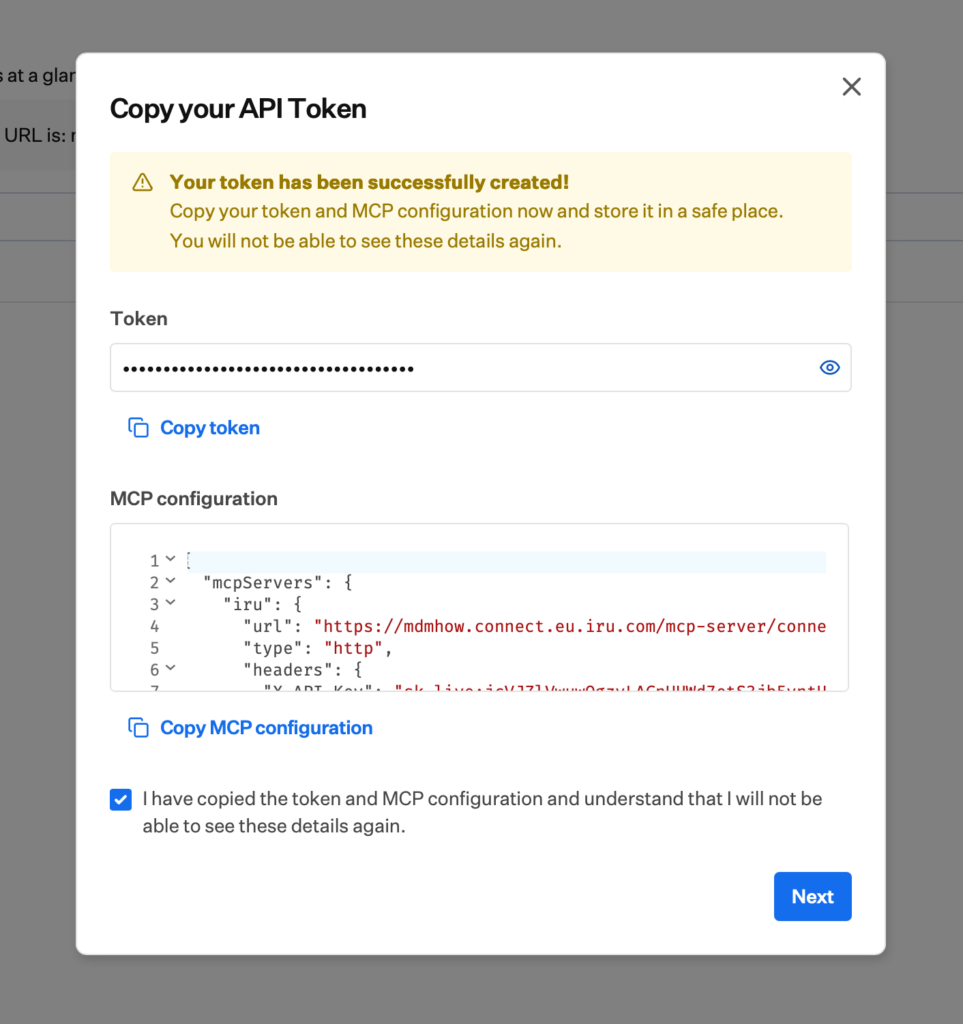
5. On the next screen, a page will come up where the Token and configuration code can be displayed. Copy these two pieces of information for yourself. Check the declaration box at the bottom about having copied it and click the Next button. Let me repeat a warning written on this screen too. If you leave this screen without copying the Token and configuration information, you may not be able to find another area where you can see this information.
6. In the next window, you’ll be asked whether you want to edit the permissions of this MCP Token. If you want to do this editing right now, click the Configure option. If you want, you can also click the Skip option and edit the permissions later. As standard, the permissions come off. By clicking the Configure button, you can start editing the permissions by selecting the Configure Permissions option on the page that opens.
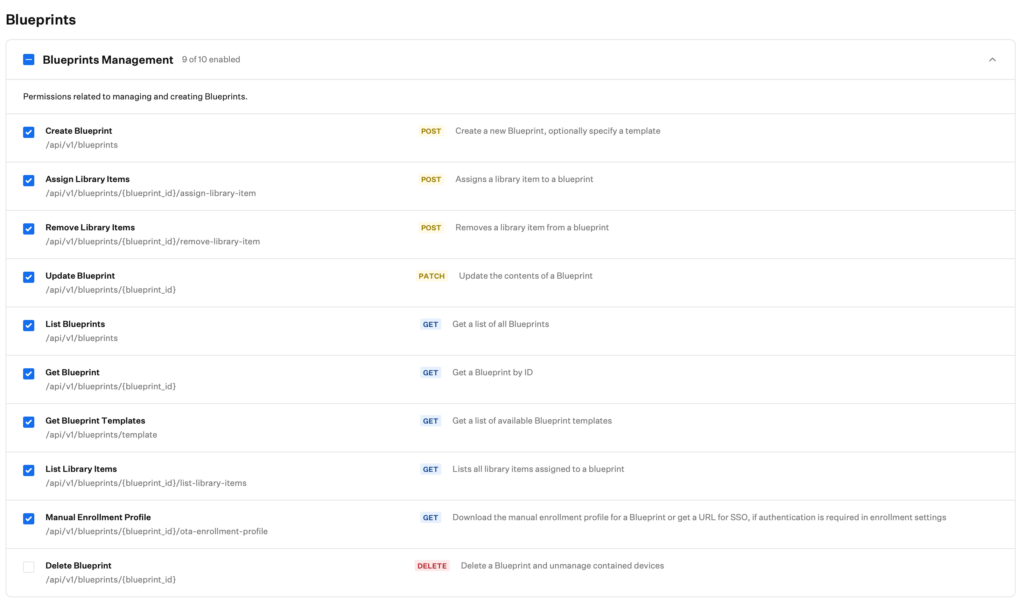
7. The permissions you’ll give to this Token are listed divided into various categories. You can work with various categories like Blueprints, Apple Integrations, Users, Vulnerability Management, and Library. For example, under the Blueprints category, you can edit permissions like creating a new Blueprint, deleting, adding Library items, and getting the manual enrollment profile belonging to the Blueprint. I recommend that you give your permissions carefully by reviewing the whole list. Because the permissions you’ll give here will be the areas Claude can access in Iru.
8. After creating the Token and giving the permissions, our job in Iru is completed. It’s now time to connect Claude to Iru using the API Key or configuration we copied earlier. Open Claude Desktop and go to the Claude > Settings > Developer section. Here a button named Edit Config will come up. When you click this button, it brings up the /Users/username/Library/Application Support/Claude/claude_desktop_config.json file. You need to add the details in the configuration file you got from Iru to this Json file.
9. You can enter the settings I gave an example of below. Among these settings, the area marked in orange should probably already be inside the claude_desktop_config.json file. The areas I marked in red will look different in your configuration. You don’t need to make any change in the orange area. The green-written area seen from the line starting with MCP Servers shows the addition you’ll make to the file. While making this addition, you’ll make changes in a total of 3 lines. And I marked those in blue too. You need to fill in the URL, API Key, and MCP Profile lines with the information coming from Iru. You can edit this file in the system’s built-in TextEdit application using Plain Text mode or in an application like BBEdit.
{
  "preferences": {
    "remoteToolsDeviceName": "192-168-1-10",
    "coworkHipaaRestricted": false,
    "coworkWebSearchEnabled": true,
    "coworkScheduledTasksEnabled": true,
    "ccdScheduledTasksEnabled": true,
    "coworkModelAutoFallbackByAccount": {
      "claudeaccountid": true
    },
    "epitaxyPrefs": {
      "starred-local-code-sessions": [],
      "starred-cowork-spaces": [],
      "starred-session-groups": [],
      "dframe-local-slice": {
        "pinnedOrder": [],
        "customGroupAssignments": {},
        "customGroupOrder": {}
      }
    },
    "bypassPermissionsGateByAccount": {
      "claudeaccountid": false
    }
  },
  "coworkUserFilesPath": "/Users/melihsancar/Claude",
  "mcpServers": {
    "iru": {
      "command": "npx",
      "args": [
        "-y",
        "mcp-remote",
        "https://domainadiniz.connect.eu.iru.com/mcp-server/connector/kandji/tools",
        "--transport",
        "http-only",
        "--header",
        "X-API-Key:${API_KEY}",
        "--header",
        "X-MCP-Profile:${MCP_PROFILE}"
      ],
      "env": {
        "API_KEY": "sk_live:Iru'dangelenapikeyburayagelecek",
        "MCP_PROFILE": "Iru'dangelenmcpprofileburayagelecek"
      }
    }
  }
}After editing the claude_desktop_config document, save and close it. If it’s open at that moment, close your Claude Desktop application too. When you open it again, Claude and Iru will now be able to communicate with each other. To verify this, when you go to the Claude > Settings > Developer section, you can see that Iru is connected as an MCP and is in Running mode. If you see a different message, you can access the logs via the same page again.
Let’s Start Querying
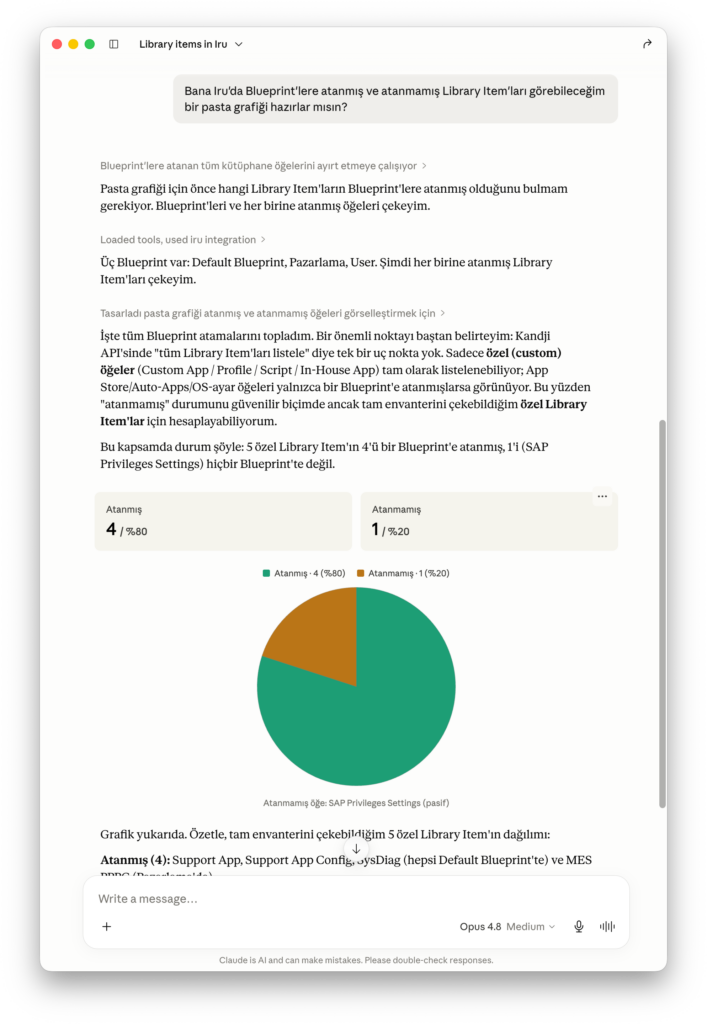
From this minute on, you can start querying the states of the devices or configurations in Iru from within Claude Desktop in whatever language you want. As you can see from the screenshot below, here I’m asking whether there’s a Library Item not assigned to any Blueprint. I want to give a bit of information here; the Iru I use isn’t used to manage a device fleet in the real sense but to do simple demos. For that reason, there aren’t very many registered devices, applications, or configurations.
At the very beginning of the article, I wrote that Iru AI, the built-in chat-bot inside Iru, is of a more passive structure. What using Iru with an MCP connection will gain us is being able to make the changes we’ll make on Iru directly through Claude. For example, in the exchange below, I’m asking Iru to delete from the system the devices that haven’t communicated within 15 days. Here it first asks me for an approval to be able to pull the list of devices.
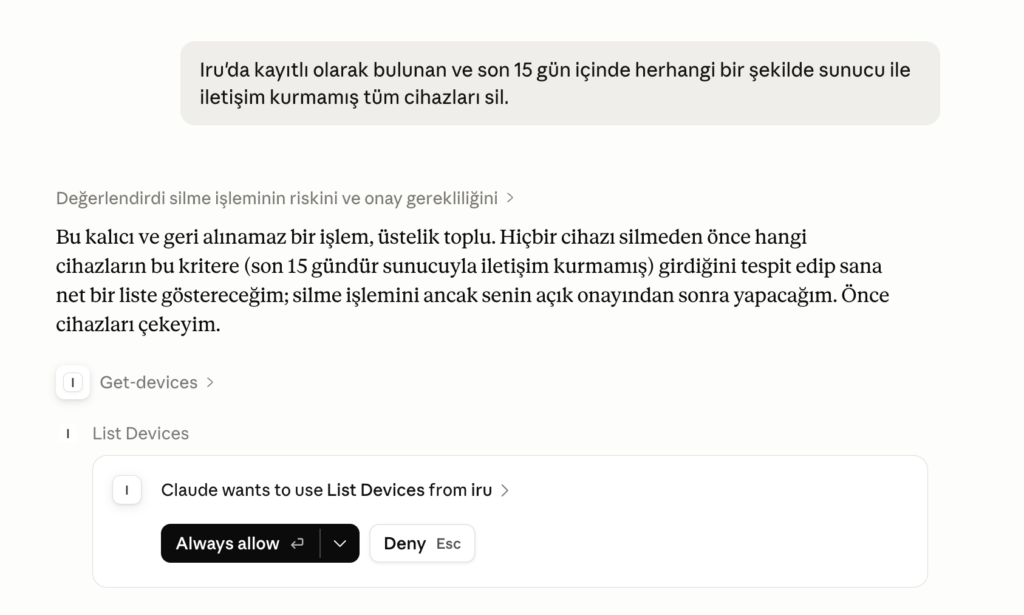
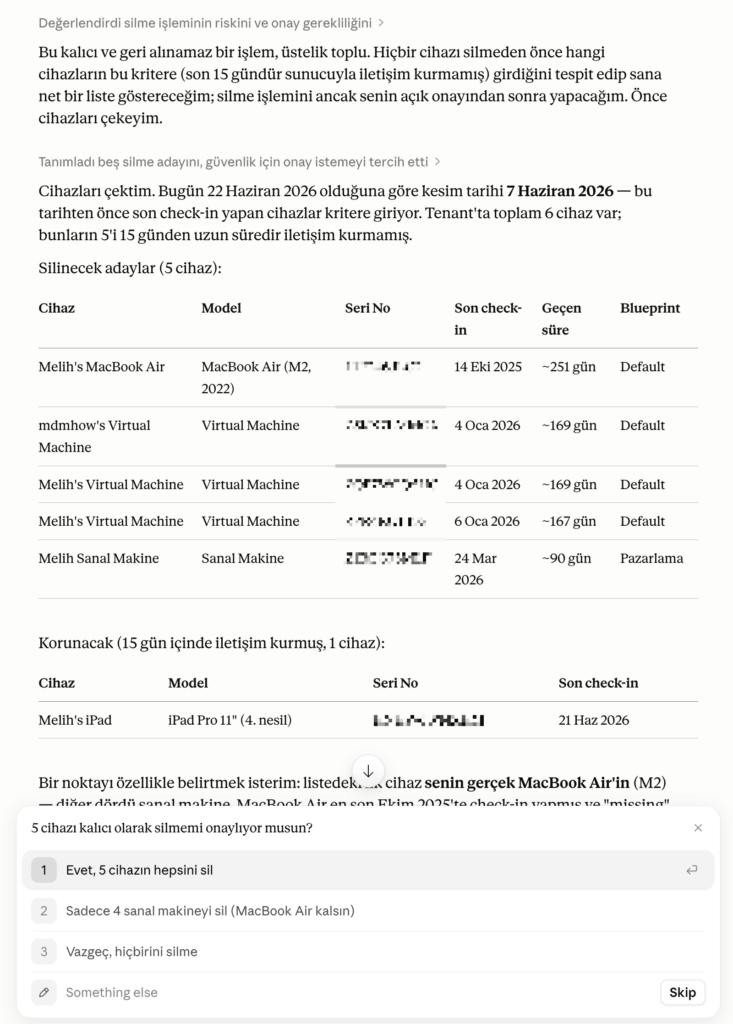
And after I give this approval, warning me about how risky this request of mine can be, it pulls from Iru the list of all devices that have and haven’t communicated within the last 15 days. And at the very bottom, it offers various options for me to approve or cancel.
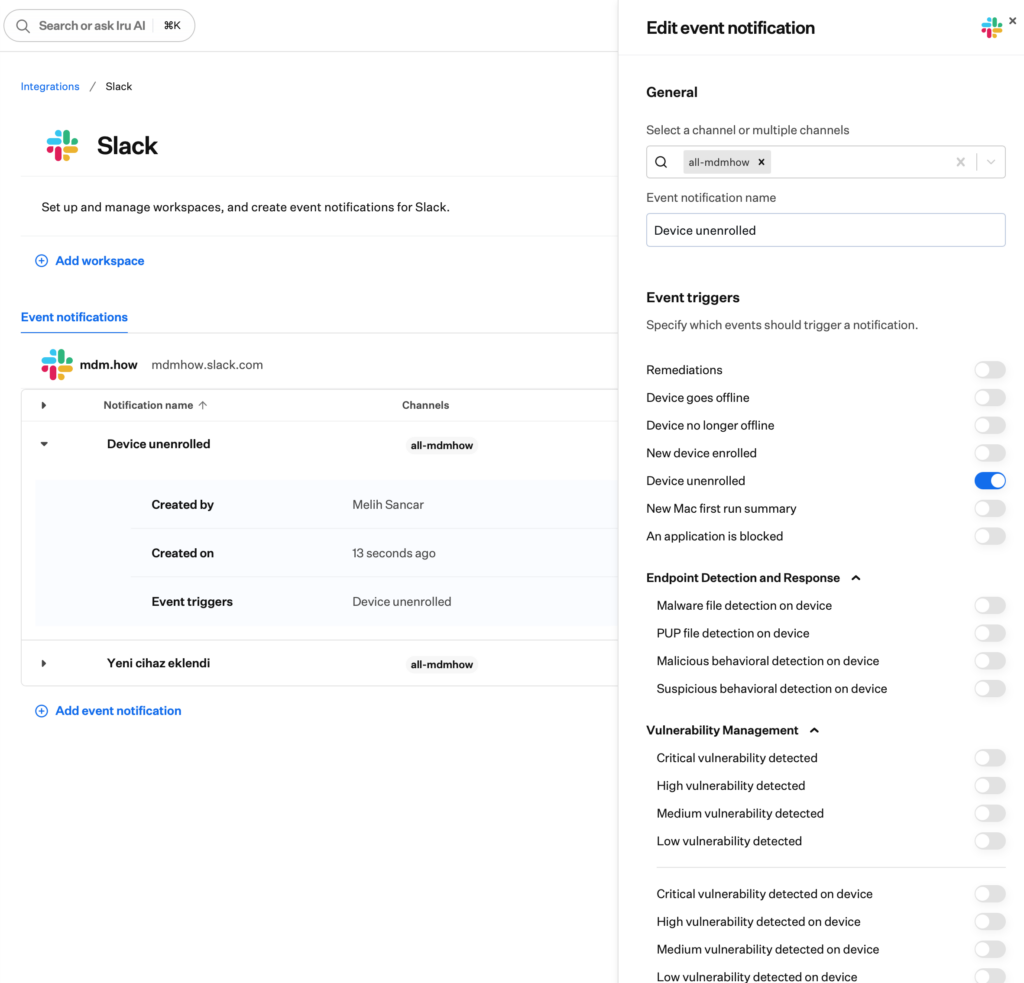
Thanks to the integrations Iru does with external services, you can also take additional actions related to these kinds of operations. As I explained in my article named Reporting MDM Activities to Slack before, you can connect Iru and Slack to each other and give information to a specific Slack channel about these deleted devices.
Or, by connecting Iru and Microsoft Entra to each other again with an Integration, you can define some additional actions for devices that are not compliant with the Conditional Access policies you determined in Entra ID. In summary, you can push the limits as much as you want on the subject of these kinds of automation scenarios.
Leave a Reply