

Managing devices with an MDM solution is not just about determining the applications and policies to be distributed and sending them to devices. A significant part of device management consists of monitoring user activity and taking additional actions accordingly. If you are not spending time on the dashboard of your MDM solution 24/7, you should automate the process of staying informed about certain operations users perform on their devices.
You can accomplish this through various methods. For example, some MDM solutions can send email notifications to an Admin group when certain conditions are met. Or they can send notifications to Teams or Slack channels.
Today’s Guest: Kandji
We will cover how to send notifications about what is happening on users’ devices to one of your organization’s Slack channels using Kandji. For this, you need to be using Kandji as your MDM and have an active Slack channel. We may write separate articles in the coming days about how to set up similar automations with different MDM solutions.
Step by Step
1. After logging into your Kandji account, click on Integrations in the bottom-left corner.

2. Under the Communication heading, you will see the Slack option. Click the Add and Configure button.
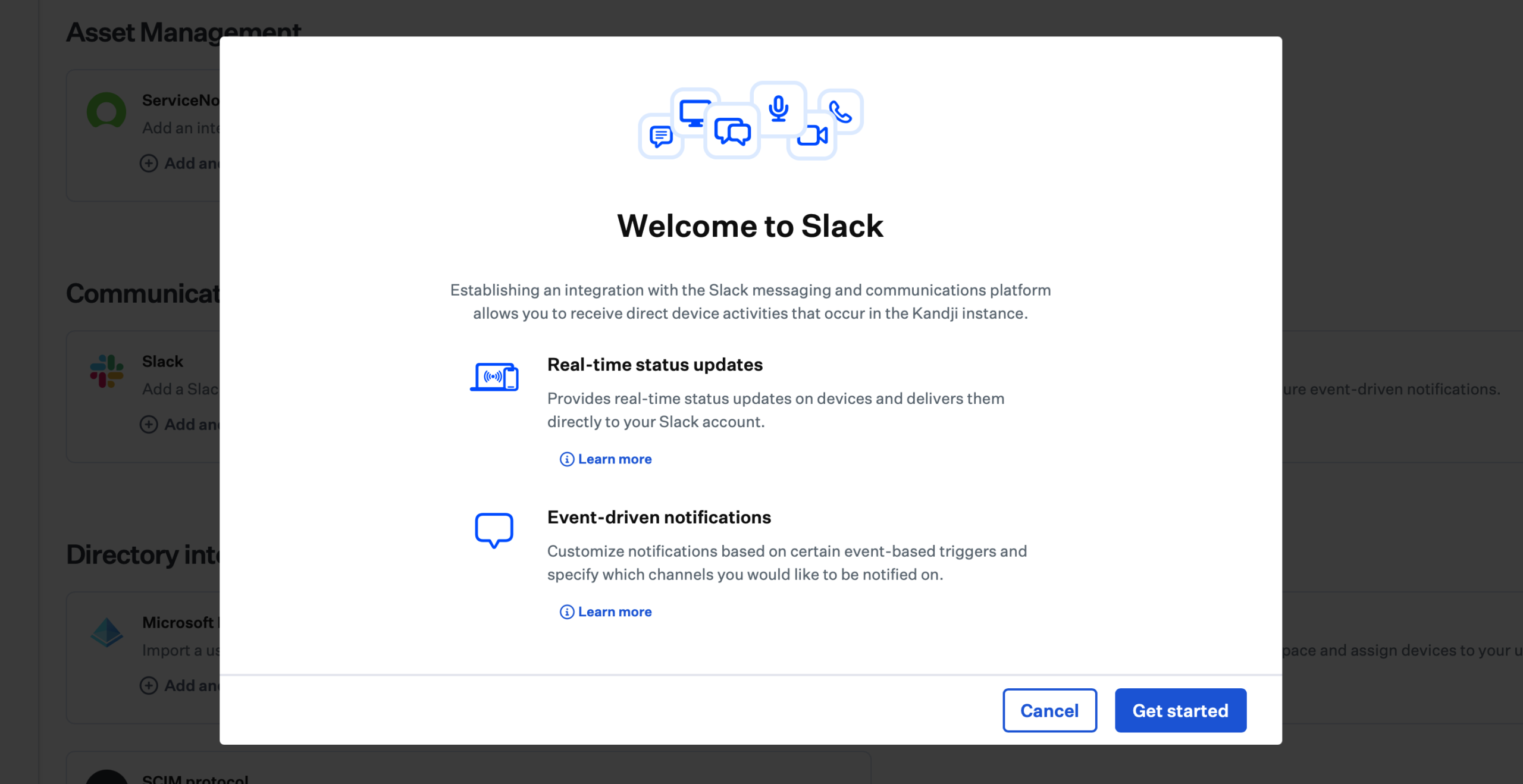
3. Proceed by clicking the Get Started button on the next screen.
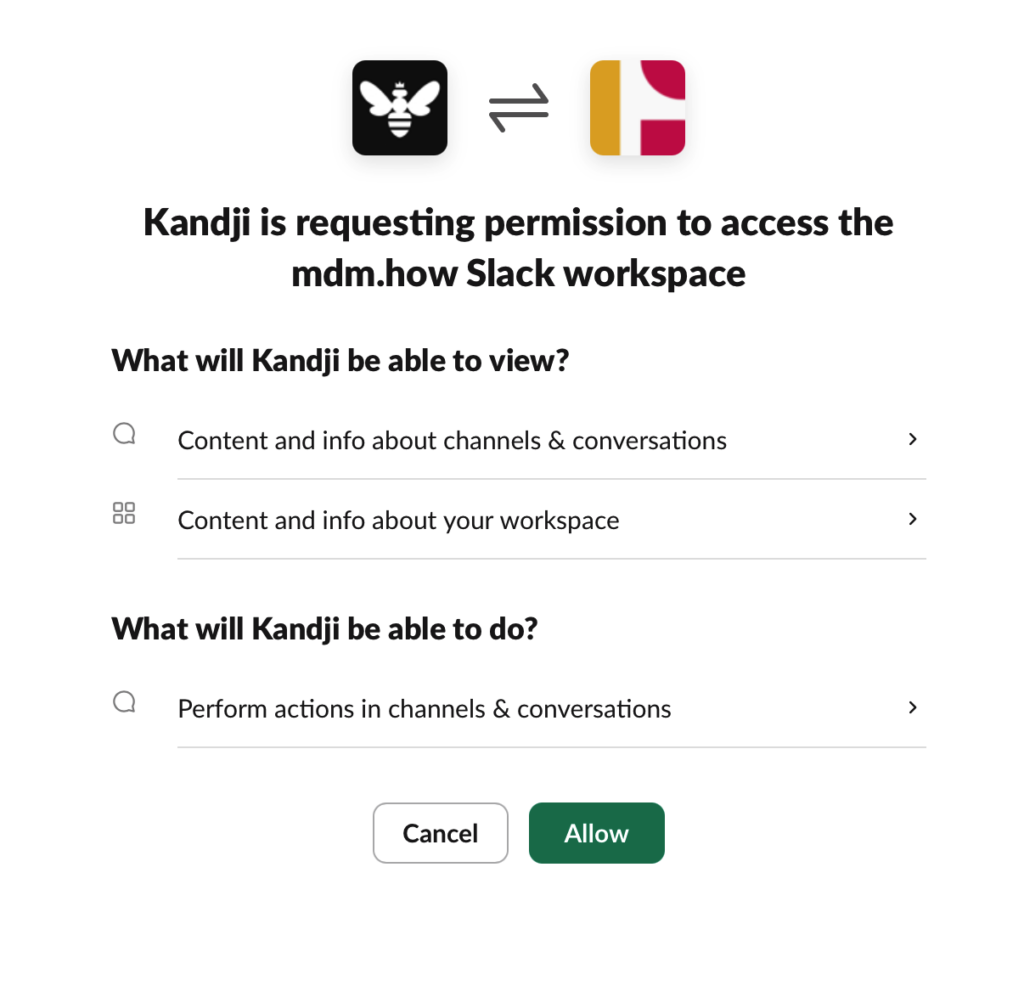
4. This will redirect you to your Slack account. You will need to log into your Slack account through your web browser and grant the Kandji application access permission. Grant this permission by clicking the Allow button.
5. Clicking the Allow button will bring you back to Kandji’s Integrations page. On this page, you first need to determine which events will trigger notifications. Click the Add Event Notification button for this.

6. From the panel that opens on the right side of the page, you should specify which situations should trigger notifications to which Slack channel. From the Select a Channel or Multiple Channels menu, you can see a list of your organization’s channels on Slack. It may make sense to send these types of notifications not to the entire company, but only to a channel where the MDM management team is present. In the Event Notification Name section, you can set a title for these notifications and select one of the event triggers from below. As a result, only notifications related to the features you selected will be sent. In the screenshot below, you can see a selection configured to send notifications to the Slack channel when a new device is added or an application is blocked.

7. Once you make your selections and press the Save button at the bottom of the list (the button is not visible in the screenshot above), the notification mechanism will start working. For example, when you block access to an application with Kandji, the end user receives a notification on their computer that the application they tried to open has been blocked. At the same time, members of the Slack channel can also see this event on Slack.
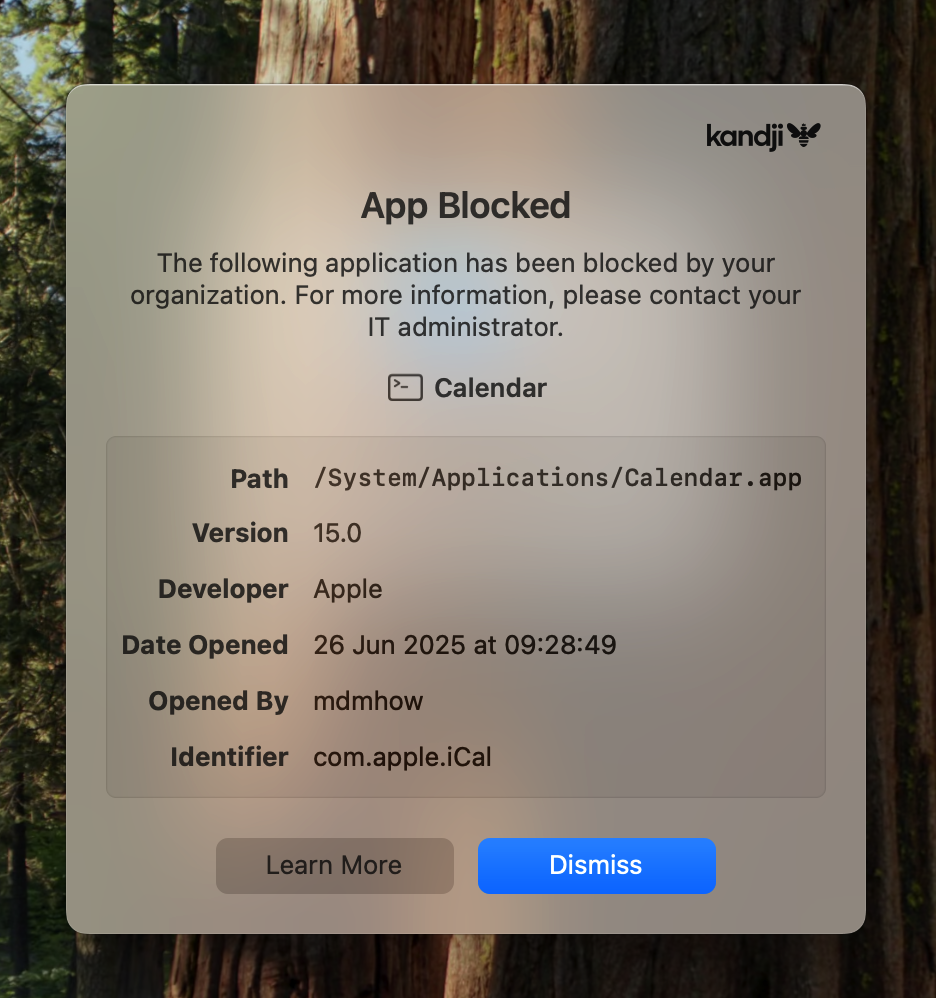

Photo by Mariia Shalabaieva on Unsplash
Leave a Reply