

Had you heard that Apple has a subsidiary named Claris? The Pages, Keynote, and Numbers applications that now come free inside computers as Apple’s office suite used to be released under the name ClarisWorks. Going even further back, we could reach all the way to MacWrite and MacPaint, but our subject isn’t Apple’s history.

Still, I’m adding here the dog Clarus icon designed by Susan Kare, which became popular again with macOS 27 / iOS 27.
Claris is also the publisher of FileMaker. FileMaker has long been used to develop corporate applications as a low-code application development and database solution.
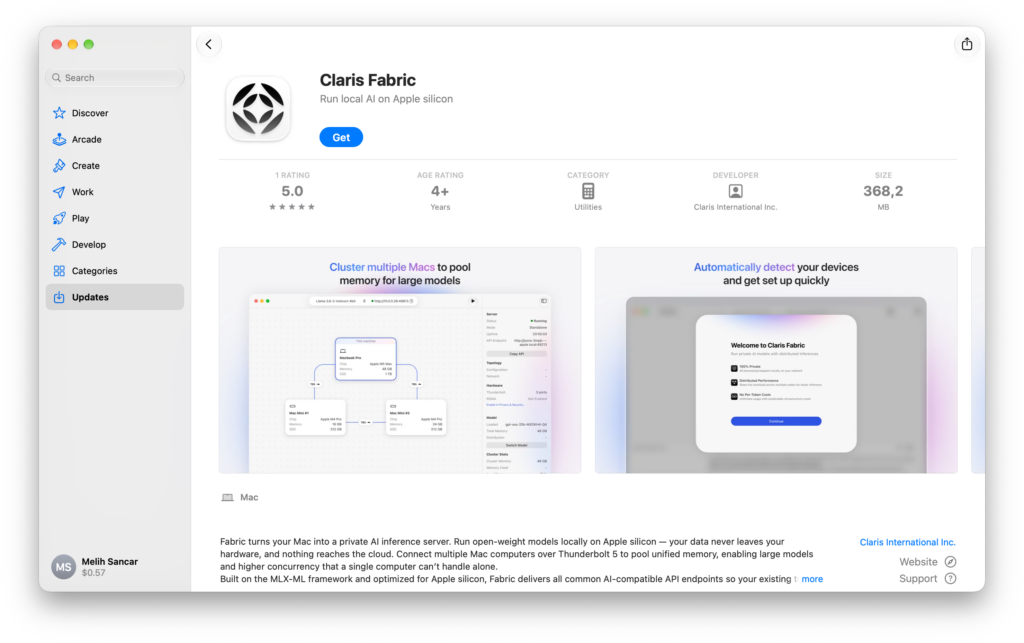
Claris recently announced that it developed a product named Fabric. Fabric enables you to run various LLM models, like LM Studio, locally on your own computer or on a cluster that your computer is part of.

Fabric is currently in its Alpha version. The version number is 0.41.0. Therefore, until it becomes a final product, the name Fabric may also change. The application isn’t publicly available. You create an access request from the address https://content.claris.com/local-ai-server-get-started, then if it’s approved, a download link comes. You may not be able to download directly with the download link that comes. Because the application is currently only available in the US App Store. If you have an American Apple account, you can download it by switching your account defined in the App Store with that one.
Prerequisites
- A Mac with a minimum M1 chip and macOS 27 Golden Gate installed
- A minimum of 16 GB RAM. And to be able to run large-parameter models of 70B and above, a cluster with 64 GB or more than one node is needed.
- Between 20-80 GB of disk capacity depending on the model you’ll run
- If you’re going to create a cluster over RDMA, each computer needs to have a Thunderbolt 5 port. And the Thunderbolt 5-supported models are these:
- Mac mini (M4 Pro)
- MacBook Pro 14 (M4 Pro, M4 Max, M5 Pro, M5 Max)
- MacBook Pro 16 (M4 Pro, M4 Max, M5 Pro, M5 Max)
- Mac Studio (M3 Ultra, M4 Max, M5 Max, M5 Ultra)
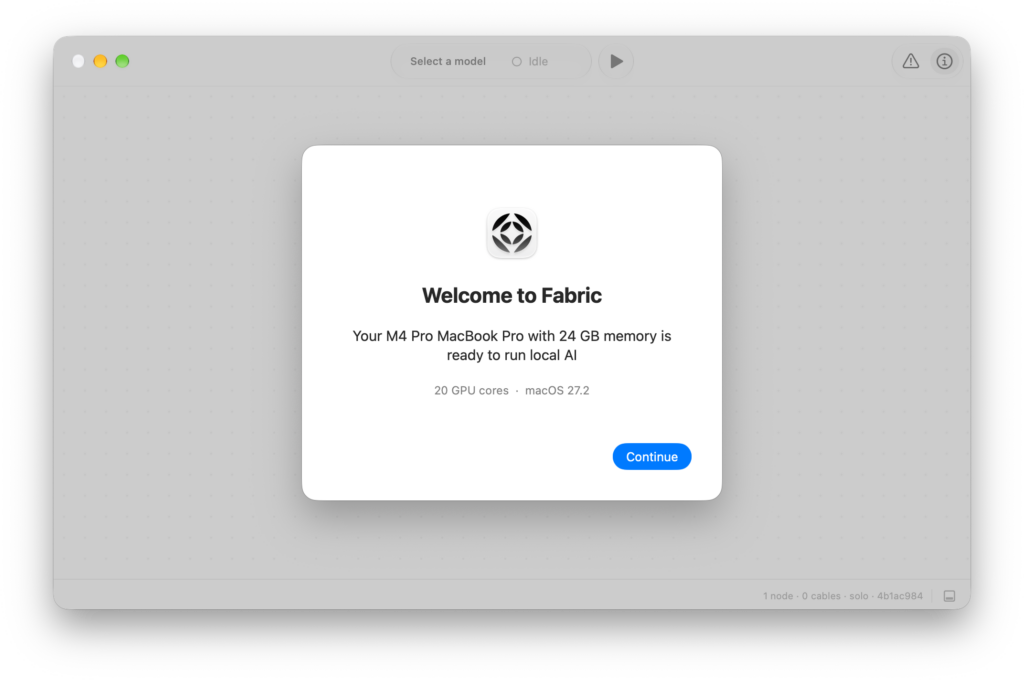
You might be saying, “Didn’t you just say M1 is enough? When did we move up to M5s, Ultras, Maxes?” These hardware pieces are needed to be able to obtain a RAM pool by running large-parameter models with more than one computer in cluster mode. You can do this operation by creating RDMA Networking via Thunderbolt 5 cables. M4 Pro and later Mac models have a Thunderbolt 5 port. But if you have, for example, only an M2-chip MacBook Air at hand, with it too you can download models to the extent its memory allows and run them locally in Standalone mode.
If you haven’t read it before, now is exactly the time to read the article titled On RDMA Networking that we published earlier on Settings Blog.
Usage
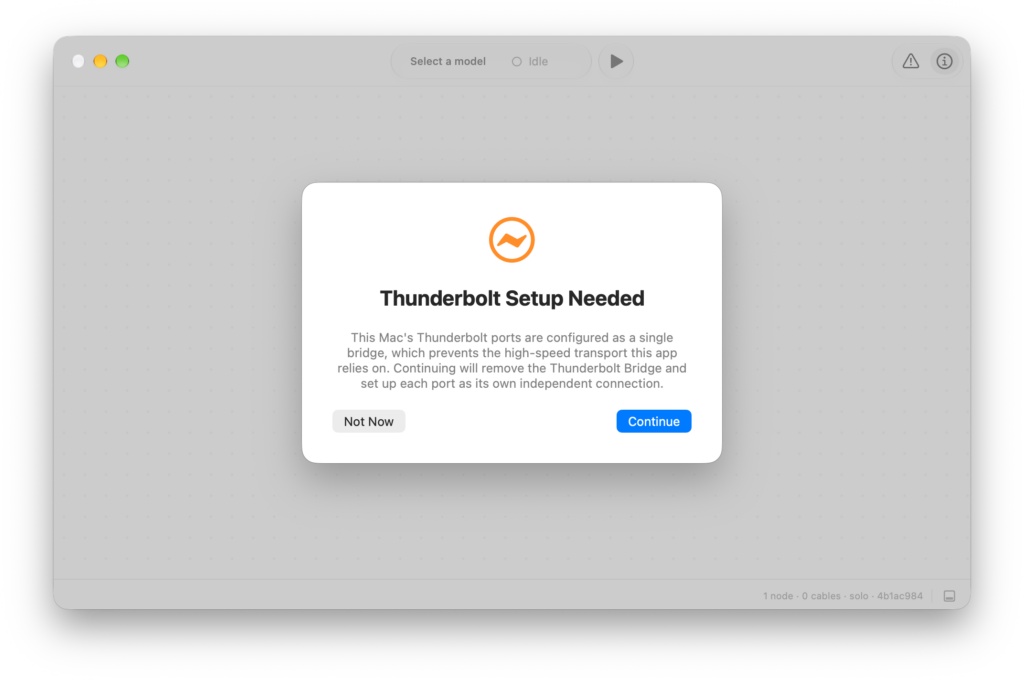
When you first open Fabric, the following warning related to Thunderbolt port configuration will come up. Fabric is an application that prefers to use each Thunderbolt port independently of each other in order to be able to offer the fastest possible connection. If you have a usage in bridge mode, you should click the Continue button to be able to convert this to independent ports.
After passing this step, you reach Fabric‘s main screen. In the screenshot below, you see the MacBook Pro I used while writing this article in Standalone mode. If we had set up a cluster, we would again be seeing the topology of this structure on this screen too. Fabric didn’t like my Thunderbolt cables because they’re Thunderbolt 4. For this reason, I’m limited to the 24 GB RAM on my computer.
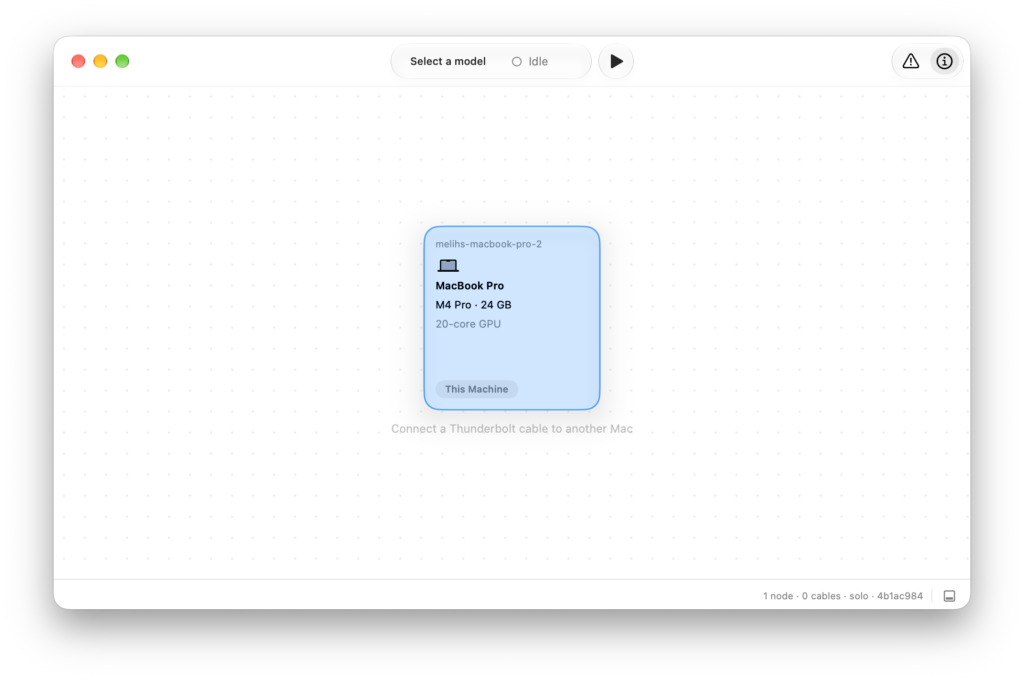
By default, no model comes installed. By clicking the Select a model link at the top part of the screen, you can download a model suitable for the work you’ll do and your resources via Hugging Face.
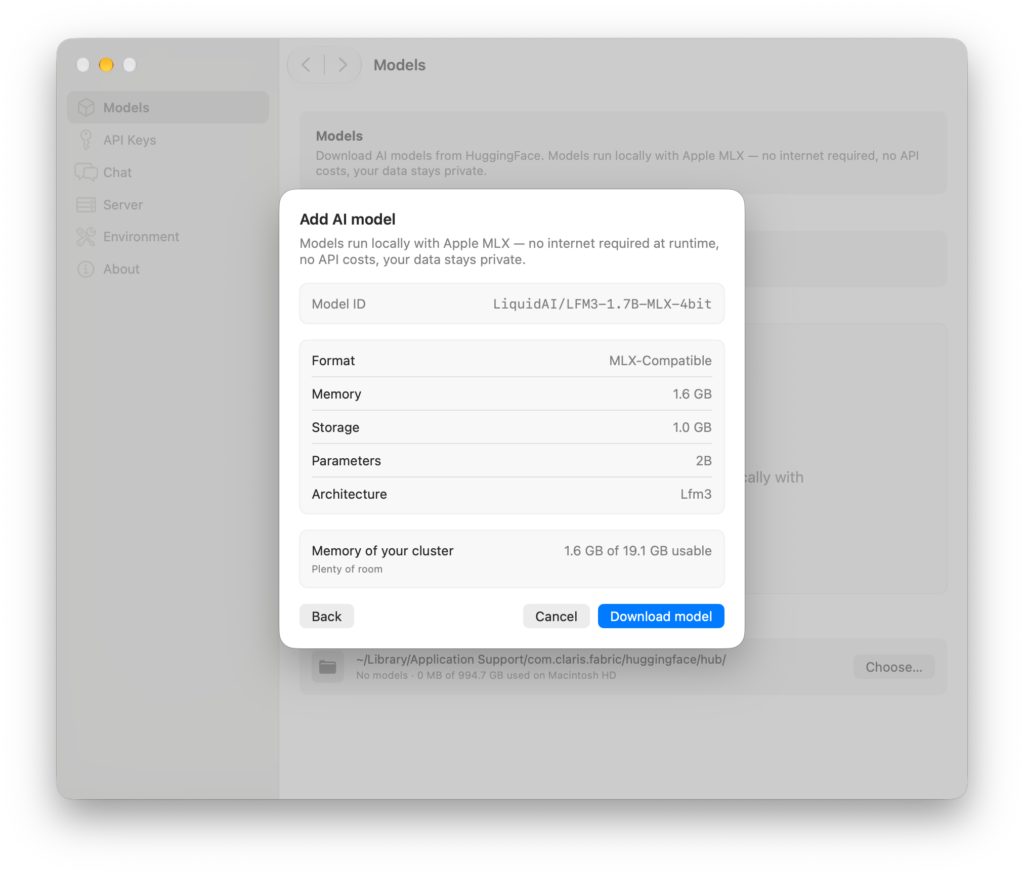
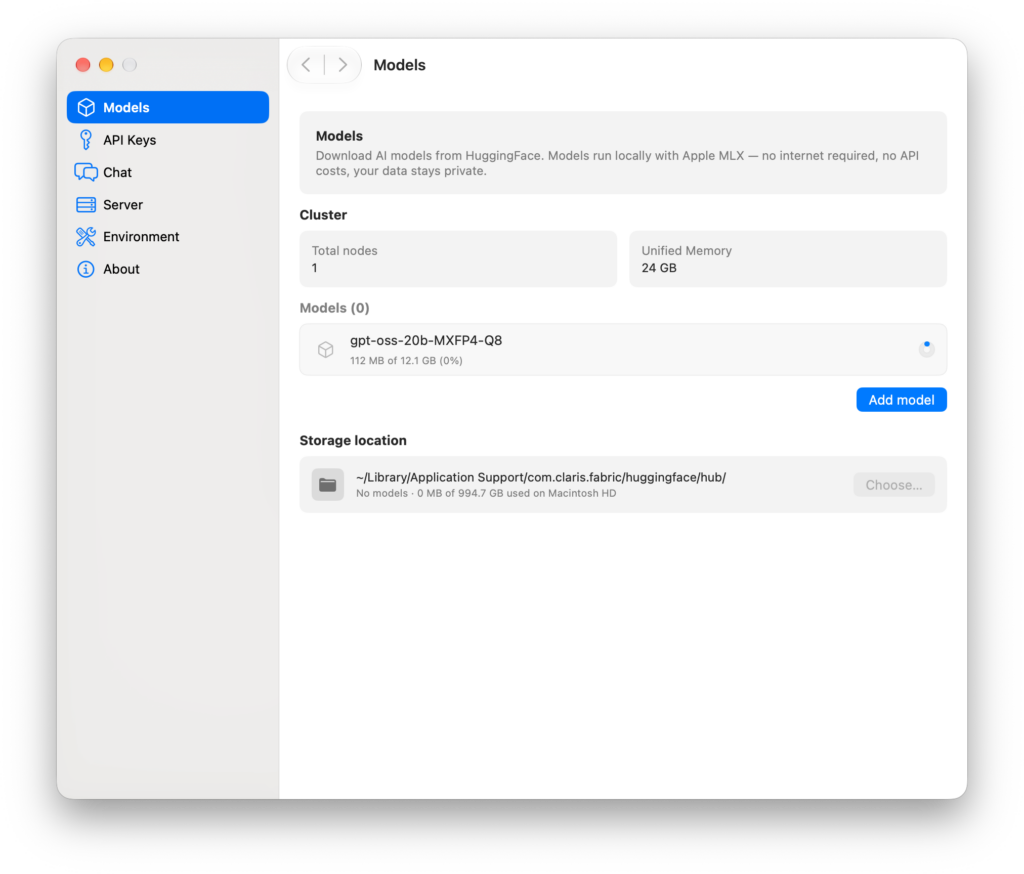
The models you download are kept at the address ~/Library/Application Support/com.claris.fabric. But by considering the disk capacity on your computer, you can change this area and, for example, point to an external storage unit as the address. If you’re going to do this, I recommend you do it before starting to download any model. Because the moment you change the address, the running model is closed and the com.claris.fabric folder is deleted.
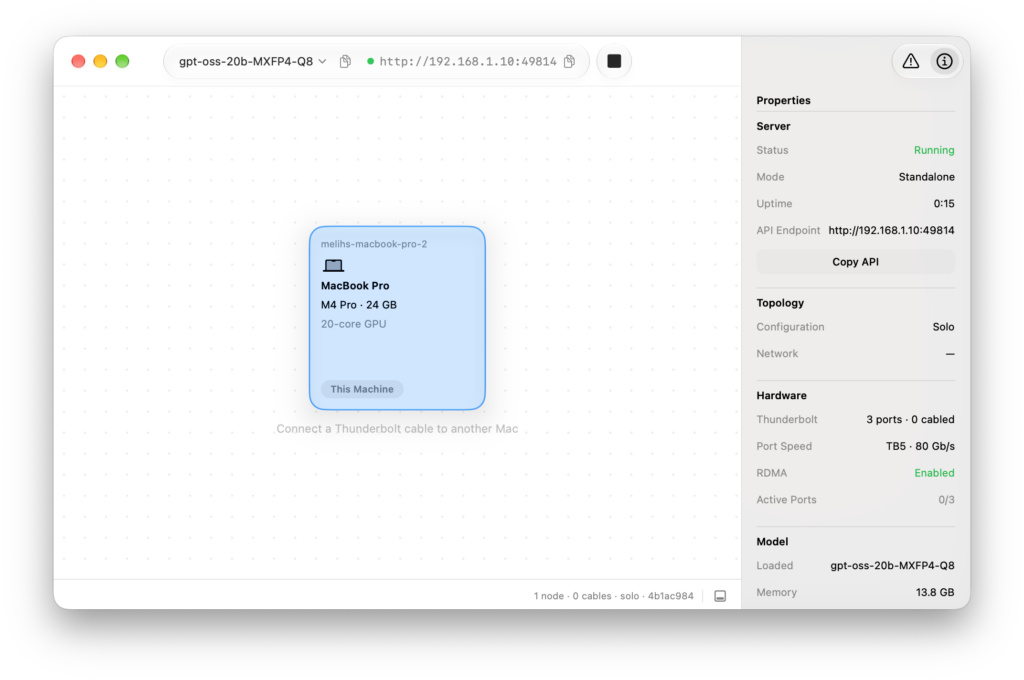
After downloading your model, you’re ready to use it. By clicking the ⌽ button located in the top right corner of the screen, you can obtain basic information such as which mode you’re running Fabric in (Standalone or Cluster), hardware details, the model you’re running, and the amount of memory allocated to it.
By clicking the new message icon located in the bottom right of the screen, you can start working. In line with your model’s capacity, you can have various jobs done and direct your questions.
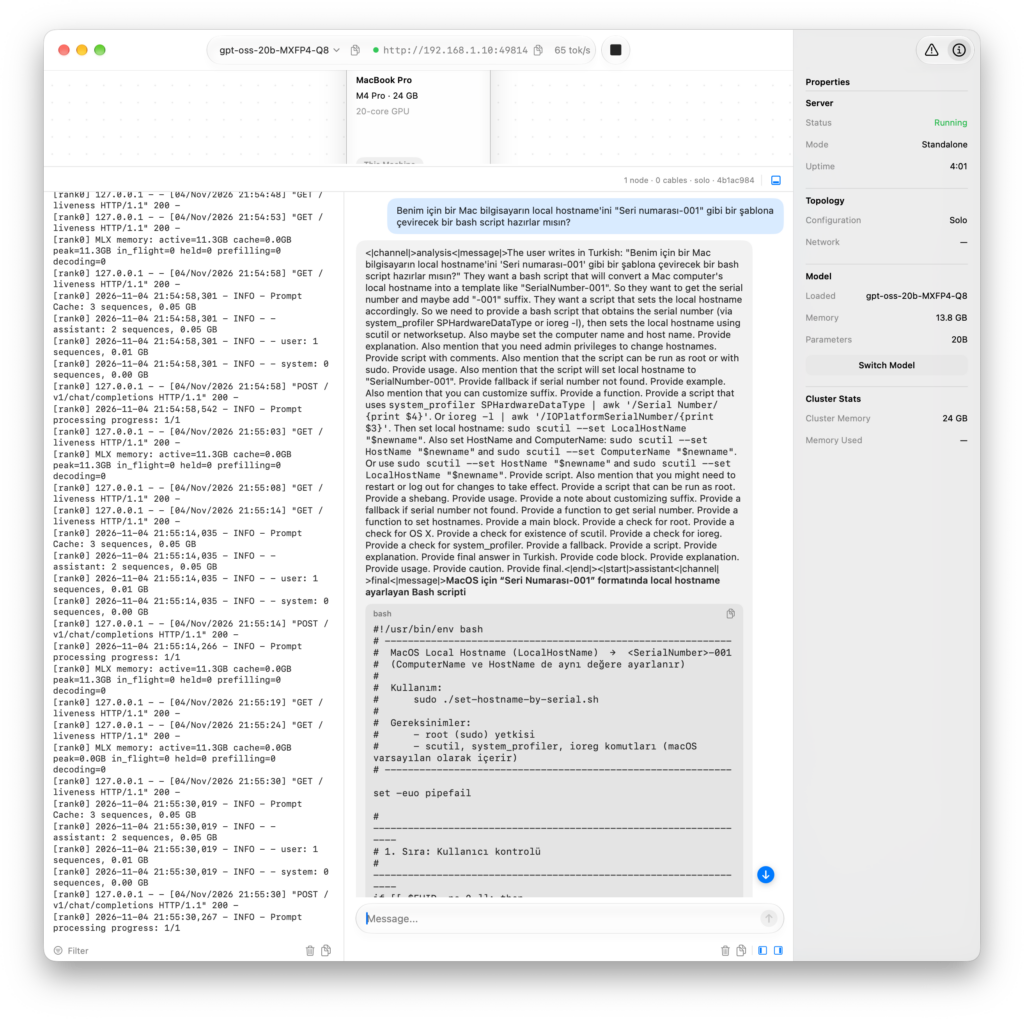
Photo by Nadir sYzYgY on Unsplash
Leave a Reply