


During Steve Jobs’ Keynote speech introducing macOS X Leopard in 2007, he asked a room of thousands of people “Who backs up their computer regularly?” and only 3–5 people raised their hands. Seeing this, Steve Jobs smiled and replied “That’s why we designed Time Machine”.
For those who don’t know, Time Machine is the name of a macOS feature developed for automatic and continuous backup of Macs. You activate it once and choose the disk you want to use for backup. And then you never have to look back. Until you lose a file.
If you are not using a wireless disk storage solution such as Airport Time Capsule for your Time Machine backups, an external disk must be connected to your computer via a physical port (USB, Thunderbolt or FireWire) to ensure regular backups.
So far so good. You continue to use your computer, you have a disk connected to your computer and all backups are regularly made to that disk.
The problem is, that most of us don’t use desktop computers anymore. We are constantly mobile with our MacBook Pro or other portable computers. We can only access a USB Time Machine backup disk in our office and back up our data when we are in the office and connect that device to our computer.
What happens when we step away from the office for a week? Isn’t it possible to include the content we created during this time in Time Machinebackups?
As I mentioned above, you set up Time Machine once and after that you forget it exists. This is also the case when you are out of the office and away from your backup disk. Because while you are away from your backup disk, your computer will keep Local Snapshots for Time Machine. This ‘virtual’ backup data is automatically transferred the first time you connect your computer to your Time Machine backup disk. If the time you are away from your backup disk exceeds 10 days, you will start receiving “No backup for 10 days” notifications.
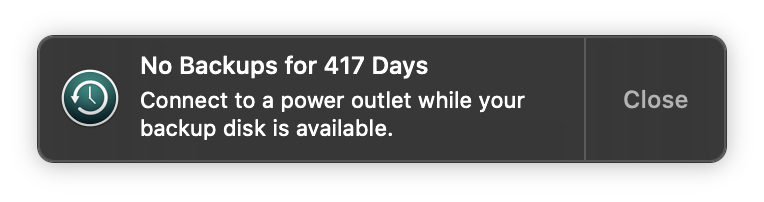
What does it mean?
The downside of Local Snapshots is that they consume disk space on your Mac. Time Machine Local Snapshot data naturally takes up space on your computer’s hard drive. When you physically connect your computer to your backup disk, all Local Snapshots are transferred to your main backup disk and deleted from your computer’s hard drive. If you start receiving notifications like “no backup for 10 days”, you should know that your oldest Local Snapshot backups are being deleted. Apple says that “Local Snapshots are kept if there is enough space on the computer’s disk, and some backups may be deleted before their time if disk capacity is low.” But it doesn’t give us a specific amount in MB or GB.
If you think that Time Machine Local Snapshots are taking up too much space on your computer’s hard drive, you can get rid of them with a simple Terminal command. Remember, though, that deleting Local Snapshots also deletes backups of content you created while you were away from your backup disk.
To get a list of local snapshots
If you want to see a list of Local Snapshot items, you can type the following command in Terminal:
tmutil listlocalsnapshots /
As a result, the entire list of Local Snapshots is shown with date and time information.

To find out which disk local snapshots are stored on
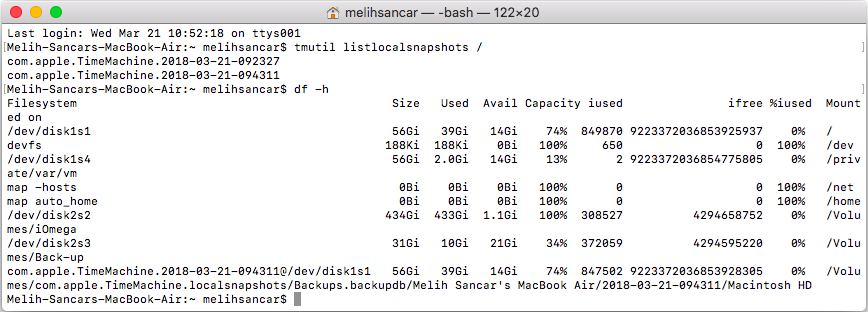
The / at the end of the little code you wrote above allows you to list the Local Snapshots in the computer’s home directory. To find out which disk has the Local Snapshots among all the disks connected to your computer, you should use the following command in Terminal:
df -h
In the screenshot below, the Local Snapshot on my computer is located in my root directory, which appears as disk1s1.
To delete local snapshots
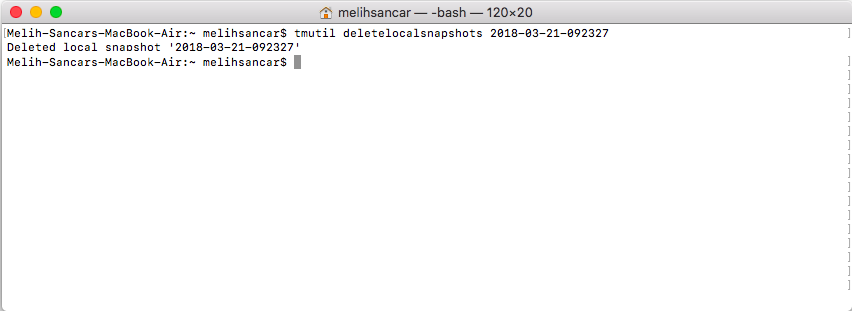
To delete Local Snapshots, you need to open the Terminal application (Macintosh HD/Applications/Utilities/Terminal.app) and type the following command:
tmutil deletelocalsnapshots <date>
Where <date> is written in the code, you need to enter the exact date of the Local Snapshot you want to delete. You can get this information from the output of the tmutil listlocalsnapshots command that you previously used to list Local Snapshots. You can see the screenshot below for an example.
To access additional codes
Finally, if you want to see a list of things you can do with the Time Machine Utility via Terminal, you can access the codes that can be used with the Time Machine Utility by simply typing tmutil on the Terminal screen.

Leave a Reply