

Are you stubborn enough to still keep using a Nokia 3310? If not, you are probably using an iPhone or an Android-based smartphone.
If you own any smartphone, you know that these devices do many things through applications. If you use a computer, you may be doing much of your work with a modern web browser. But on mobile devices, user habits are a little different from computers. Smartphone users tend to use applications designed for a particular task rather than handling all their work through web browsers like Safari. There is even a saying that has become a cultural phenomenon for this: There’s an app for that.
When you download an application to your phone — let’s say it’s a photo-taking application — the first time you open it after downloading, the application asks you for certain permissions. Even if the application is a photo-taking app, it does not have permission to access the phone’s camera hardware. And the first time you open the application, a warning like “XYZ application wants to access your Camera” appears.

When you download a navigation application like TomTom, the application does not arrive with permissions to access location services, the map, etc. already granted. First the application is installed, then the user grants permission to whichever services they want to allow. (with this last sentence, I think we lost the Android users at this point in the article)
For instance, if an application that holds backgrounds and wallpapers for the phone wants to access my contact list, I sense malicious intent from this and of course I do not grant that permission.
On this subject, you can watch the privacy-related part of the interview Steve Jobs did with Walt Mossberg and Kara Swisher at the All Things Digital conference in 2010.
I think everyone who is a personal smartphone user already knows what I have explained up to this point in the article. The subject is also related to Apple device management. And that is precisely the subject of this article.
A Corporate Look at User Permissions
When you want to send an application to the devices you manage with the MDM solution you use, you can purchase the application within the scope of VPP or install and distribute it as PKG / APP / DMG. The application you send is installed on the user’s computer, and the user can open the application whenever they want by double-clicking on it. And you can consider yourself, as an MDM Admin, to have fulfilled your duty. However, the application you sent will start asking the user for permissions related to the various services and folders it wants to access.
I am sure that everyone reading this article has experienced the following situation at least once. You download the Zoom application to your computer. And you join a meeting. When it’s your turn to present, that’s when you realize that Zoom does not have permission to screen share. To grant this permission, you have to close and reopen Zoom while the meeting continues. Especially during the COVID pandemic, we all experienced this or similar situations.
To prevent the application you distribute from asking the user for various permissions at relevant or irrelevant times, you should make the application ready for this. We call the configuration we provide for these permissions via MDM PPPC, that is, Privacy Preferences Policy Control. Actually, when distributing an application, you should distribute these three components together:
• The application’s settings: You can send the application with its settings preconfigured. These settings can have a .plist or .mobileconfig extension.
• The application itself: It can be a VPP application or PKG / DMG / APP.
• The application’s permissions: You configure these permissions in advance and send them as a configuration profile.
What Is Needed to Grant the Permissions?
To grant the permissions that the applications you will distribute with your MDM solution will request, you need two pieces of information: the application’s Bundle ID and Code Requirement information. I previously wrote about how you can reach this information for any application in the article titled How to Learn an Application’s Bundle ID.
Let me explain it very briefly: you can use the codesign -dv and codesign -dr - commands via Terminal. Or you can access the Bundle ID and Code Requirement information using HCS‘s Show Me Your ID application.
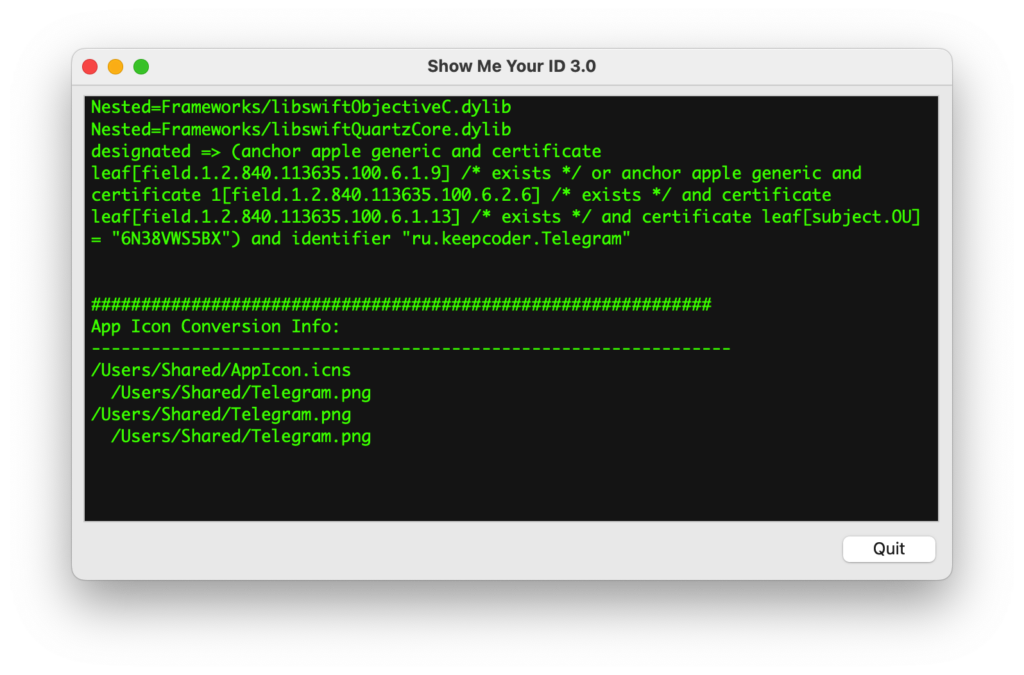
Let’s Create Our First PPPC Configuration
You can see the PPPC configuration options according to the MDM solution you use below.
Jamf Pro:
After issuing the Computers > Configuration Profiles > + New > Privacy Preferences Policy Control > Configure command, on the screen that opens, after entering the Identifier and Code Requirement information, you can grant permission to the services you want as Allow or Deny under the App or Service section at the bottom.

Kandji:
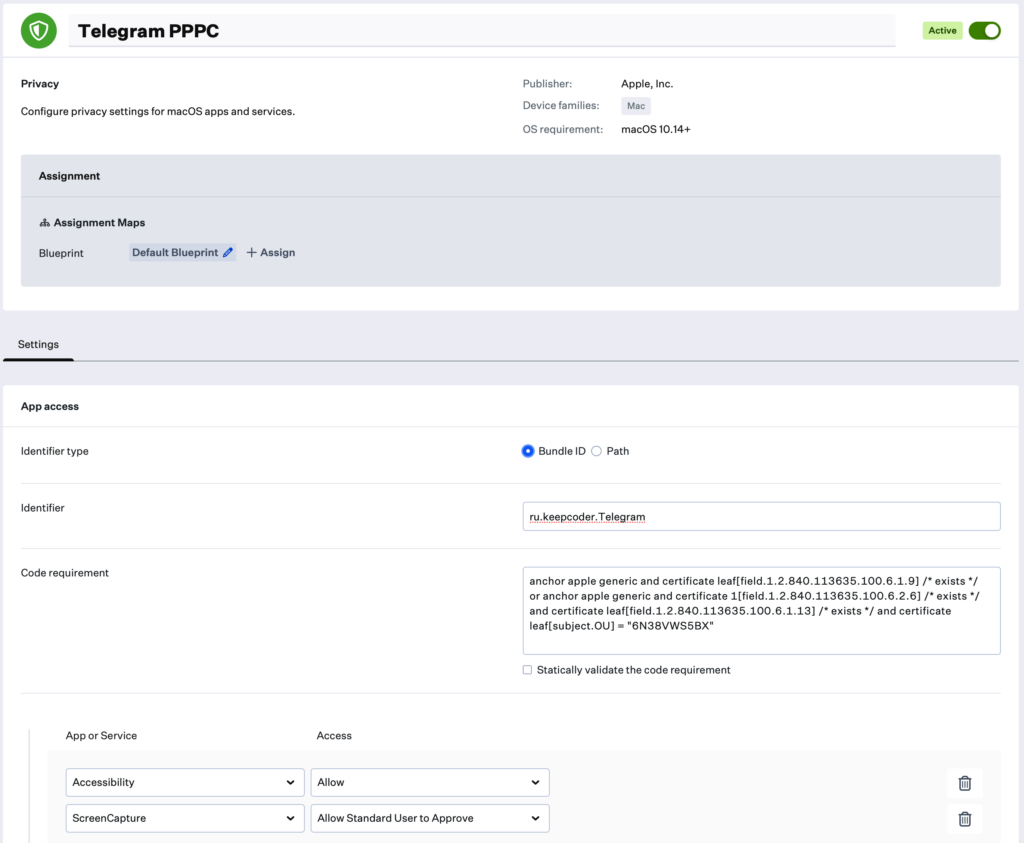
After issuing the Library > + Add Library Item > Privacy > Add and Configure command, on the screen that opens, first determine which Blueprint you will assign it to, then you can enter the Identifier and Code Requirement information. At the bottom of the same screen, just like in Jamf Pro, you can determine your permission preferences for individual services from the App or Service section. Unlike Jamf, Kandji accepts not only the Bundle ID but also, as an alternative, the application’s Path. If you check the Path option in the Identifier Type section, you can write the application’s location on the computer in the Identifier section. Like /Applications/Telegram.app…
Microsoft Intune:
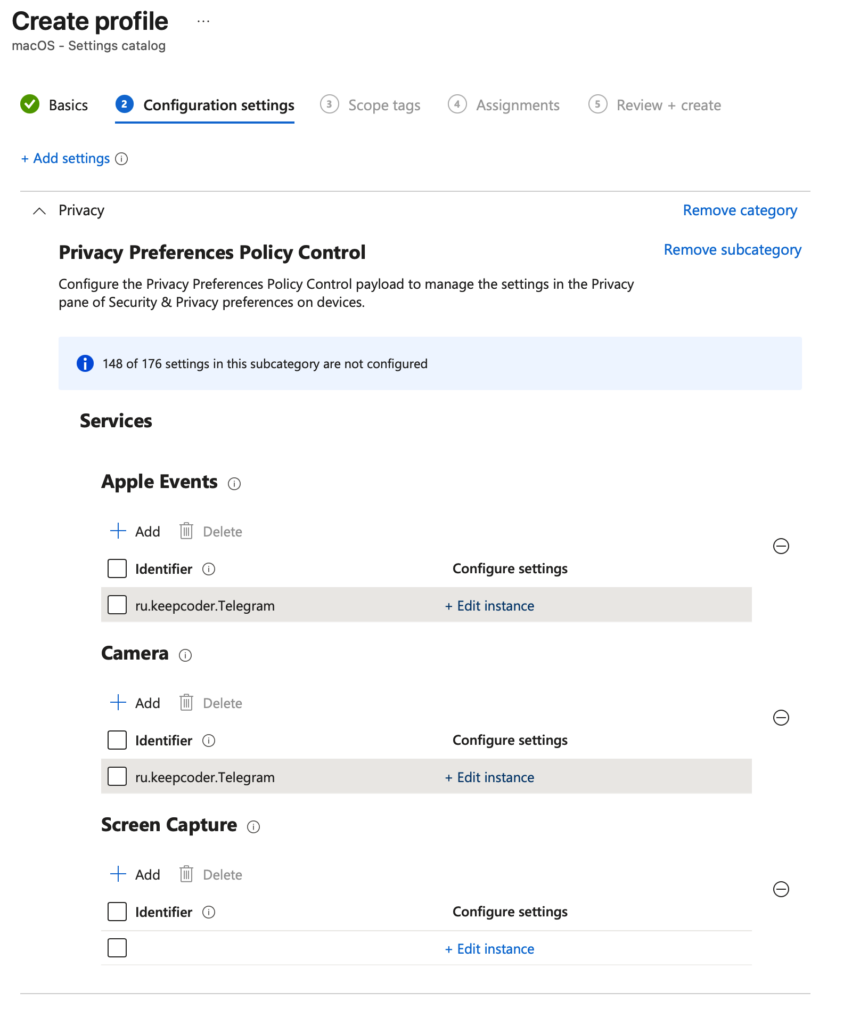
After issuing the Devices > Manage Devices > Configuration > + Create > New Policy > Platform: macOS > Profile Type: Settings Catalog > Create command, on the screen that opens, give your policy a name, issue the + Add Settings command, and from the Settings Picker screen you should select Privacy > Privacy Preferences Policy Control.
On the Settings Picker screen, all PPPC categories will appear. You should check whichever ones you want to grant permission for. Then you can close the Settings Picker screen by pressing the X button and, by clicking the Edit Instance button next to the service names that have appeared on the main screen, you can enter the Bundle ID and Code Requirement information.
Hexnode:
After issuing the Policies > New Policy > New Blank Policy > Select > macOS > Security > Privacy Preferences > Configure command, on the screen that opens, first grant the permissions and then you can enter the application name and its Bundle ID and Code Requirement information. On the screen where you will enter the application information, Hexnode also displays a list of the applications defined within it. This way, you do not need to manually enter the Bundle ID and Code Requirement information.

Filewave:
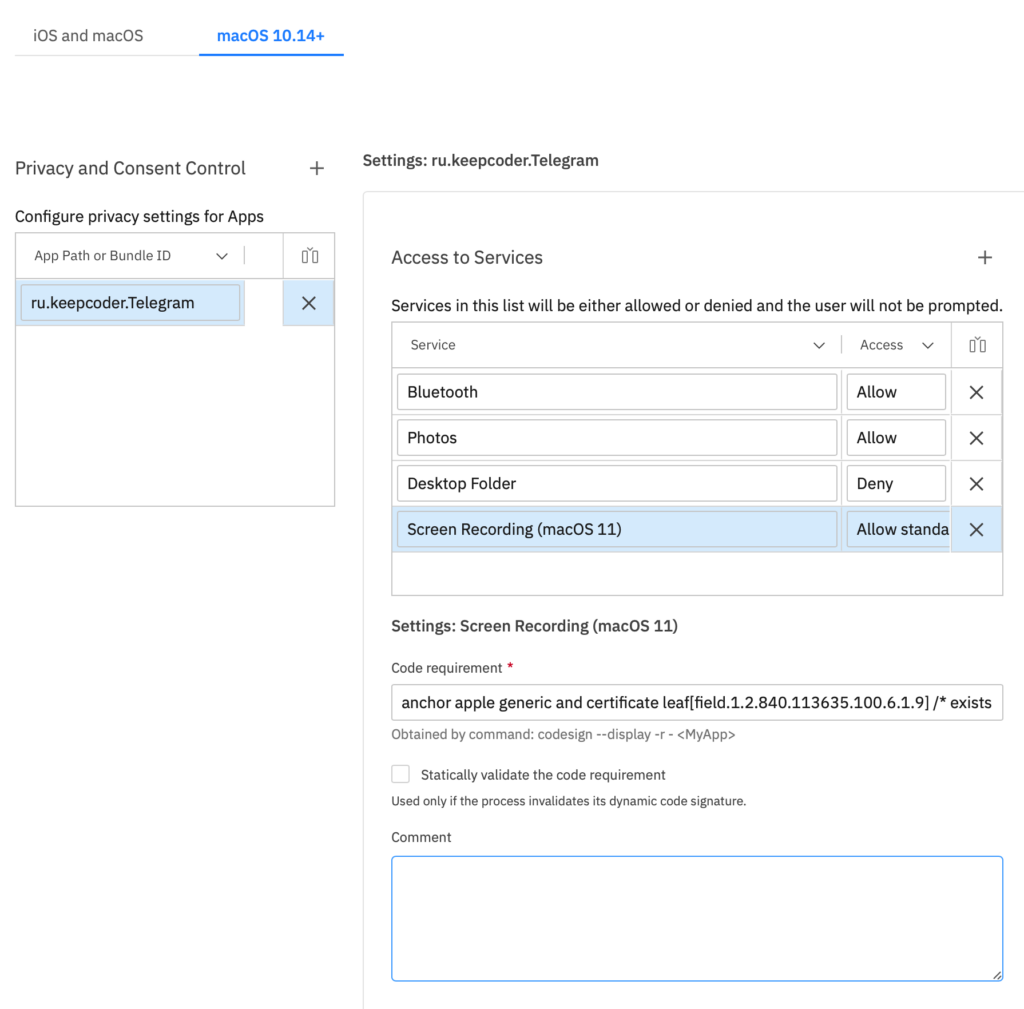
When you reach the Filesets > Create Configuration > Create Apple Profile > Security & Privacy > macOS 10.14+ section, when you enter the Bundle ID of the application whose permissions you want to manage in the Privacy and Consent Control section, a new field called Access to Services will appear on the right side. From this field, by clicking the Add Row button or the + symbol, you can select the services you want to grant permission to and create your preference. The Code Requirement information only becomes visible after the Bundle ID is entered and the Access to Services section begins to be filled in.
Isn’t There an Easier Way to Do This?
There is. Some MDM vendors develop additional software to support their main products. We can sometimes find these software in environments like GitHub, and sometimes on the App Store. There is a small application called PPPC Utility developed by Jamf. Without having to deal with obtaining Bundle ID and Code Requirement information one by one, you can create PPPC configurations with the ease of drag-and-drop.
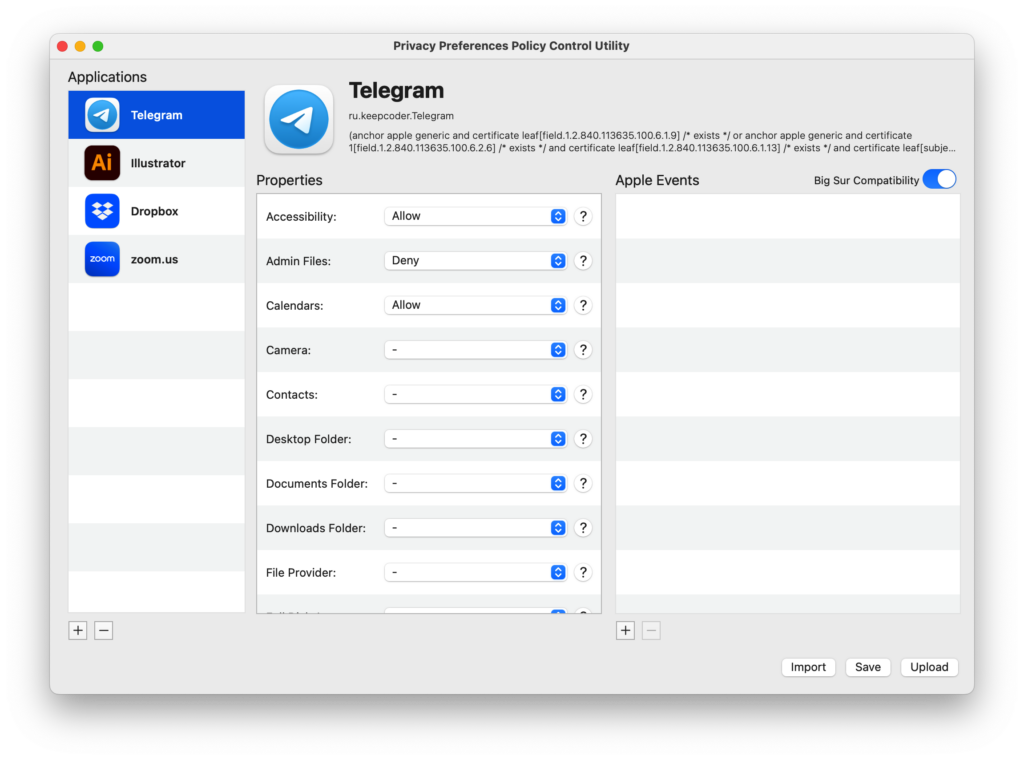
I can almost hear you saying “But in our company we use Workspace One, not Jamf.” No problem, you can still use PPPC Utility. If you look at the buttons in the bottom-right corner in the screenshot above, you can see the Save and Upload options. If you are a Jamf Pro user, you can directly upload the PPPC configuration you create here into Jamf Pro.
But let’s say you use Workspace One or Kandji. In that case, by clicking the Save button, you can save the configuration you created as a mobileconfig document and upload it to the MDM you use.
I want to give a small warning about PPPC Utility. Let’s say you created a configuration from within the application and added it directly to Jamf or, by saving it, to other MDMs. And you distributed it to your users. A change you make in PPPC Utility for an application’s permissions at later times does not change the configurations in Jamf or other MDMs. For this reason, after preparing it once at the start to cover all applications and sending it once, it would be more correct to make any subsequent change from within your MDM.
We Learned How to Grant Permission — So What Will We Allow, What Will We Block?
If the application you will distribute is one used in almost every company, like Zoom or Teams, your job is relatively easier. Because an average IT employee can also know what kind of permissions which areas of such an application should have. And they can make the PPPC configuration accordingly.
But if the application you will distribute with your MDM is a special application used by a very limited group of users, like Wolfram Mathematica for example, then you cannot know what kind of permissions that application might request. The best thing for this might be to manually install the application on the computer of a user from the business unit that will use it and observe what kind of permissions it requests in the user’s routine use.
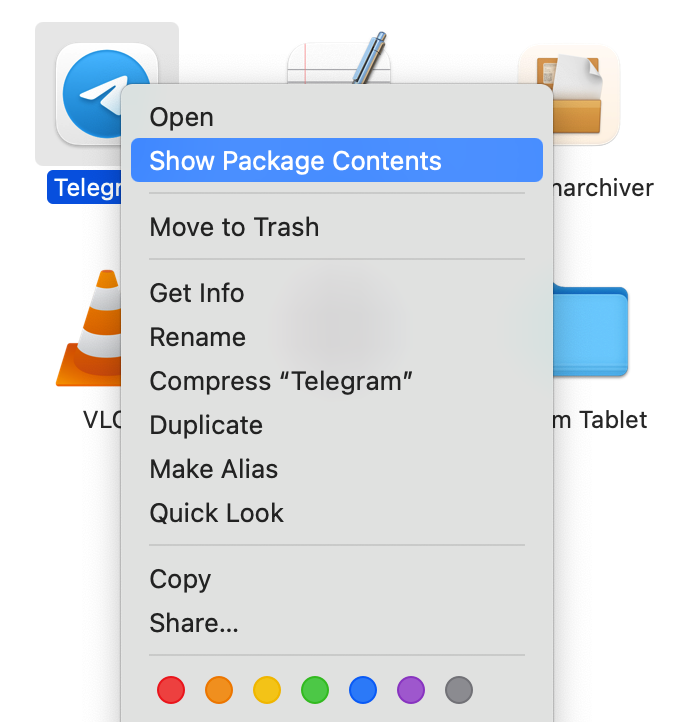
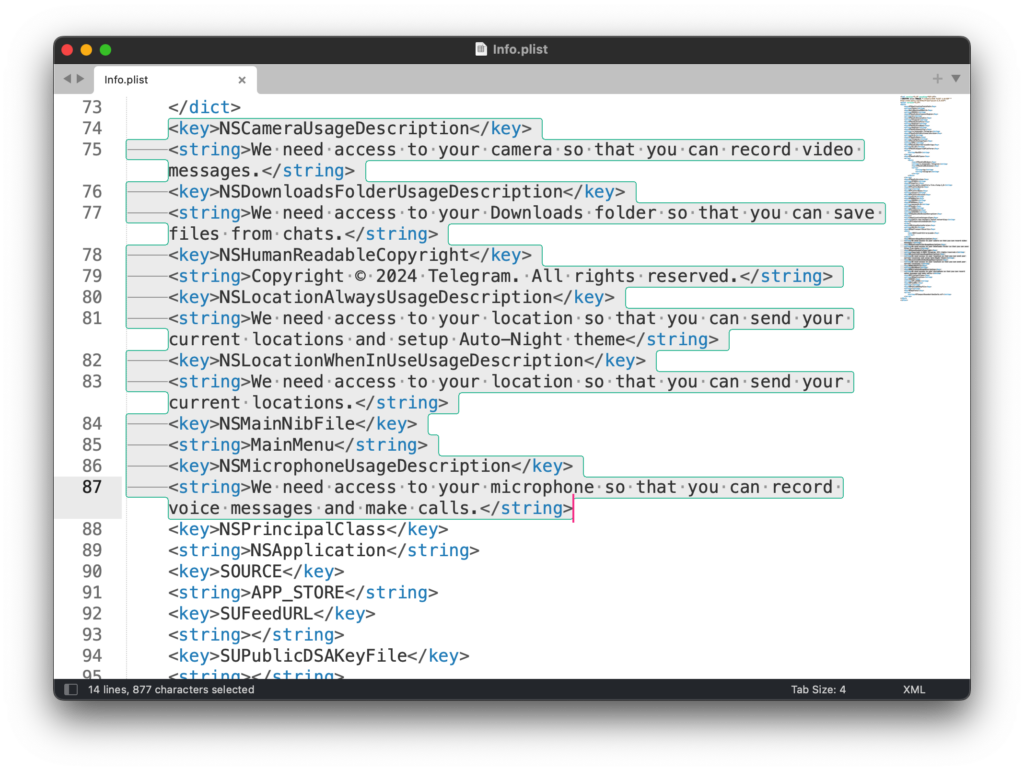
But you may not always be able to find the opportunity for this either. Therefore, as an alternative, you can start by granting the permissions listed in the Info.plist file located within the applications themselves. When you right-click on any Mac application, there is an option called Show Package Contents. When you select this option, a folder opens. There is usually a folder named Contents inside it. And inside that, you can see various files necessary for the application to run. Among these files is a file named Info.plist, and this file writes which permissions the application will basically request and why.
Above, I wrote which permissions it “basically” covers. Because the Info.plist file may not contain all the permissions an application might request in total. Additional permissions may be needed during the application’s use. Therefore, before having an end user use the application you will distribute for testing purposes and getting their opinions, you can grant the first group of permissions that can be granted by looking at the Info.plist file.
In the Info.plist file, key names beginning with NS generally indicate the permissions that will be requested. By the way, let me give an off-topic piece of additional information. The NS prefix comes from NeXTSTEP. That is, from the operating system developed by NeXT Computer, which Steve Jobs founded during the years he was not at Apple. The starting point of all the UNIX-based macOS and iOS systems we use today is NeXT.
Instead of dealing with issuing the Show Package Contents command one by one each time and extracting from the Info.plist file, you can also use this single-line Terminal command.
/usr/libexec/PlistBuddy -c "Print" /Applications/zoom.us.app/Contents/Info.plist | grep -i usageDon’t forget to change the name and Path of the application in the middle of the code, whichever application’s permissions you want to look at. As a result, you get a response like the one below.

Allow / Block / Let Standard Users Decide
When you start configuring PPPC permissions, you may see that some services have two options: Allow and Deny. Some have only Deny. And some have an option like Allow Standard User to Approve. The basic reason for this is KVKK or GDPR compliance.
As an MDM Admin, you cannot grant an application permission on matters that could violate the user’s privacy. For example, if you automatically turn on an application’s microphone permission, you can also start being able to listen to what is being said in the environment where that user is located. And as you can imagine, this kind of use cannot even approach Apple’s territorial waters.
If you want to configure the setting related to the microphone, the only thing you can do is issue the Deny command. In this case, if you set the Teams application’s microphone permission to Deny, for example, Teams cannot use the microphone. But if you do not make any special preference in the microphone permission, then Teams will ask the user about it every time microphone access is needed.
In some options, you may see an option like Allow Standard User to Approve. Instead of keeping that service closed directly with the Deny command, this means that Standard users can also grant permission to that service without needing to enter an Admin password. To see how this option behaves, you can check the Screen Capture permission. Bringing the Screen Capture option to the completely off position will make the user unable to share their screen in Teams or Zoom. For this reason, so that the application can request this permission when needed and Standard users can also grant this permission on a one-time basis, you can use the Allow Standard User to Approve option.
Cancel All Permissions Across the Board
If for any reason you want to cancel all the permissions granted to an application, you can use the TCC commands. By the way, TCC stands for Transparency, Consent and Control. And you may see it used in place of PPPC in some documentation. The name of the command set that allows you to perform operations on the TCC database via Terminal is tccutil. When I say perform operations — tccutil commands allow you not to grant permissions, but to delete granted permissions.
To cancel all permissions granted to any application, you can use the command below.
tccutil reset All [bundle_id]For example, to remove all permissions granted to the Telegram application, you can write Telegram’s Bundle ID.
tccutil reset All ru.keepcoder.TelegramIf you want to remove only a single permission instead of all granted permissions from an application, you should write the name of the service instead of the word All. Like this:
tccutil reset Microphone ru.keepcoder.TelegramIf you want to remove the permissions granted to the microphone not just for one application but for all applications, you can use the code below.
tccutil reset MicrophoneYou cannot know the names of all PPPC services by heart, of course. For this, you can use Apple’s Developer documentation. The full ordered list is available at this address.
Leave a Reply