
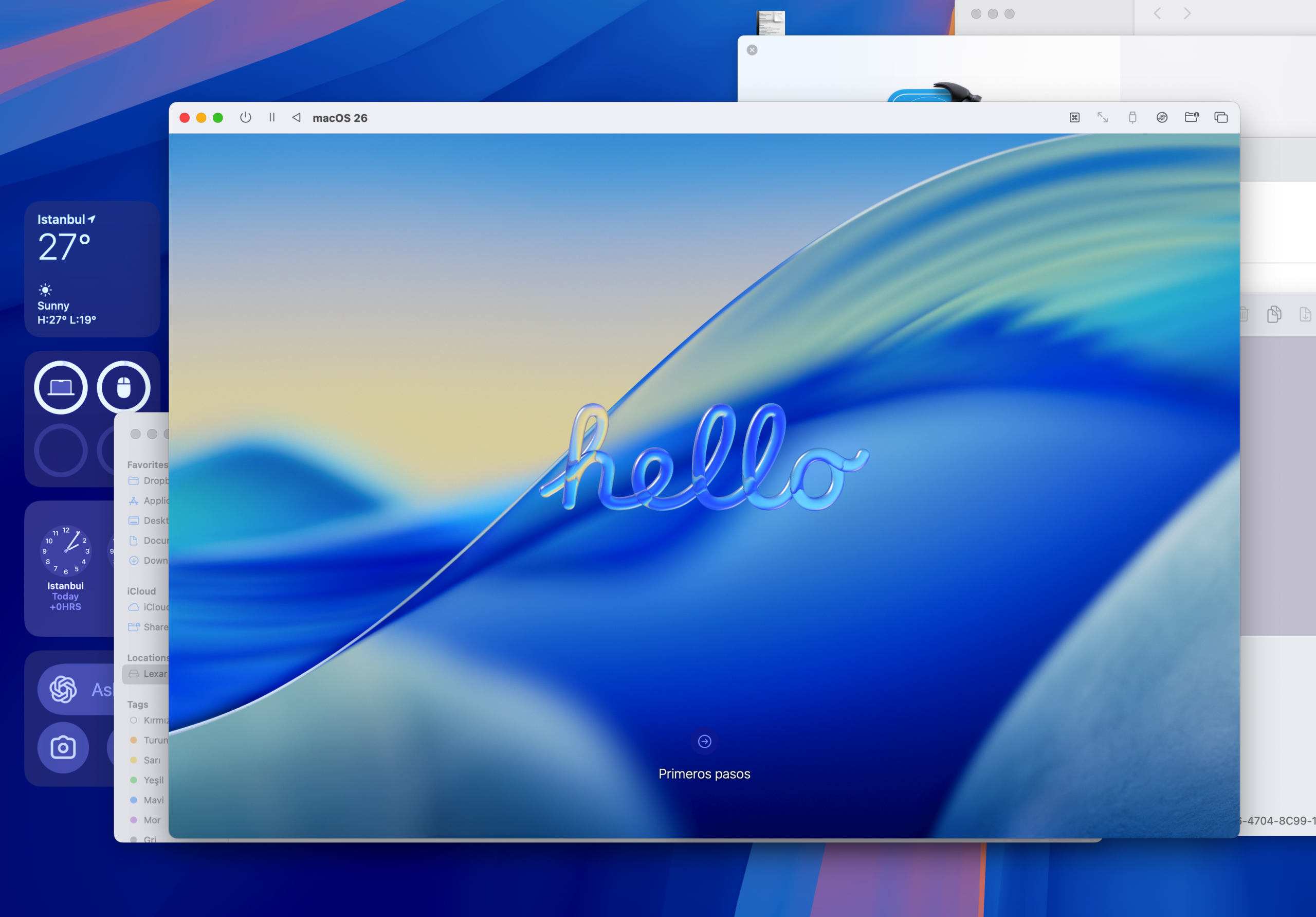
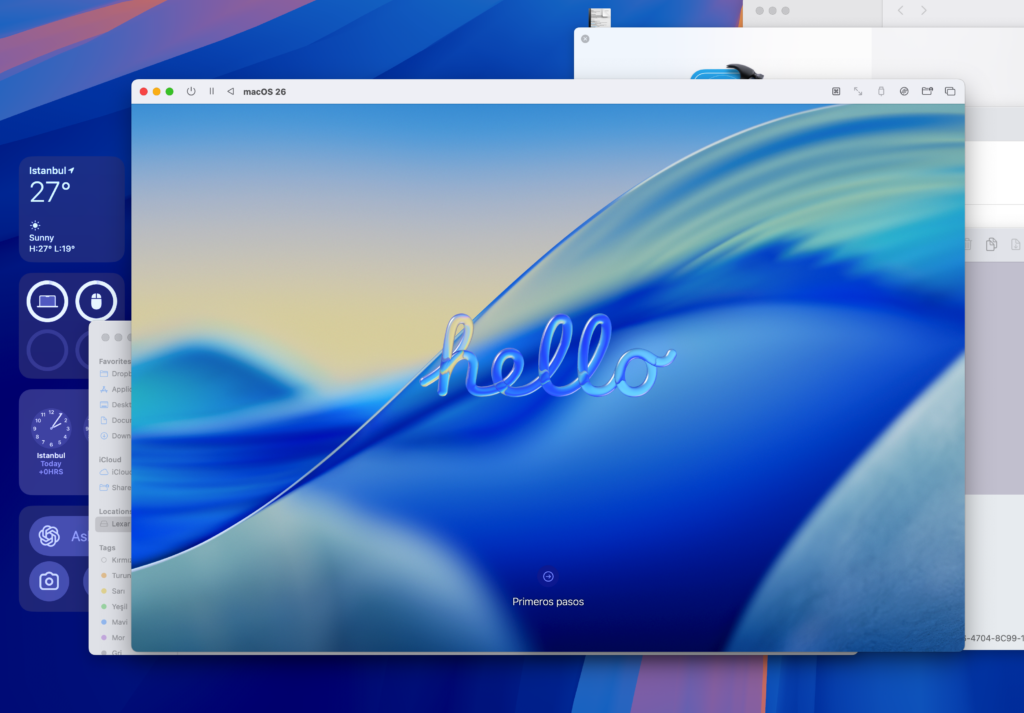
As part of WWDC25, Apple released the beta version of the upcoming macOS release, which will now be called version 26. If you want to test the beta version, you can do so by virtualizing it on UTM instead of using your primary work computer.
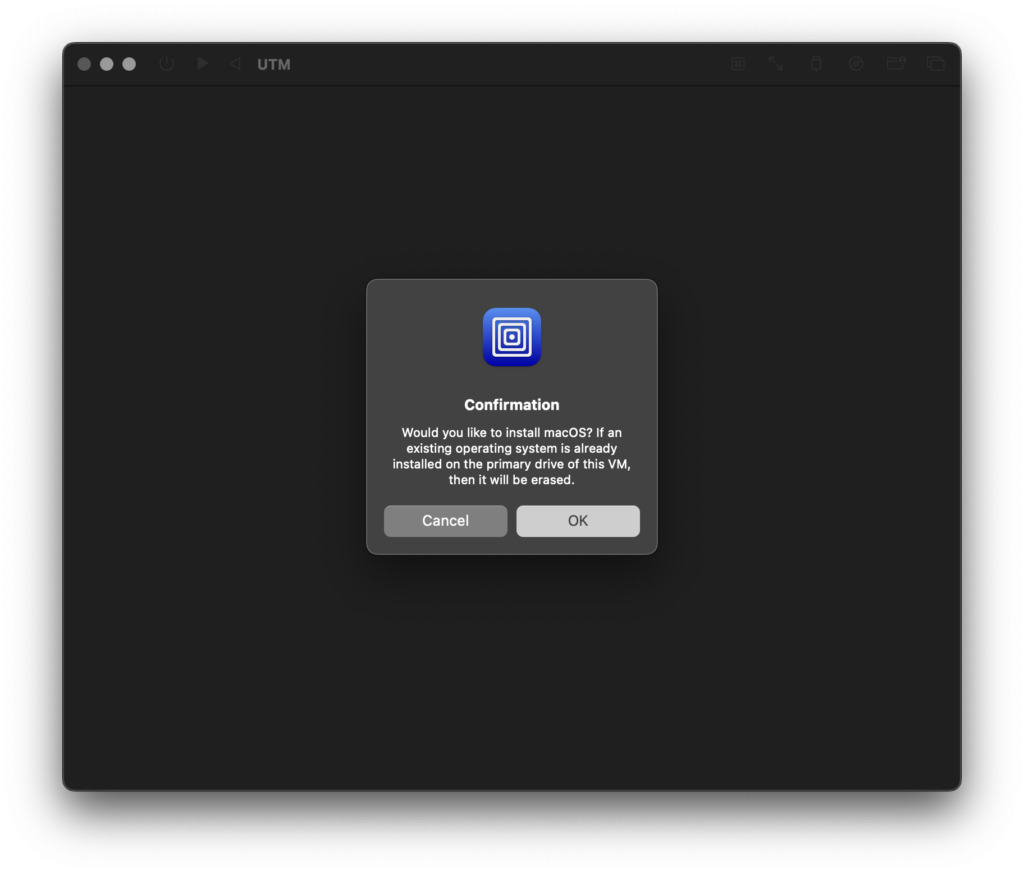
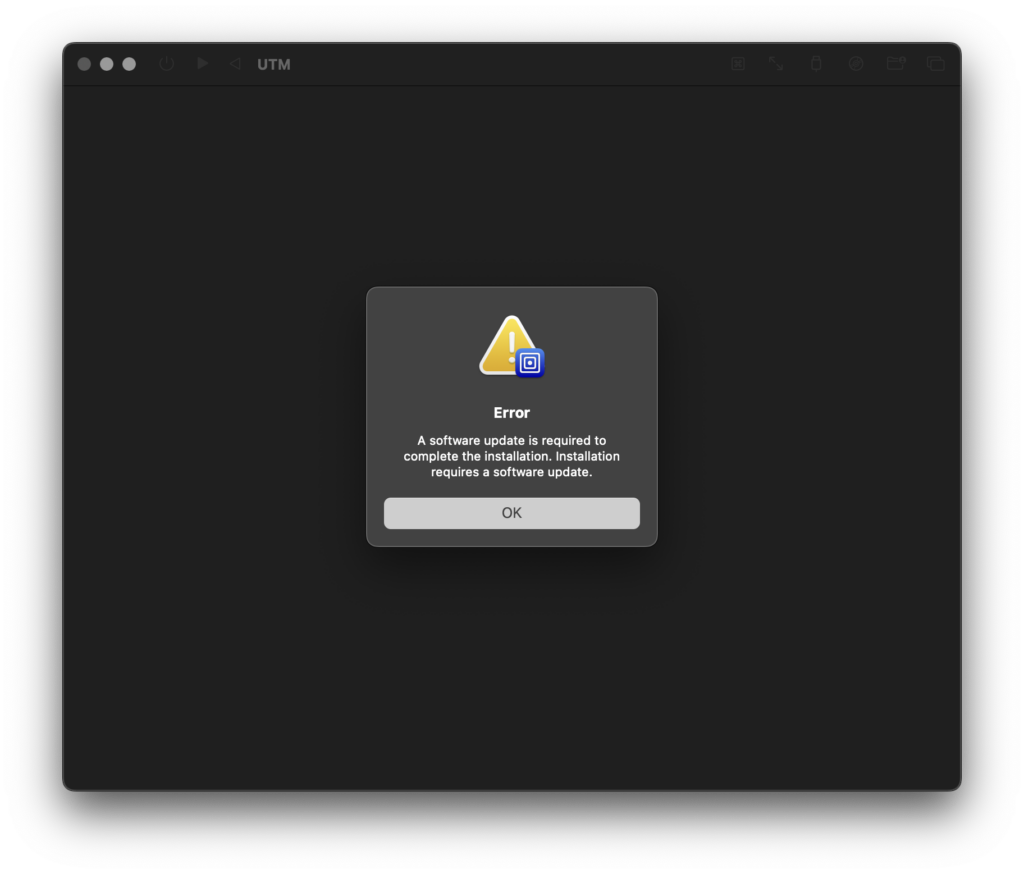
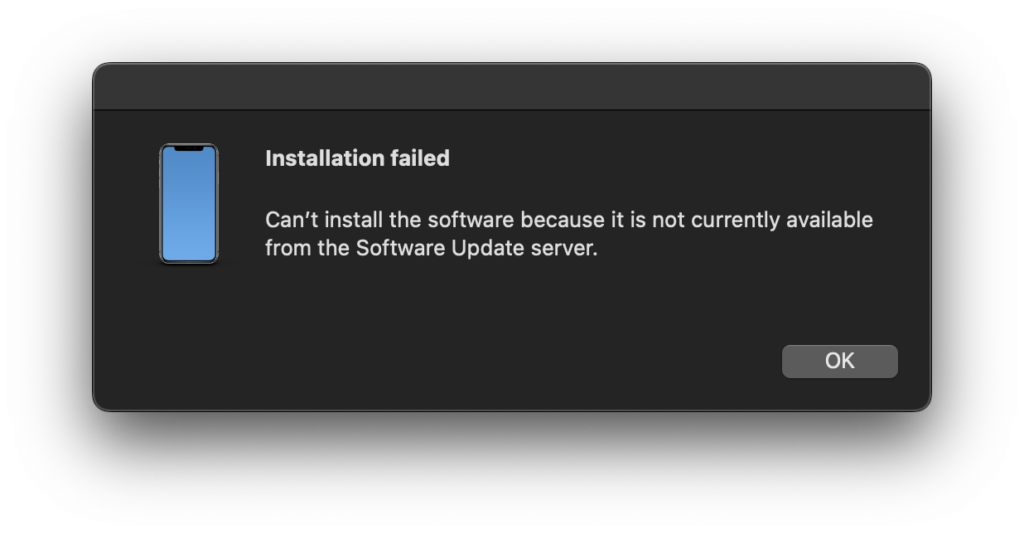
However, there is a small problem here. The installation method you use when virtualizing any macOS version with UTM will not work with macOS 26 Beta. You will receive the following warnings in sequence.
What Is the Solution?
As with beta versions of previous macOS releases, if the necessary components are not present on your virtual machine host computer, UTM cannot run the beta operating system either. UTM can run Linux, Windows, and other operating systems through an emulator. However, for macOS, it utilizes Apple’s Virtualization Framework. Therefore, for an operating system that is in beta, it requires the beta version of the Virtualization Framework that will support the next operating systems.
You can obtain this by downloading and installing the beta version of Xcode 26 on your computer. In summary, instead of directly loading the downloaded macOS 26 Tahoe beta IPSW file into UTM, you first need to download and install the beta version of Xcode on your computer running macOS 15.x, and then install macOS 26 through UTM.
Links
You can download UTM here if it is not already installed on your computer (245 MB).
You can download the Xcode 26 beta version here (2.92 GB).
You can download the .ipsw version of macOS Tahoe here (18.29 GB).
Leave a Reply