
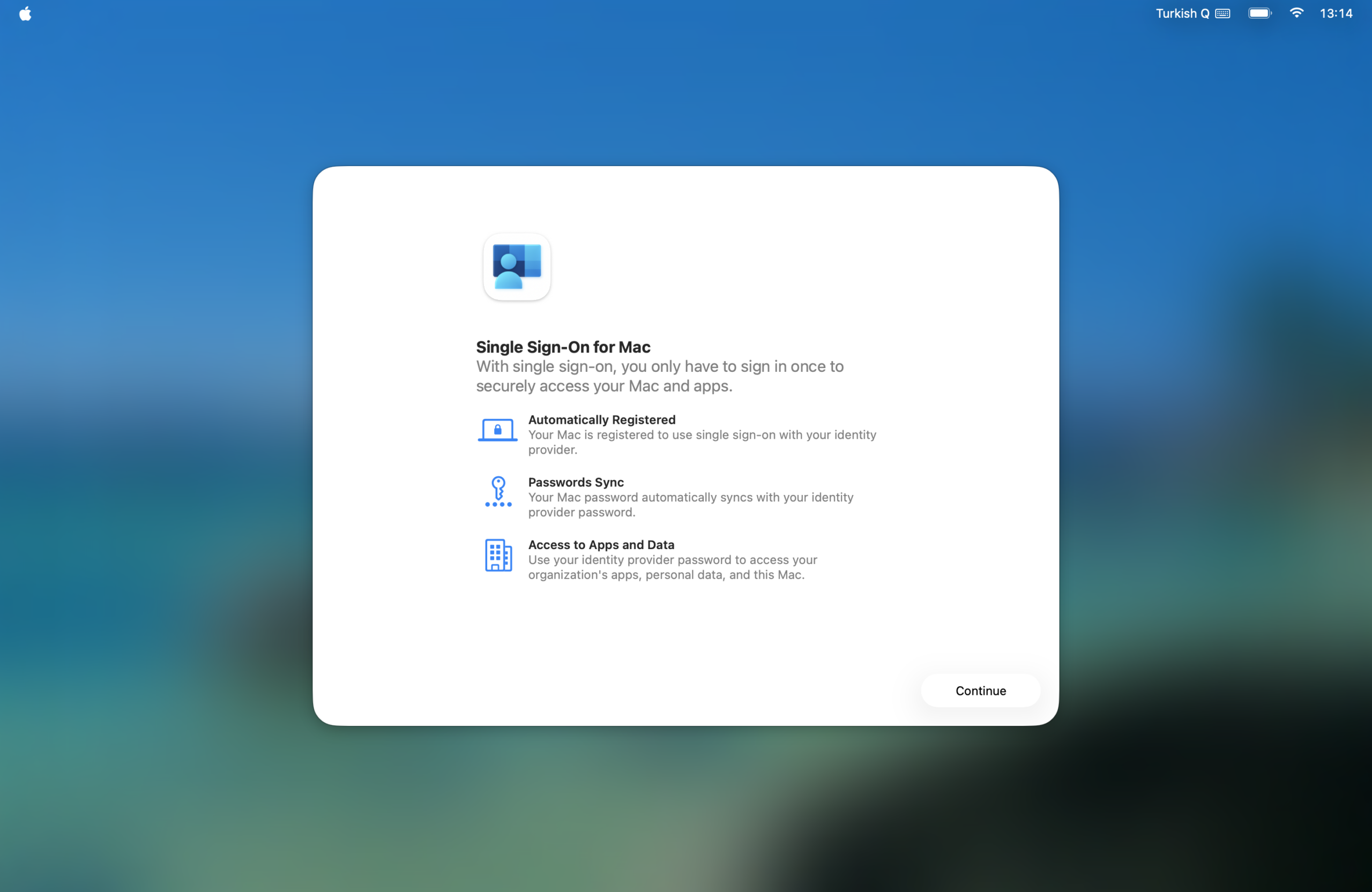
As you know, every year in June, Apple holds the WWDC (aka DubDub) conference. This conference mainly contains technical sessions related to developer tools. In contrast, there are also a few sessions that concern us, that is, Apple system administrators. In these sessions, new areas and APIs that can be managed on Apple devices after the next operating system update are addressed.
When the final versions of the operating systems are released in September, while end users go out to explore the innovations in the interface, we too set about using the features announced by Apple at WWDC with the MDM solutions we use.
MDM solutions that support only the Apple platform, like Jamf Pro, Addigy, and Mosyle Business, generally start supporting many of the features Apple announces as of day one… And solutions that support more than one platform at the same time (UEMs) like Iru / Kandji, Microsoft Intune, Ivanti, and Omnissa Workspace One use the new APIs phase by phase. Therefore, some features we expect to arrive any day now get spread out over the year.
Since Intune too offers a management solution that supports every platform, it can act a bit slowly on the subject of adapting every new feature Apple announces. Microsoft regularly announces which features are on the roadmap for Intune each month on its What’s New and Features in Development pages. One of the features announced as being in the development phase last week was that Platform SSO Registration can be done via Setup Assistant (finally). With the newly added option named Enable Registration During Setup among the Settings Catalog > Authentication > Extensible Single Sign On > Platform SSO options, our obligation to access Finder to do the Platform SSO Registration operation is now eliminated.
How Was It Before This Arrived?
As you can see in our comprehensive Platform SSO article that we addressed on Settings Blog pages before, the process proceeded as follows.
• The Setup Assistant process is completed and the user reaches Finder. Following this, a pop-up banner named Registration Required appears in the upper-right part of the screen. The user clicks this and encounters the Microsoft Sign-In screen once more. By entering first the temporary password they created for the local account and then the account information in Entra, they have matched the local account’s password with the account password in Entra ID.
• A device that is in the Apple Business portal and assigned to Intune as the MDM server first brings up the Microsoft Sign-In screen at the Enrollment Authentication step during initial startup. (This option is activated from the Enrollment Profile settings)
• At this step, the user logs in with the account information in Entra ID. This step both prevents just any person from activating the device and fills in the username section of the local account information to be created. (This option is activated from the Enrollment Profile settings)
• In the later steps of Setup Assistant, the local account creation screen comes up in front of the user. At this step, the username section is already filled in with the Enrollment Authentication options. A temporary password is set as the password.

• The Setup Assistant process is completed and the user reaches Finder. Following this, a pop-up banner named Registration Required appears in the upper-right part of the screen. The user clicks this and encounters the Microsoft Sign-In screen once more. By entering first the temporary password they created for the local account and then the account information in Entra, they have matched the local account’s password with the account password in Entra ID.

What Changed Now?
At Apple WWDC 2025, Apple had announced that the Platform SSO registration operation would also be supported in Setup Assistant. What’s new right now is that Microsoft is only now adapting this. From now on, thanks to the Enable Registration During Setup option, the Registration operation can be completed directly without reaching Finder. Thus, the number of operation steps the end user needs to do will have been reduced.

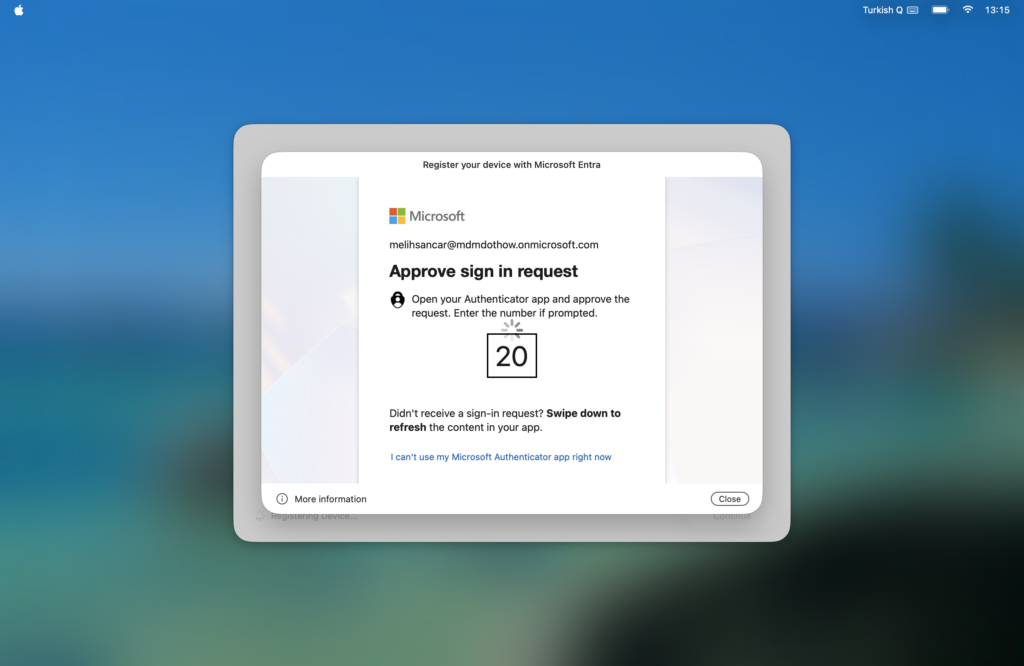
What’s Needed for This?
The device needs to be in Apple Business and assigned to Intune as the MDM server, that is, in short, the Automated Device Enrollment method is required.
The Enable Registration During Setup option needs to have been activated in the Platform SSO settings.
Version 5.2604.0 of the Company Portal application needs to have been distributed as an LOB application. Since the most current version was 5.2603.0 while this article was being written, the method is not working yet.
In the Enrollment Profile settings, the Setup Assistant with Modern Authentication option must be selected as User Affinity, and the Await Final Configuration option must be activated.
Update — May 17, 2026
A few days after May 12, 2026, the day I published this article, the Enable Registration During Setup option moved to GA (General Availability) status. That is, it’s now usable. To be able to use it, you need to update the Company Portal application inside Intune to version 5.2604.0. You can use Microsoft’s this article as a reference on the subject.
While using this new method, if you see the following warning in Setup Assistant, wait a minute and try again. The Platform SSO extension working requires the Company Portal application to be installed on the Mac. You’ll see this warning if Company Portal‘s installation hasn’t finished yet. If you wait 1–2 minutes and try again, you’ll see that you can get past this screen.

Leave a Reply