
Technology companies sometimes put easter eggs in their software. For a small example of this, I’ve included a YouTube video of the old QuarkXPress Martian man at the bottom of this article.
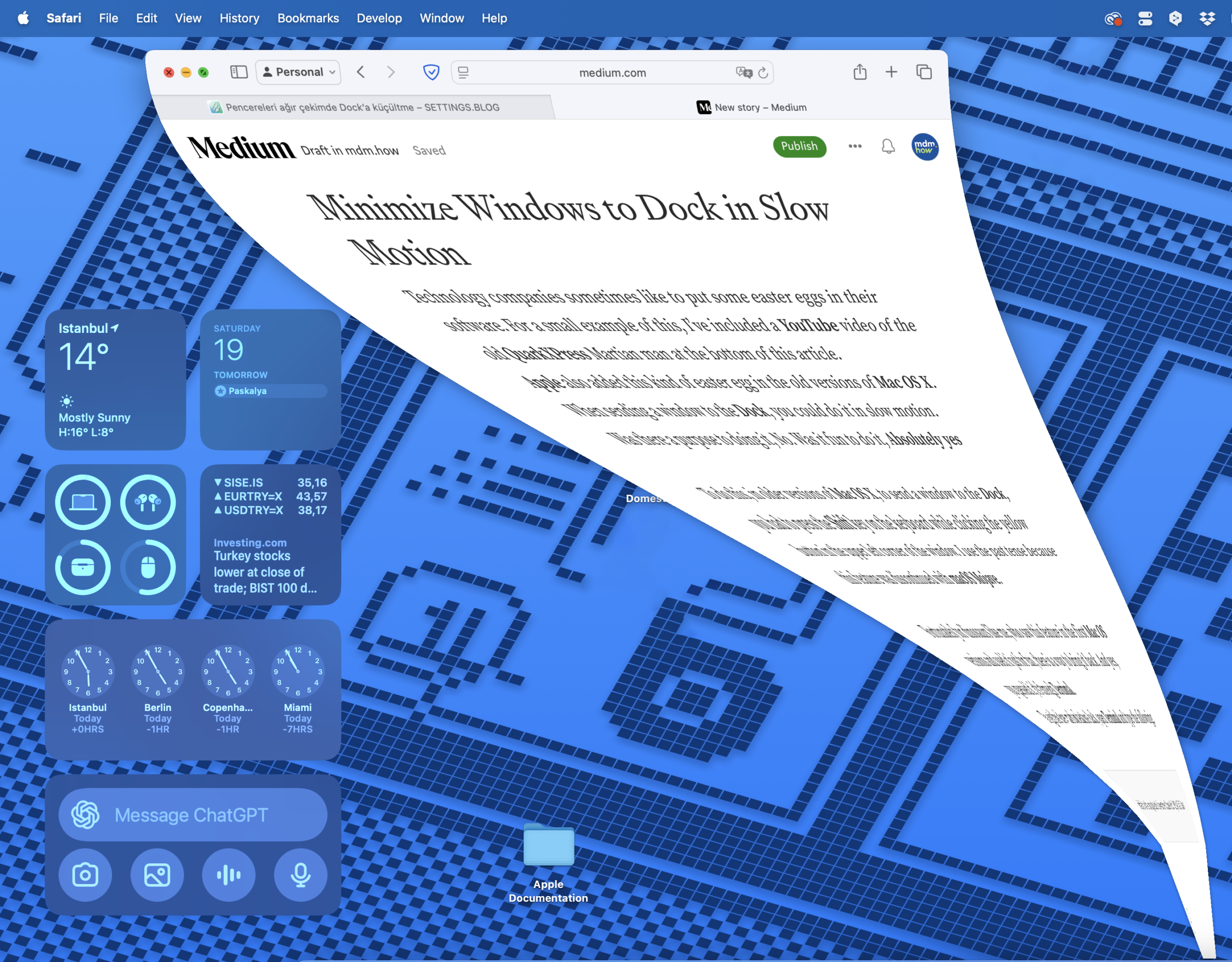
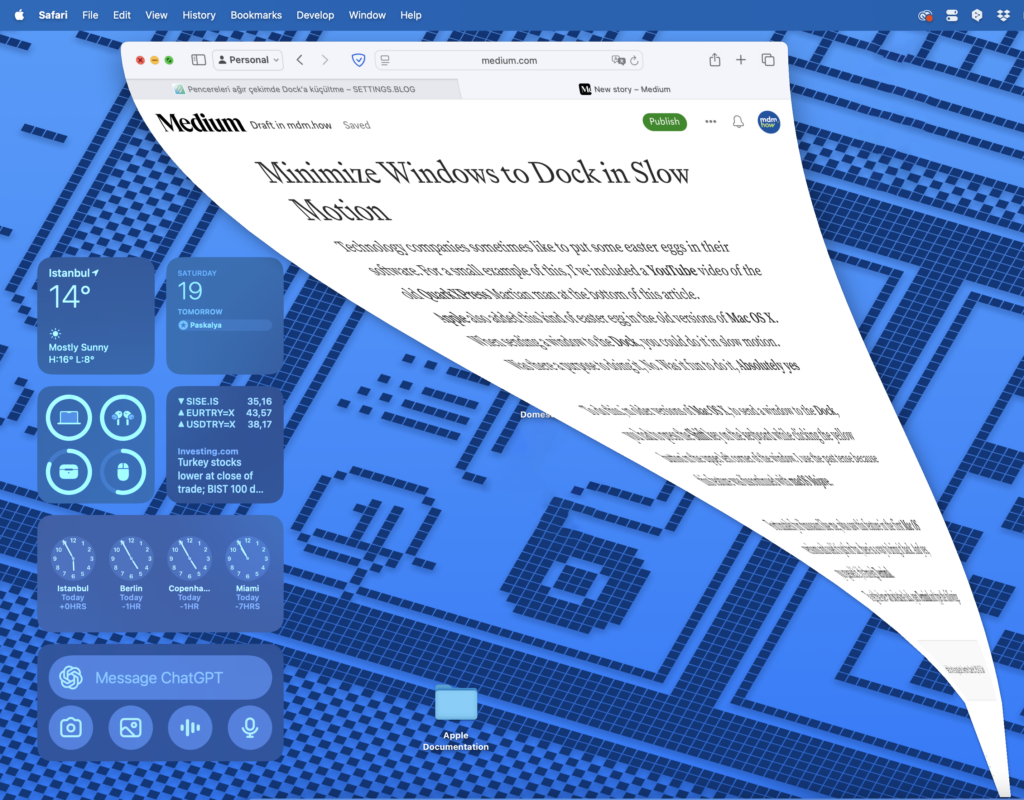
Apple also added this kind of easter egg in the old versions of Mac OS X. When sending a window to the Dock, you could do it in slow motion.
Was there a purpose to doing it, No. Was it fun to do it, Absolutely yes
To do this, in older versions of Mac OS X, to send a window to the Dock, you had to press the Shift key on the keyboard while clicking the yellow button in the upper left corner of the window. I use the past tense because this feature was discontinued with macOS Mojave.
Fortunately for dinosaurs like me, who saw this feature in the first Mac OS versions and used it just for fun, there is a way to bring it back. And yes, you guessed it, it’s through Terminal.
To get the slow motion feature back, open Terminal and type the following.
defaults write com.apple.dock slow-motion-allowed -bool YES;killall DockAs soon as you execute the command, the windows that have been sent to the Dock earlier, will be thrown out of the Dock. Don’t panic, this is normal.
If you hold down the Shift key on the keyboard while minimizing any open application or window to the Dock after executing the command, you can see that the minimization is done in slow motion.
If you have more than one window of the same application open, you can send them to the Dock at the same time and in slow motion by pressing the Option key along with Shift.
Are there other commands like this?
Similarly, here are some examples of Dock modifications that are not available in the macOS graphical interface but can be done with Terminal.
If you want to use the Suck effect as a third option besides using Genie or Scale as a minimization type, you can use the code below.
defaults write com.apple.dock mineffect -string "suck" && killall DockYou can use the code below to add a space between the icons on the Dock to separate them from each other.
defaults write com.apple.dock persistent-apps -array-add '{"tile-type"="spacer-tile";}' && killall DockYou can use the code below to lock apps in the Dock and prevent changes to the Dock.
defaults write com.apple.Dock contents-immutable -bool TRUE; killall DockIf you want the Dock to show only open apps, you can use the code below.
defaults write com.apple.dock static-only -bool TRUE && Killall DockFinally, if you have tried all these changes and are not satisfied, you can use the following code to restore the Dock to its original settings.
defaults delete com.apple.dock; killall DockQuarkXPress’in meşhur Marslı robotu
Leave a Reply