
When you need to centrally deploy apps to your Macs, there are more than one source you can benefit from. VPP apps you can access via Apple Business Manager are the first of these. If an app is available on the App Store, this method is generally my first preference.
But it must be admitted that a significant part of the apps developed for Macs are not available on the App Store. For example, you need to download Microsoft Teams from Microsoft’s site instead of the App Store. The apps you download from software developers’ own sites can be installer files in .PKG format or disk images in .DMG format. From inside DMGs, sometimes another .PKG file, and sometimes the executable app itself in .APP format, can come out.
As you know, thanks to your Apple Business Manager and MDM server being connected to each other, the VPP apps you purchase are automatically added to your MDM server. But you must manually download apps in other formats from the manufacturers’ sites and install them on your MDM server.
Some MDM vendors do this operation for you. Jamf‘s Jamf App Catalog, Iru/Kandji‘s Auto Apps, Mosyle Business‘s Mac App Catalog can be shown as examples of these. Bless them, they create a repo of all the popular apps on our behalf and offer it for our use. This way, it becomes possible to deploy apps that aren’t on the App Store too with the ease of VPP.
For Microsoft Intune, this kind of app pool is not offered by Microsoft for now. Yes, Microsoft doesn’t offer this. But Intune has strong community support. Various users can offer scripts and additional apps for this product. This article is about one of them. IntuneBrew is a product developed by Uğur Koç.

How Does It Work?
You log into the IntuneBrew page with your account that has Admin privileges in Intune. Right after, by clicking the Browse Apps link, you can see a list of the apps in the repertoire. Then the only thing you need to do is click the Upload button next to the app name. That app is automatically added to the Apps > macOS section in your Intune tenant.


After the app you selected is added to Intune, the only thing you need to do is deploy it by assigning it to the groups you want from the Assignment section. If you want, instead of installing directly to target devices, you can also add it to the Company Portal. I recommend you do this especially for largish apps.

While I was writing this article, there were 1231 Mac apps on IntuneBrew. And this will be enough for many use cases. But still, if you couldn’t find the app you’re looking for, you can request the app you want to be included in IntuneBrew by using the https://www.intunebrew.com/submit-app link.
Use with PowerShell
As easy as it is to use via the graphical interface through a web browser, if you want, you can also use IntuneBrew via PowerShell through Terminal. If you’ve used Installomator before, this part may feel familiar to you.
or this, you first need to have installed PowerShell on your computer. You can install it from this address. If you’ve installed it before and want to switch from zsh to PowerShell in a new Terminal window, it’s enough to type pwsh.
Next, to set up the Microsoft Graph interface, you must type the following.
Install-Module Microsoft.Graph -Scope CurrentUserAfter Microsoft Graph is set up, you need to download and run the IntuneBrew script. You can download the script from Uğur Koç’s GitHub page. After downloading, run the IntuneBrew.ps1 file from within PowerShell. It will first ask you for the Authentication method. If you proceed with the 3. Interactive Session with Admin Account option, your Intune account will open within the browser and it will ask whether you want to grant authorization to IntuneBrew.
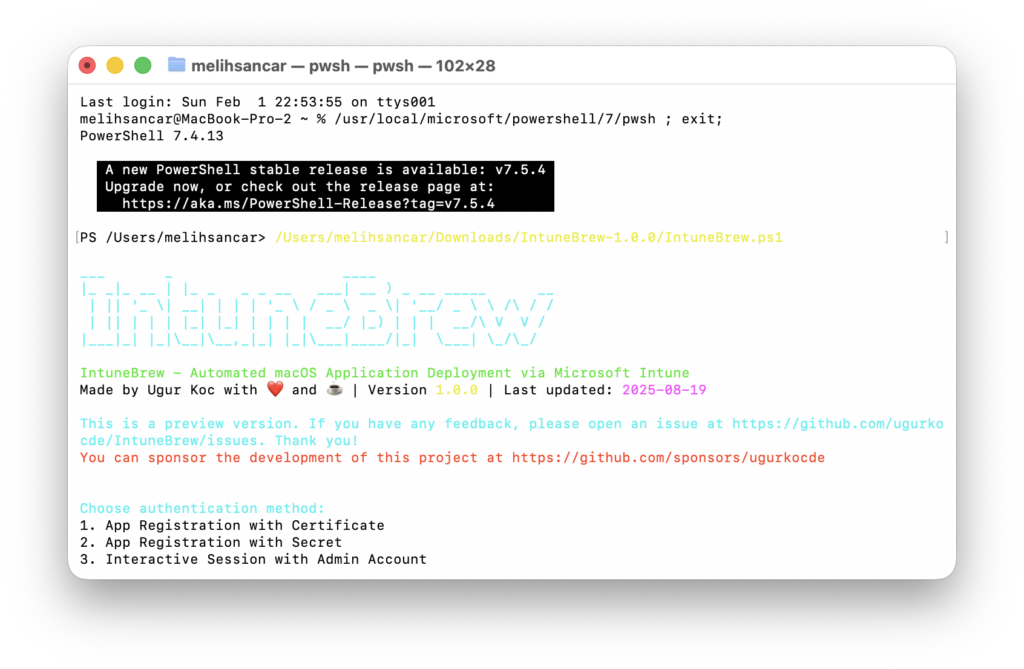
After you do the authorization, the 1231 apps I mentioned above will come up in front of you as a looong list. By typing the name of the app you want to install, you can start the installation of the app to your Intune tenant.

Update Tracking
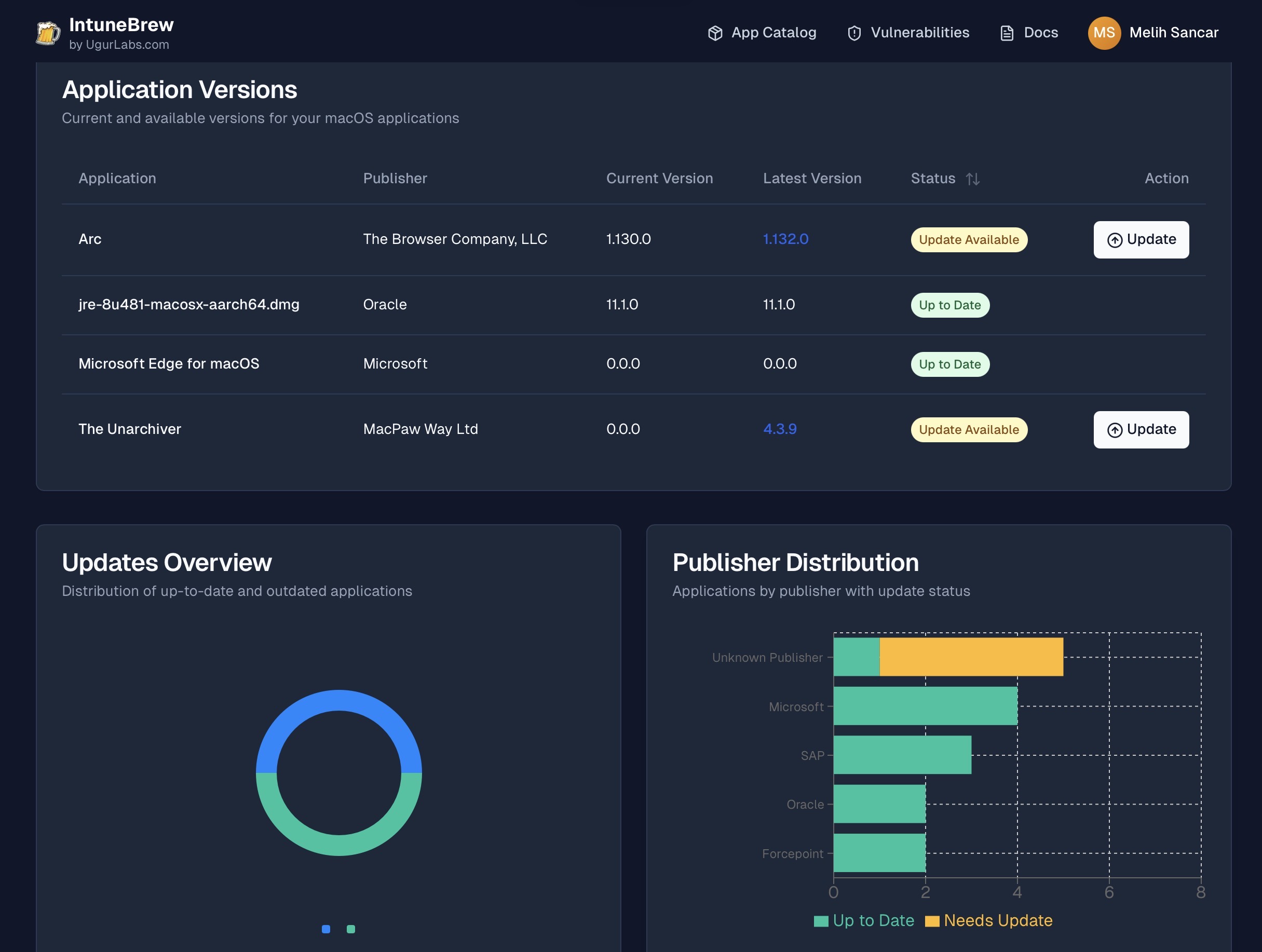
IntuneBrew has a use besides adding new apps to your Intune tenant and deploying them. You log into IntuneBrew with an account that has Admin privileges in Microsoft Intune. This way, the script gains access to your existing Intune app library. If you’ve previously installed an app there from any source and there’s an update for that app, you can see this from the IntuneBrew Dashboard area too and get the PowerShell command you can use to update it. So to summarize the last paragraph, you can do update tracking of your apps.

Vulnerabilities
Speaking of app updates, it may be useful to also check which update closes which vulnerability. For this, IntuneBrew has a section titled Vulnerabilities. In this area, it’s possible to get information about which vulnerabilities the entire general app repertoire — or only the apps in your own Intune app library — close based on which CVE. And it doesn’t just stop at giving information; you can also install the current version of the app to Intune.

Leave a Reply