

What do you do to make the computers in your company more secure? For example, do you use FileVault company-wide for full disk encryption? Or have you configured Recovery Lock to prevent users from entering the macOS Recovery environment on their own? Is there a Management Admin account under IT management’s control on all computers? And is that account’s password renewed with LAPS?
When we start listing these examples and macOS hardening features like them one under another, we end up with a long list. From disabling AirDrop to using Secure Keyboard Entry in Terminal… If you want, you can prepare such a list specific to your organization and bring the devices you manage into line via the MDM you use.
Instead of trying to reinvent the wheel, you can follow universally accepted standards on this subject. Institutions like NIST, CIS, DISA, and CNSSI each publish security standards for different operating systems and platforms. You can choose the standards of one of these bodies that suits your company’s security policies and base your work on it.
The work of ensuring compliance with such security standards is basically carried out by two different units in companies: Information Security and Endpoint Management units. If you, reading this article, manage devices with, for example, Mosyle or Kandji, choosing which security standard to base things on is not your job. Determining which security posture will be applied is a job for the Information Security unit, while the team that will think about how it will be applied is the Endpoint Management unit.
Where Does the macOS Security Compliance Project Fit In?
The macOS Security Compliance Project is an open-source project containing various tools and guidelines, prepared through a collaborative effort, for system administrators who want to manage Macs in compliance with the security standards I named above. Within this scope, you can view a report of the compliance status of the Macs you manage against security standards like NIST or CIS, and you can distribute configuration profiles via the MDM server you use to close the gaps specified in the report.
You can review this address to learn about the organizations contributing to the macOS Security Compliance Project and the details of supported baselines. Through the project’s GitHub page, you can also view and download Tahoe Guidance Revision 2.0, which is the most current version at the time this article was written. You can download it to review, of course, but below I will explain step by step how to download it and create a report. So for now, you don’t need to download it from GitHub. But you should know that this work is not static either. It is regularly updated. Therefore, it is worth adding it to your bookmarks and checking it from time to time.
There are roughly two steps you will go through when ensuring a Mac’s compliance with a chosen security posture: Audit, that is, inspection, and Remediation, that is, improvement. With the macOS Security Compliance Project, you can do the following:
- You can create an Audit report based on the security standard you choose on a Mac.
- After this report, you can create configuration profiles that you can distribute to your devices via your MDM server for Remediation.
- In the report to be created, you can exclude certain items from the Audit test to be performed and have them reported separately.
Step by Step
1. Let’s Install Python First
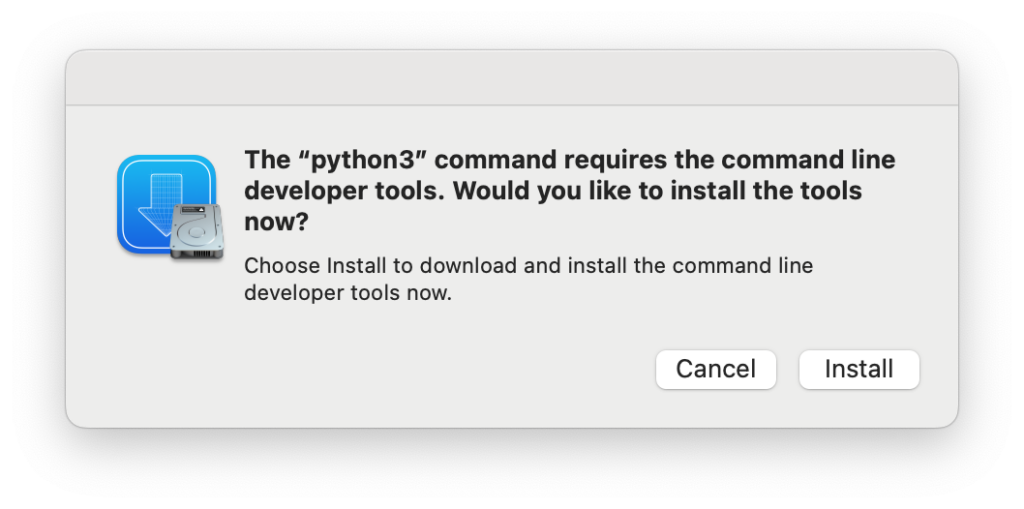
You can start with a Mac in your organization. Python must be installed on this Mac. If you want, you can download it manually from Python.org. Or you can have it installed as a component of the Xcode Command Line Tools. For this, you can simply open Terminal and type the following:
python3 --versionActually, this command is used to find out the Python version installed on your system. But if Python is not installed, it will direct you to install Command Line Tools. After the installation of Command Line Tools is complete, when you run the above command again, the installed Python version is displayed. At the start, the installation time begins with something like 36 hours, but don’t be afraid — it will download in less than an hour.
2. Download the macOS Security Compliance Project
Then use the following command to download the project on GitHub to your computer:
git clone https://github.com/usnistgov/macos_security.git /var/tmp/mSCPThis command will download a folder named mSCP to /var/tmp and copy the files necessary for the macOS Security Compliance Project to this location. Then use the following command to work within this folder:
cd /var/tmp/mSCPAfter reaching the mSCP folder, access the contents of this folder either by using the Go > Go To Folder command from Finder, or as shown below:
open .In the folder contents, you will see folders like “baselines”, “build”, “scripts”. For now, leave this window open.
3. Install Additional Python Components
From this point, some additional Python components will need to be installed. You need to run different code if you are installing on a physical Mac and different code if you are installing on a virtual machine.
For example, if you are trying this installation on a MacBook Pro, please type the following:
pip3 install -r requirements.txt --userIf you are trying to install on a virtual machine (such as UTM or Virtual Buddy), please type the following commands in order:
python3 -m venv .venvsource .venv/bin/activatepip3 install -r requirements.txt4. Create the Baseline Guide
Inside the mSCP folder you just opened, there is a folder named “baselines”. Within this folder, you can see different security standards with .yaml extensions. If you want, you can view the scope of any of them with TextEdit. They are already clearly available one by one on the project’s GitHub page anyway. Instead of examining the scopes of these security standards here, it would be more correct to learn the standard your organization will follow from your Information Security team and act accordingly.
To create a baseline guidance based on the security standard found in the baselines folder and reported to you by the Information Security unit, you can use the code below. If you pay attention to the code, CIS Level 1 is used as standard. If you want, you can change this by referencing the naming of the .yaml files in the Baselines folder and apply it accordingly.
./scripts/generate_guidance.py baselines/cis_lvl1.yaml5. Review Your Baseline Guidance
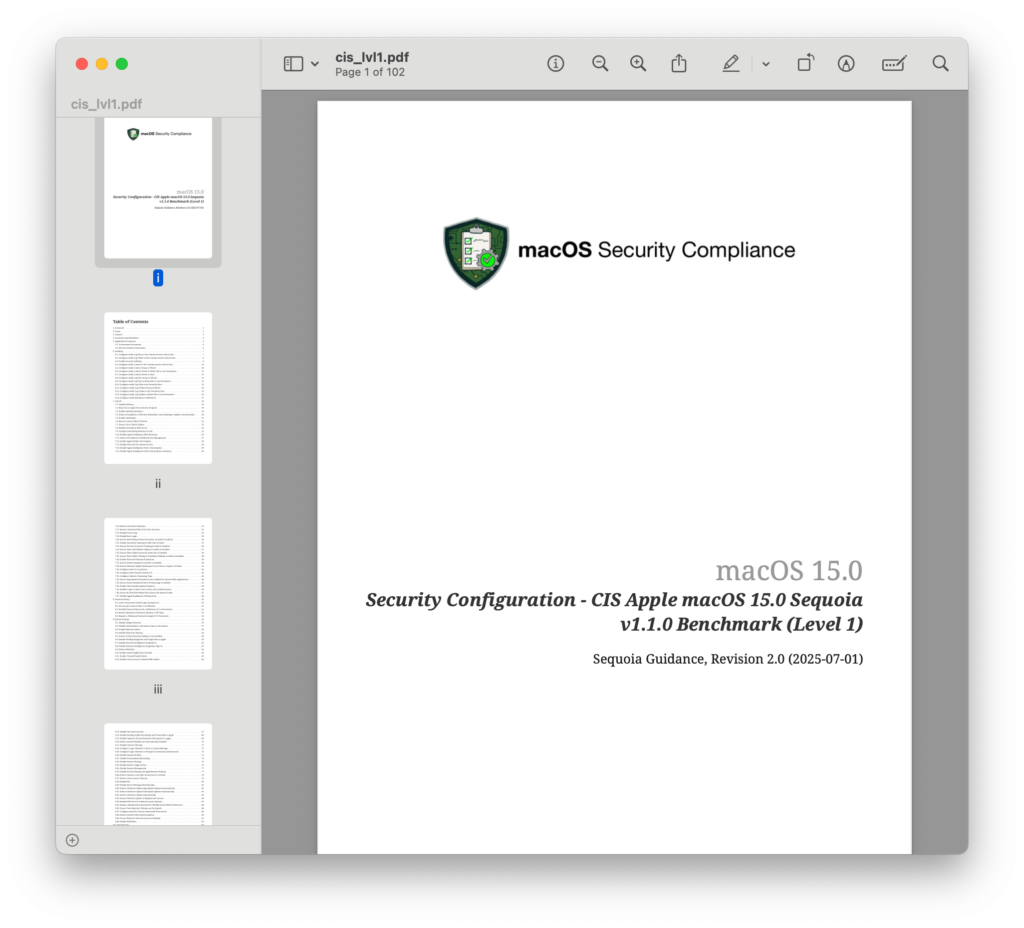
After the code finishes its work, when you go to the folder named “build” in your mSCP folder and look, you can see that there is a folder containing cis_lvl1 inside it. This folder contains a general roadmap for the standard you chose. You can find the CIS Level 1 baseline guidance created for you in PDF, HTML, and AsciiDoc formats.
6. Create the Audit Script
When you run the code you used above again by simply adding the -s suffix to the end, a .sh script necessary for you to audit CIS Level 1 compliance is also added inside the mSCP/build/cis_lvl1 folder. The code needed to create the script is as follows:
./scripts/generate_guidance.py baselines/cis_lvl1.yaml -s7. Run Your Audit Script
When you run this code, you will see that a script file named cis_lvl1_compliance.sh is created in the /var/tmp/mSCP/build/cis_lvl1 folder. I want to remind you of this point again: since I am giving the examples through CIS Level 1, all the code you see here is also created accordingly. If you had chosen the NIST High security standard, for example, the name of the script to be created would have been something like 800-53r5_high_compliance.sh.
To run the created script, you must first go to the folder where the script is located with the cd command:
cd /var/tmp/mSCP/build/cis_lvl1Then you can run the script with the following command:
sudo ./cis_lvl1_compliance.shOf course, since the code begins with sudo, it will ask you for your Admin password. Enter your Admin password.
8. Welcome to the macOS Security Compliance Tool
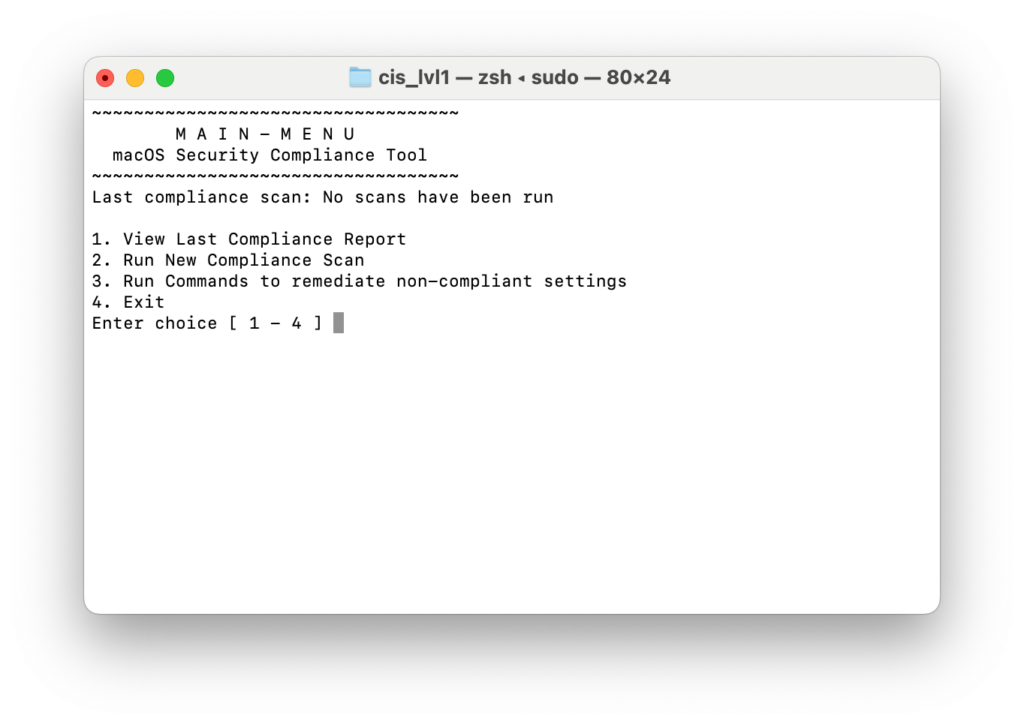
When you see this screen, type the number 2 and press Enter to create a new Audit report. The tool will start working. When it finishes, it stops and requires you to press Enter again. When you press Enter a second time, you return to the screen above.
To view the created report, this time type the number 1 and press Enter. It will tell you on how many items your computer passed and on how many items it failed as a result of the applied tests. As you can see from the screenshot below, my test computer received a passing grade on 26 items and failed on 70 items. This means that my test computer showed a compliance rate of 27%.
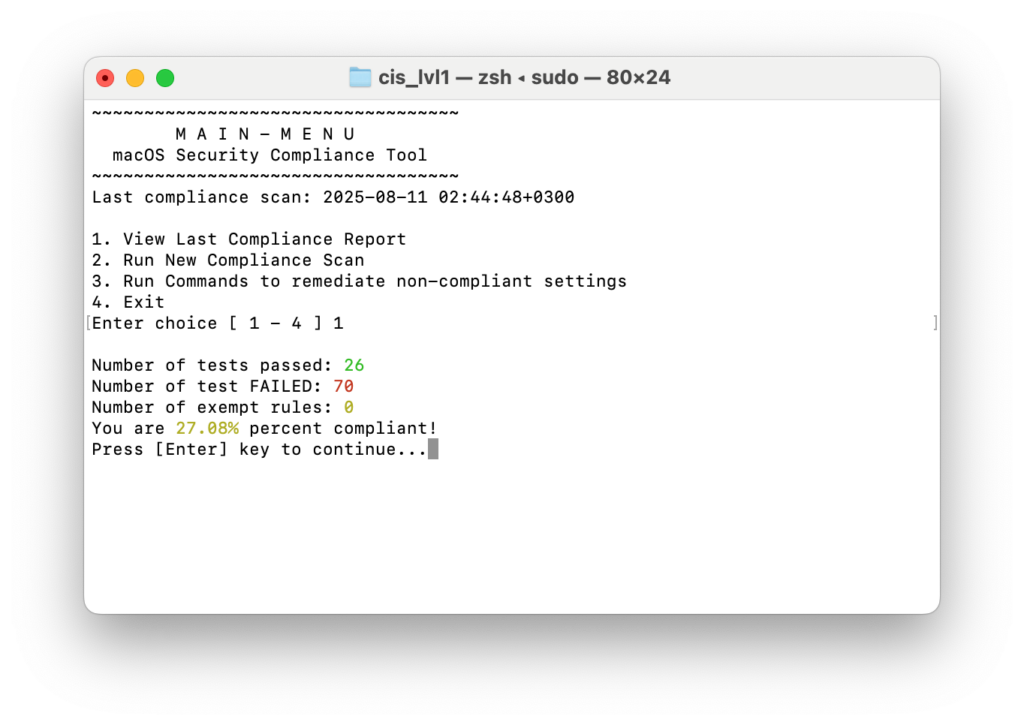
At this point, I want to mention a small detail. Following these security standards, which are the subject of this article, and basing your work on them is really important. But along with this, you need to act knowing that you may not get a 100% passing grade in every case. Consulting firms providing independent IT Audit services like Accenture and Deloitte also may not act with an expectation of a 100% compliance level when evaluating an organization’s general IT infrastructure within the scope of COBIT. Without focusing solely on the percentage score, it is important to separate the topic headings into categories like Must Have and Nice to Have, and to be conscious of which headings must be applied mandatorily.
9. Create Configuration Profiles for Remediation
To improve the Audit score and bring the devices we manage into line with the MDM we use, we need to create MDM configuration profiles one by one. Doing this from within the MDM you use can take a lot of your time. The macOS Security Compliance Tool helps us with this too.
If you are still seeing the score details from the screenshot above on the Terminal screen, type 4 and press Enter to exit.
First, type the following to reach the mSCP folder:
cd /var/tmp/mSCPThen type the following code to automatically create your configuration profiles based on the security standard you chose:
./scripts/generate_guidance.py baselines/cis_lvl1.yaml -spAfter the command completes its work, check the cis_lvl1 folder located in the mSCP/build folder, you will see that a new folder named mobileconfigs has been created. Within this folder, you can find all configuration profiles compatible with CIS Level 1 in .plist and unsigned .mobileconfig formats.
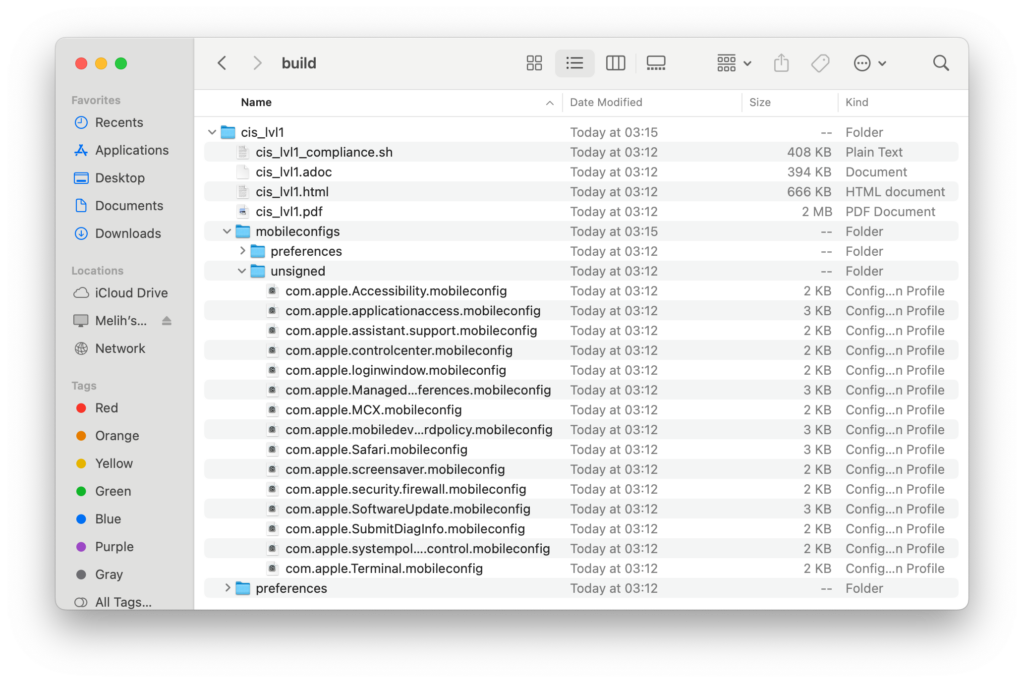
You can start distributing these to your managed devices by uploading them to the MDM server you use. If you have not managed your users with strict rules until now, let me warn you. Be prepared for a storm of support tickets to be opened via Jira or ServiceNow.
10. Final Step, the Exceptions List
In the screenshot I shared in step 8, I had written that my test computer passed 26 items and failed 70 items. Besides Pass and Fail, there is also an Exempt, that is, an exclusion list. Since there was no excluded item in the test I did above, we see that it says zero next to it.
If you want to exclude certain topic headings from the test, you can do this by editing a .plist file. Inside your build folder, there is another folder named preferences, and inside it there is a file named org.cis_lvl1.audit.plist. You can open and edit this file with TextEdit.
For example, the CIS Level 1 security standard requires that Gatekeeper be configured. If you do not make an adjustment in the Gatekeeper settings, it will be in the Failed section of the Audit report. But along with this, if you find the line below in the org.cis_lvl1.audit.plist file and change the line that says false to true, you will have added Gatekeeper to the exception list. It will now be listed not in the Failed section but in the Exempt section.
TL;DR
Let me give a quick general summary.
• In corporate environments, there are certain standards for making computers secure.
• To check whether your computer in its current usage state complies with one of these standards, an open-source project called the macOS Security Compliance Project, prepared by Apple together with various stakeholders, is used.
• With the tools provided within mSCP, you can obtain the details of the security standards you want as guidance documents.
• Again within mSCP, you can get a report of what state your computer is in.
• If you use an MDM server, you can create the necessary configurations within mSCP so that the computers you manage can also comply with security standards, and distribute them via MDM.
Photo by Philipp Katzenberger on Unsplash
Leave a Reply