
As an IT administrator, keeping in-company communication smooth is one of our most important duties. It’s a great convenience for employees to be able to reach the company directory instantly from both their Macs and their iPhones. If you use Mosyle to manage the Apple ecosystem and want to distribute a shared Google Workspace address book (CardDAV) to all devices, you’re in the right place.
In this article, we’ll examine step by step how we can push our Google Contacts account to macOS and iOS devices seamlessly via Mosyle. Moreover, at the end of the article, we’ll also offer a fundamental solution to the problem of the directory stopping syncing, frequently encountered on iOS devices in the field.
If you’re ready, let’s move on to the setup!
Preliminary Preparation: Why Are App Passwords Important?
When distributing Google accounts to devices via MDM, you should not use your standard email password. Google requires an App Password for third-party connections like CardDAV.
Before moving on to the setup, go to your Google account’s security settings and create two different App Passwords, one named “Mosyle macOS” and the other “Mosyle iOS”. (I’ll explain in detail in the tip section at the end of the article why we create two different passwords.)
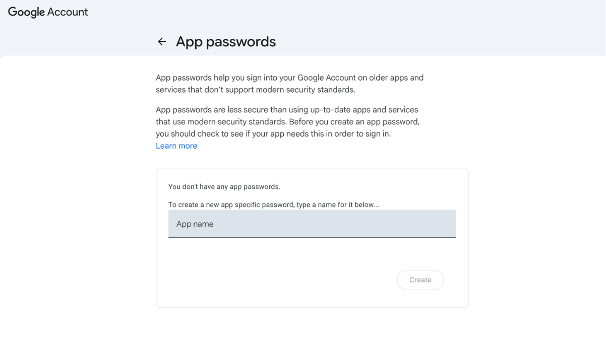
To reach this area, follow the steps below:
- Go to the address https://myaccount.google.com/.
- Click the Security and Sign-in tab.
- Click the 2-Step Verification area written at the top.
- Enter the “App Passwords” option written at the very bottom and create 2 passwords with 2 different app names.
1. Contacts Configuration for macOS Devices
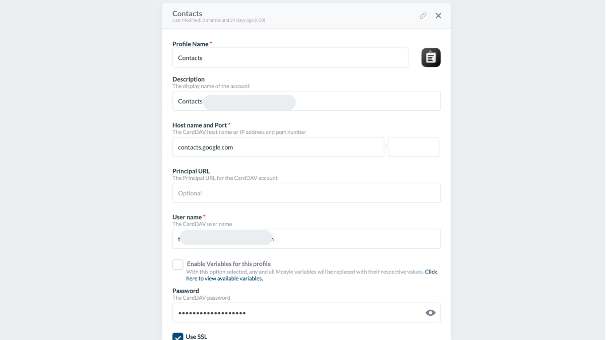
Steps to Reach the Settings Menu for macOS Devices:
- Log in to the Mosyle panel and click the Management tab from the top menu.
- Check macOS from the platform selector (Manage) at the very top of the left menu.
- By scrolling down the configuration list on the left side, find the Contacts item and click it.
- On the screen that comes up, click the Add new profile button to open the configuration page.
- In the “Profile Name” section, give a name indicating that this profile is specific to Macs (e.g. “Mac Contacts”).
Macs are quite flexible regarding CardDAV settings. When we enter the Mosyle panel and create a new Contacts profile for Macs, making the following settings will be enough:
- Host name: As the server address, we enter the address contacts.google.com.
- Port: In the Mac configuration, you can leave this field empty. The macOS system will automatically find and configure the correct port itself when SSL is enabled.
- User name: We write exactly the email address that hosts the directory (e.g. contacts@gmail.com).
- Password: We enter the Google App Password you created only for Macs.
- Use SSL: We make sure this option is checked for secure communication.
When you send this profile to your Macs, users will see that the company directory has been added directly when they open the Contacts application.
2. Contacts Configuration for iOS (iPhone and iPad) Devices
Steps to Reach the Settings Menu for iOS (iPhone and iPad) Devices:
- Log in to the Mosyle panel and click the Management tab in the top menu.
- Make sure the iOS / iPadOS / watchOS option is checked from the platform selector (Manage) at the very top of the left menu.
- Find and click the Contacts item (located among settings like App Lock and Default Apps) in the list on the left side.
- Click the Add new profile button in the middle section to open the configuration page.
- In the “Profile Name” section, give a name indicating that this profile is specific to mobile devices (e.g. “Mobile Contacts”).
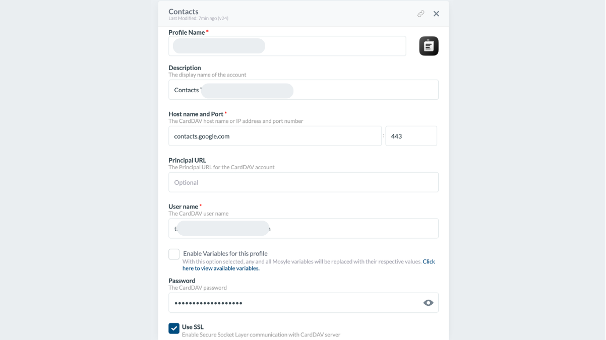
When it comes to mobile devices, Apple’s configuration rules become a bit stricter. We create a separate Contacts profile on Mosyle for iOS devices. Our settings should be as follows:
- Host name: Again we use contacts.google.com as the server address.
- Port: This is one of the tricks of the job; we must explicitly enter the value 443 in the port section.
- User name: We enter the relevant email address (e.g. contacts@gmail.com).
- Password: We enter the other App Password we created only for iOS in the preliminary preparation section.
- Use SSL: We absolutely check this box.
A Life-Saving Tip from the Field: Do iOS Devices “Forget” the Directory?
You did the setup, everything works smoothly on the Macs, but you started getting these complaints from the iPhones roaming in the field: “Contacts aren’t updating!”, “The account has been deleted from settings!”, “It gives a password error!”
Many of us in this situation can think “Should we maybe make this into a script and forcibly send it to the devices every day?” But if your devices are experiencing this problem of forgetting or dropping this setting, there are generally two technical reasons for it, and the solution is very simple:
- Missing Port: iOS devices, while getting the profile, try to connect to the server in the background and verify that password and port. If you don’t explicitly specify 443, which is the SSL port, as in the setting above, the device struggles with the connection and may refuse to load the profile or may cut the connection after a while.
- Shared Password Conflict: If you use the same Google App Password on Macs and iOS devices, Google’s servers may perceive these requests coming from different device types at the same time as “abnormal activity” and temporarily cut the connection. When iOS receives this connection refusal, it stops syncing entirely.
Solution: As we mentioned in the setup steps above, make sure you use the values contacts.google.com as the host and 443 as the port in your iOS profile. And most importantly, separate the App Password that Mac devices use from the password that iOS devices use.
When you apply this configuration, you’ll be freed from the trouble of continuously sending scripts to devices and will have a stable MDM experience.
Photo by Brett Jordan on Unsplash
Leave a Reply