
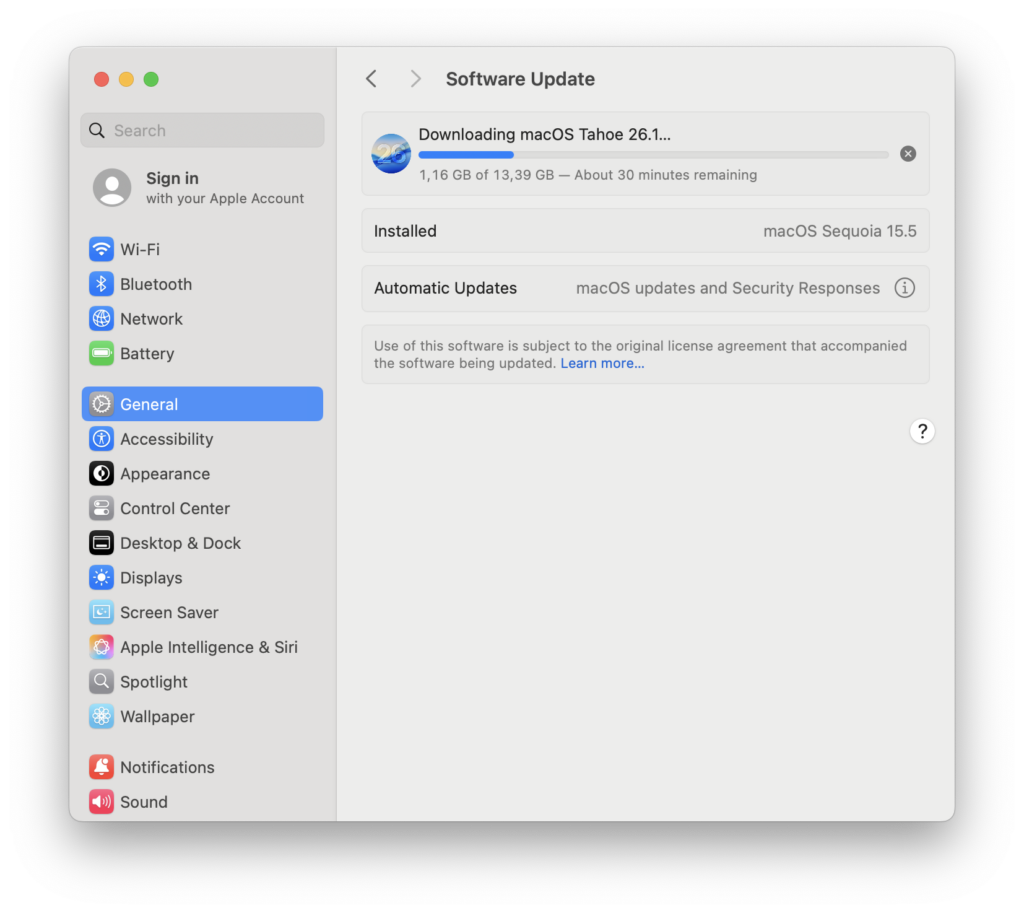
If you have a Mac with an old version of macOS installed and you want to move to macOS Tahoe, you can simply do this operation from the System Settings > General > Software Update section. In this area you can see two different update areas. First, there may be updates related to the system version you’re on. For example, you’re on macOS 15.3 and the 15.6 update has arrived. Additionally, you can see a higher system version update. For example, you’re on macOS 15.3 and you can update directly to the macOS 26 (Tahoe) version. When you press the Download button, macOS 26 (Tahoe) begins to download. After the download is complete, you can automatically move on to the installation steps.
There’s no problem with the part up to here. But if you’re already on the macOS Tahoe version and you want to download the Tahoe version again, the situation becomes a bit more complicated. The macOS 26 update no longer appears in the System Settings > General > Software Update section. Alternatively, you can look at the Mac App Store. But there too, there will be versions other than macOS Tahoe.

After eliminating the System Settings and Mac App Store options, when you say “let me do a Google search,” you notice that many of the links that come up are from non-Apple sources. It’s as if Apple is deliberately hiding macOS Tahoe…
So How Will We Download It?
As explained in Apple’s article here, you can download Tahoe via Terminal. All you need to do is open the Terminal application and paste the code below. The 26.1 seen at the end of the line here denotes the number of the version you’ll download. By changing that number, you can also download the version you want via Terminal.
After the download is complete, you can find the Install macOS Tahoe application in the Macintosh HD/Applications folder.
softwareupdate --fetch-full-installer --full-installer-version 26.1
If you’ve once gotten a taste for using your computer via the command-line interface through Terminal instead of via the graphical interface, the question “what else can I do” may immediately come to mind. Our command begins with the word softwareupdate. Therefore, this is our actual command here. If you delete all the other arguments at the end and type just softwareupdate, the options that can be used with this command come up in front of you as a list.
For example, you can install Rosetta this way. I assume that everyone who deals with managing Apple systems has heard the word Rosetta at least once. We can install Rosetta — which allows us to run Mac applications compiled for Intel Macs on Apple Silicon-chip Macs as well — again with the softwareupdate command. You can use the following command to install Rosetta.
softwareupdate --install-rosettaOr you can use the following command to get a list of all available updates.
softwareupdate -l
Leave a Reply