
You started a Mac management project. First you went over the most fundamental topics. You did the ABM, APNS, VPP integrations, you got your MDM talking with your IdP. You activated FileVault, etc. When the turn came to less important topics, if your energy was gone, helper applications that will ease your work can come to your rescue.
Dock Composer is one of them. Dock Composer simply helps you do Dock configuration. I feel like I’m hearing you say right now, “Well, but we can already do Dock configuration with MDM configuration profiles.” Yes, we can. If you want to simplify this job, you can alternatively use Dock Composer too.
You can download Dock Composer from the Mac App Store.
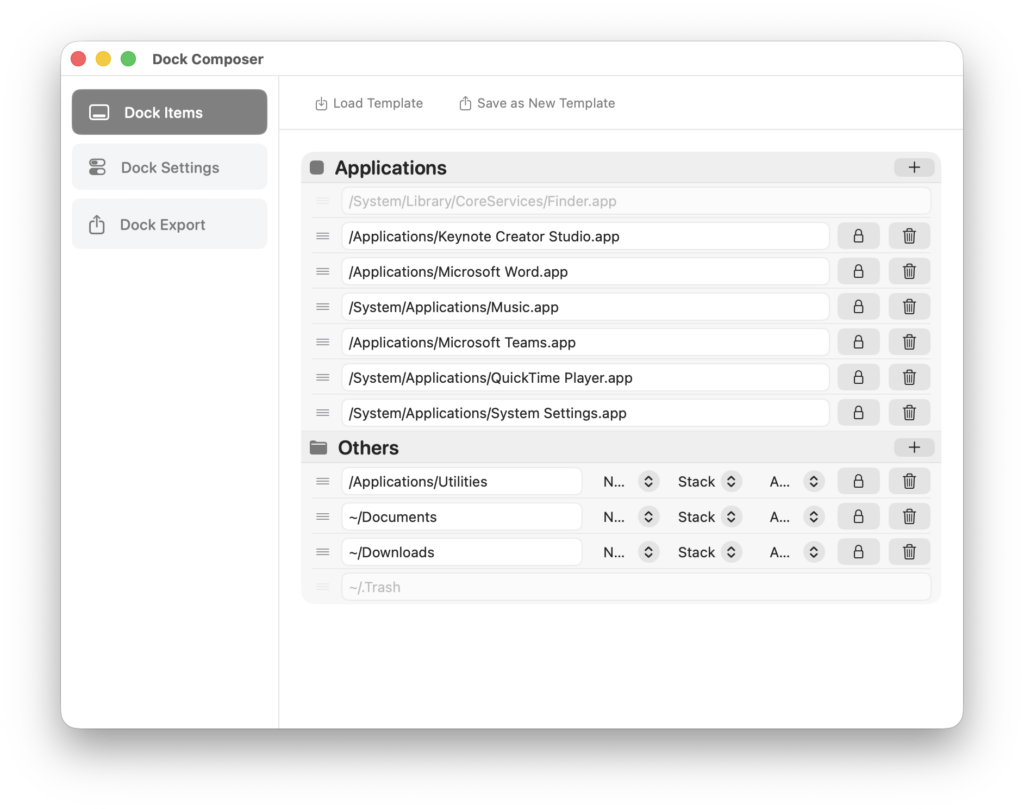
The application basically has three sections.
Under the Dock Items section, you can select the items that will be on the Dock. With the application you can personalize the Dock‘s application list and other items parts independently of each other. While editing here, you can also move application addresses or folders with the drag-and-drop method. But if the applications you’ll send to users are not installed on your computer, you can proceed by adding application names in the /Applications/AppName.app format as well.
A similar situation applies to folder addresses. To be able to add a folder inside the Home folder, you can use addresses like ~/Downloads.
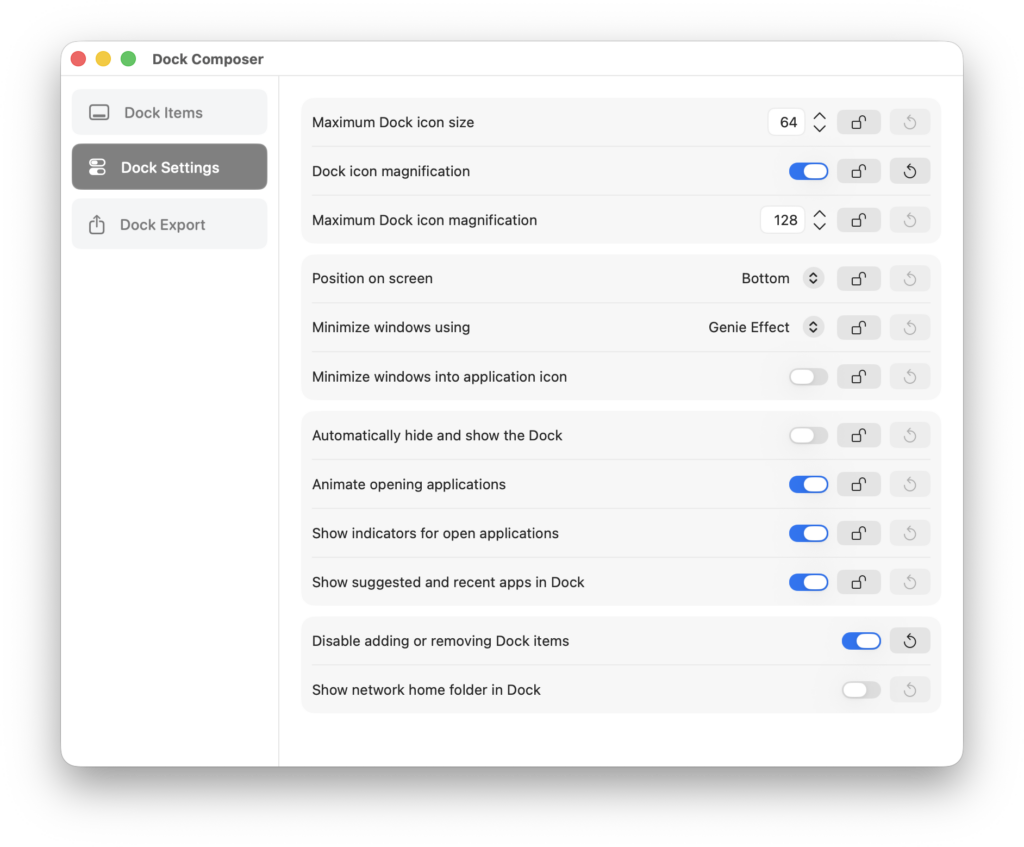
Under the Dock Settings section, you can do the Dock settings inside the System Settings application. In this scope, you can do settings like the Dock‘s size, its position on the screen, and whether the magnification option will be on. Additionally, in addition to the settings you make and the items you add, you can also decide whether users will have permission to add new items to the Dock.
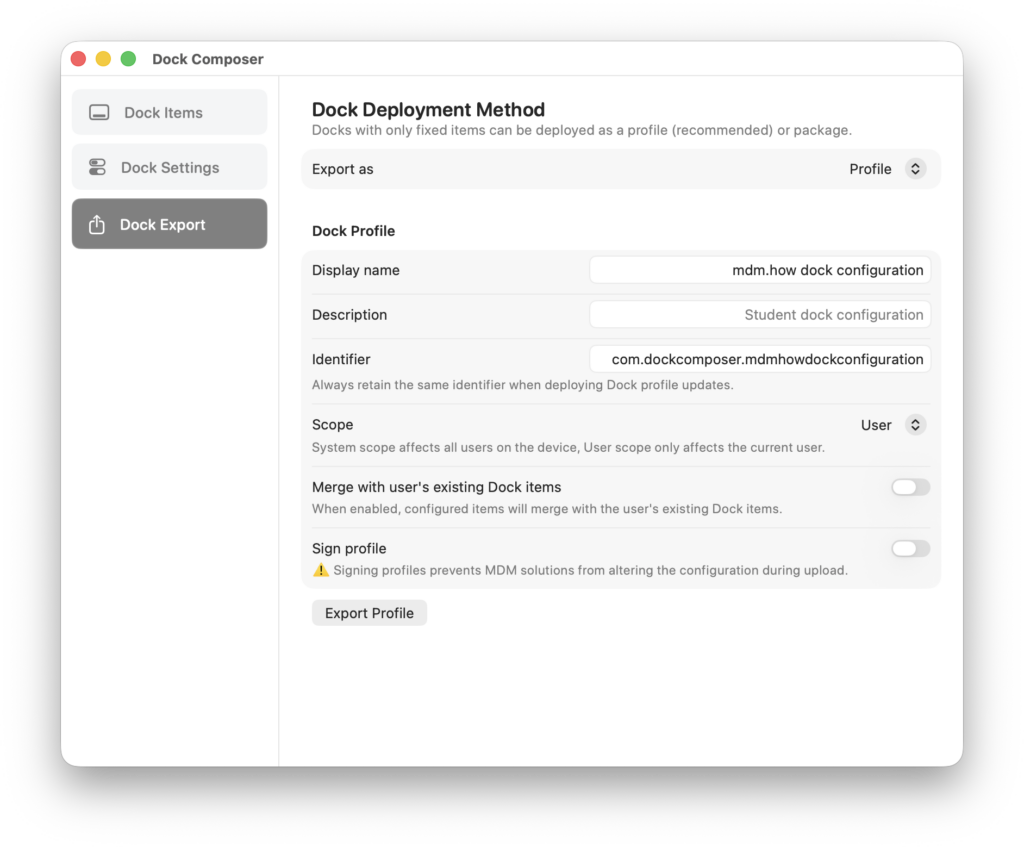
And from the Dock Export part, you can see the saving options for the profile you’ve prepared. From this area, if you want, you can prefer to use the configuration you prepared as a profile with the .mobileconfig extension. Or if you want, you can create a Package and distribute it like an application.
It’s possible for you to distribute the configuration you prepared via User Channel or Device Channel. If you select User Channel, only the user with an active session will be affected. And the Device option brings the same Dock configuration for every user who uses that computer.
If your users are already using their computers and there are already their own applications on the Dock, activating the Merge with user’s existing Dock items option ensures that the items you add are merged with the user’s items. If this option stays off, the user’s items are deleted and only the options in the configuration are loaded.
If you want, you can also distribute the profile or package you’ll create by signing it with your Apple Developer certificate.
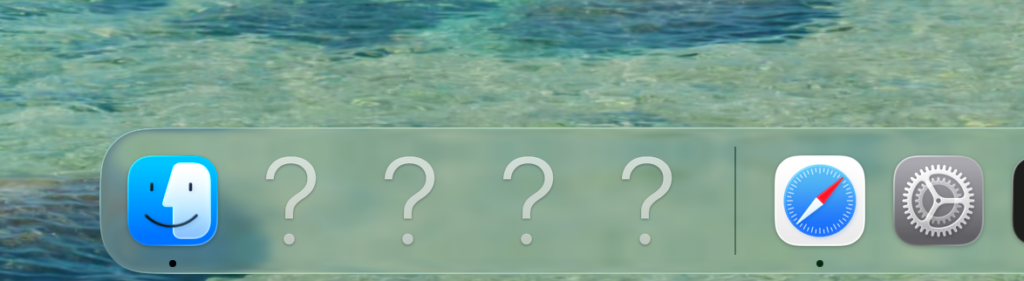
Finally, if the applications in the configuration you created with Dock Composer are not installed on the target computer, a question mark icon will appear instead of those applications’ icons. So if you’re adding an item to the configuration, pay attention that that item is installed on the target computers.
Leave a Reply