
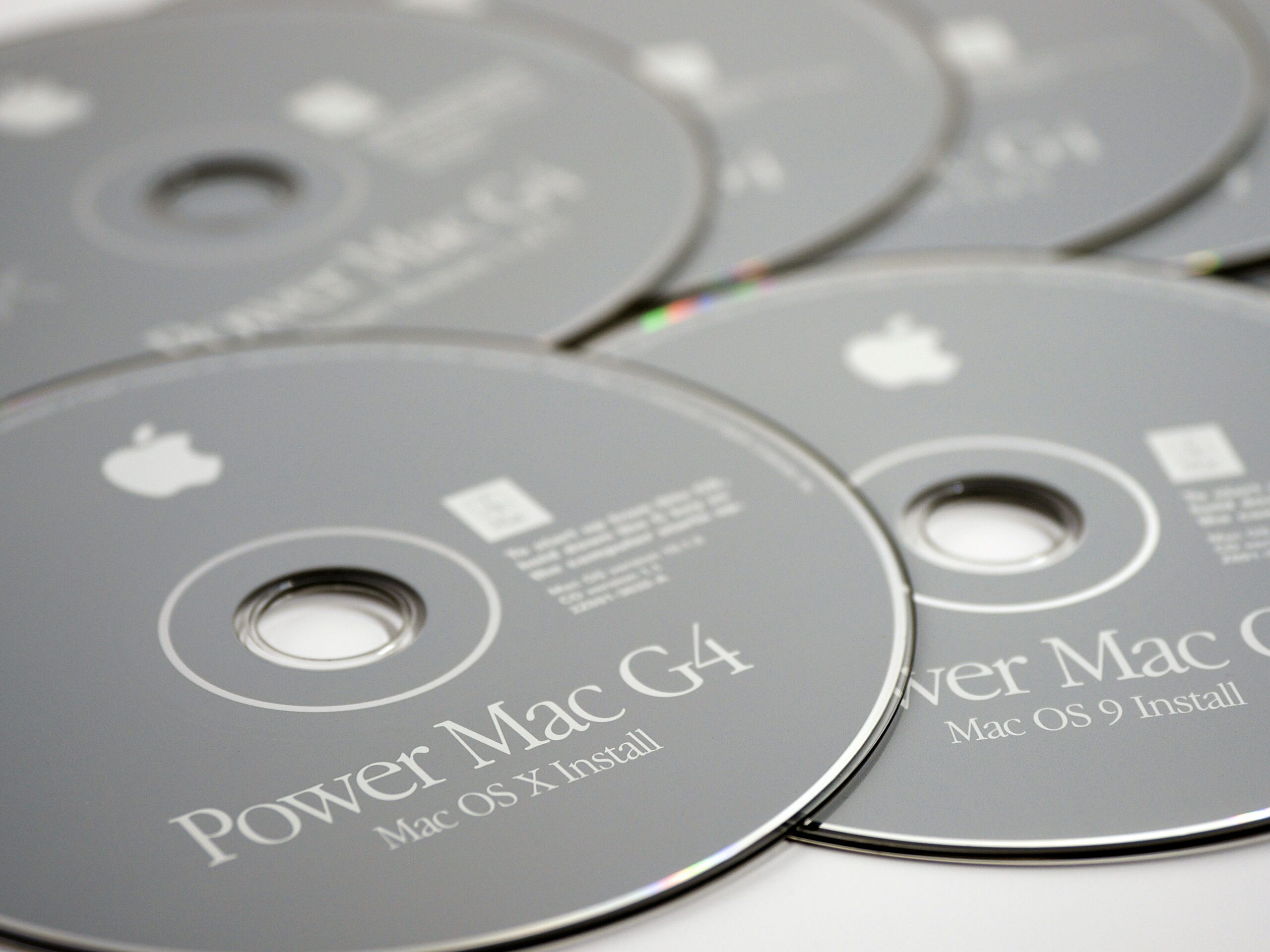
Gather around, kids, let me tell you what we did in the old days. We used to have CD/DVD readers and writers called SuperDrive in our Macs. In those days, operating system CD/DVDs came out of the computers’ boxes. When we experienced a problem with our computer for any reason, we would insert that system CD/DVD into the computer, turn the computer off, and start the computer from the CD/DVD by pressing the C key on the keyboard. After starting the computer from the CD/DVD, we could perform basic troubleshooting operations with various maintenance and repair tools located inside the system disk. We would even create customized system CD/DVDs by adding our own special disk inspection and repair software.
This period began in the times when operating systems could be installed on computers with floppy disks and continued until the MacOS X 10.7 (Lion) version. In Lion, its place was taken by macOS Recovery. In those years, Apple had begun transitioning to computers without optical drives. And it wanted to end the physical media dependency for the tools that could be used for maintenance and repair work too.
The place of operating system CDs and DVDs was taken by the Recovery Partition. macOS Recovery is a disk partition approximately 600 MB in size, located inside the computer’s hard disk, with no access from the graphical interface. After starting our computer from this special partition, we can reach the kind of maintenance and repair tools that were located inside the old-era system disks.
Starting the Computer from macOS Recovery
To start your computer from macOS Recovery, you must first shut it down with the Shut Down command. What comes after this varies depending on whether your computer has an Intel or Apple Silicon processor. You can learn your device’s year of manufacture and processor type from the About This Mac section, which you can reach from the menu. We can roughly say that before 2020 it’s Intel, and after that it’s Apple Silicon.
Intel-Processor Macs
While the computer is off, if you turn it on by pressing the Command + R keys on your keyboard (Command + I for the F keyboard), you can reach macOS Recovery.
Apple Silicon-Processor Macs
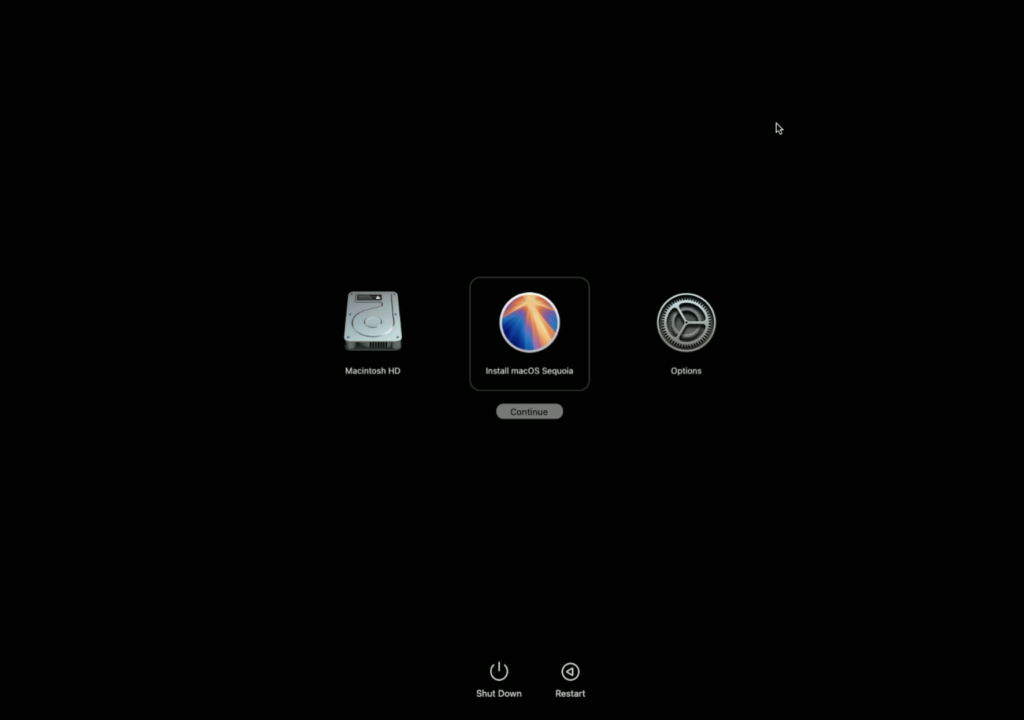
While the computer is off, when you press the Power key to turn it on, if you do not lift your finger from the key, after a while you will see the text Loading Startup Options on the screen. After that, you can reach the macOS Recovery environment by clicking the Options option on the screen that appears.
So What If There’s No Disk on My Computer?
Yes, now we’re talking. To be able to start your computer from macOS Recovery with the methods I wrote above, macOS must be properly installed on the computer. If you have made some interventions on your device, the Recovery environment may not be present.
For example, if your computer has a removable disk, you may have removed it and installed a new disk bought from, your favorite retailer. In this case, naturally, the Recovery environment will not be present on the new disk.
Or you may have installed Windows on an Intel-processor Mac via Boot Camp, and then started from Windows and deleted the Mac partition. In such a case too, you will not have macOS Recovery access.
In one of these kinds of situations, you have two alternatives:
1. Starting the computer from Apple’s Recovery servers using Internet Recovery
2. Creating a bootable macOS disk for yourself and starting the computer from it
Let’s set aside the use of Internet Recovery for a separate article, return to the subject of this article, and look at how to prepare a bootable macOS disk. For this operation, we will use a command-line application called createinstallmedia.
Step by Step
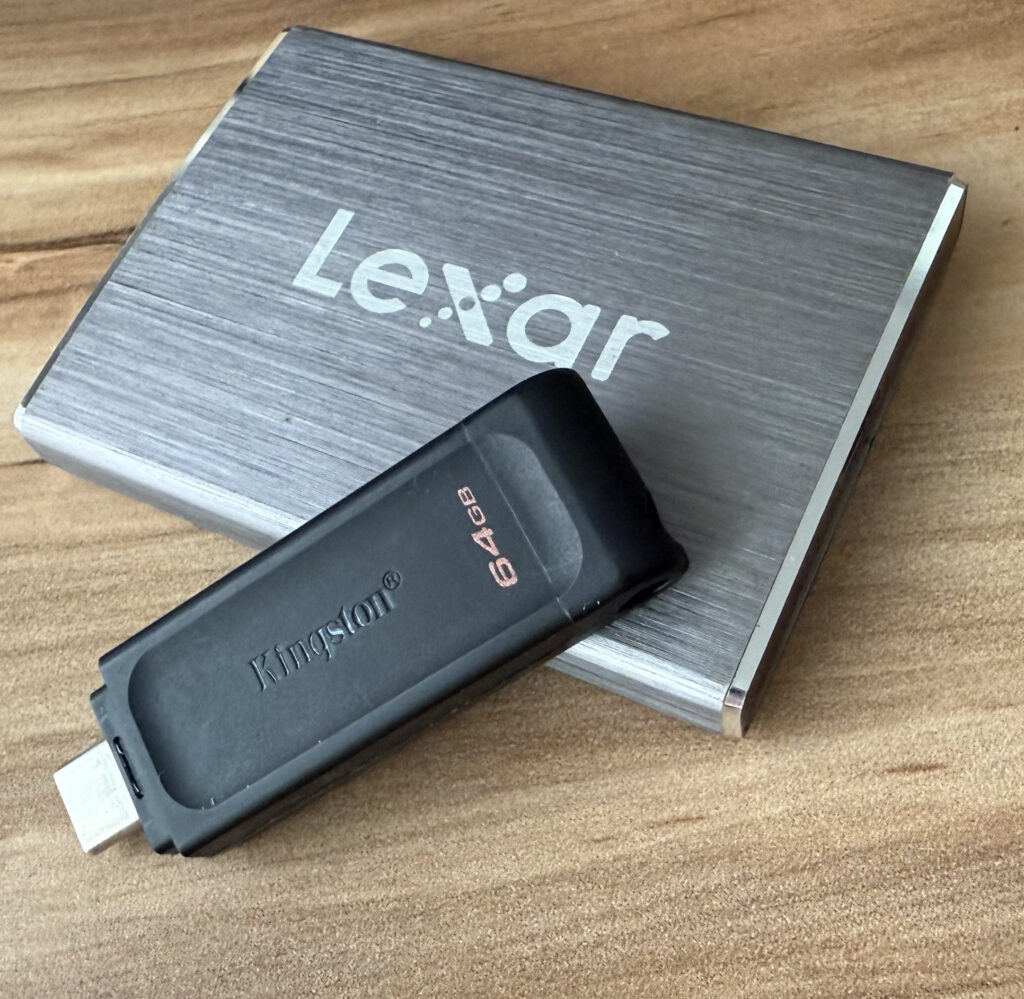
You need two things for this job: an external disk and a macOS installer. You can also use a flash drive as the external disk. However, I must warn you about this: because the read/write speeds of many flash drives on the market are very low, creating the bootable disk and using it afterward will be excessively slow. If you are going to use this method frequently, it is better to use an external SSD that can connect to the computer via Thunderbolt.
1. Download macOS
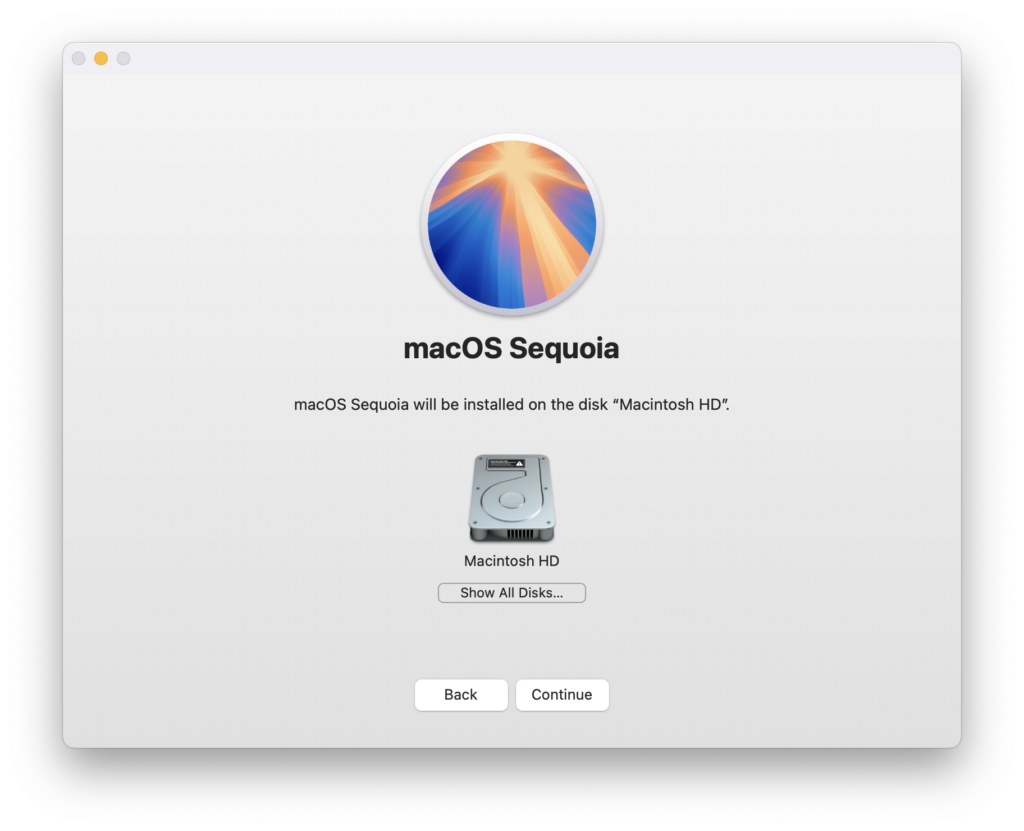
Go to the App Store application and download the system by typing macOS or the code name of the current operating system (Sequoia, Tahoe) in the search box. After the download is complete, the macOS installer application opens on the computer you are using. Close this window. The operating system you downloaded can be found in the Macintosh HD/Applications folder with the name “Install macOS Sequoia”.
2. Insert the Disk
Insert your external disk into your computer. You don’t need to bring it to a special format beforehand. But you should know that this disk will be formatted for this job. So if there is any data on it, it is beneficial to back it up.
3. Open Terminal
The Terminal application is located in the Macintosh HD/Applications/Utilities folder. For this operation we will use a one-line piece of code. You can learn what this code is from Apple’s support article at this address. I am explaining this article on the macOS Sequoia operating system. If you check Apple’s article, the Terminal codes are provided ready-made there going back as far as the El Capitan (macOS 10.10) system. Whichever operating system version you are going to do this for, you should download that macOS version and download the code for that version from Apple’s site.
The code needed for macOS Sequoia is as follows.
sudo /Applications/Install\ macOS\ Sequoia.app/Contents/Resources/createinstallmedia --volume /Volumes/MyVolume4. Make Corrections to the Code
If you examine the code above, you can see that it will make the disk named MyVolume bootable using the command called createinstallmedia located inside /Applications/Install macOS Sequoia.app. If the name of the external disk you inserted into your computer is not MyVolume as written here, the command will give an error. So either change the disk’s name to MyVolume, or make the disk name in the code the same as your own disk.
5. Enter Your Password
Because the command begins with sudo, it can only be used by an Admin-authorized user. For this reason, you need to enter your Admin password. While entering your password in Terminal, you cannot see any indication showing that you are entering it — no problem. It is enough to just enter your Admin password correctly.
6. Y or N
A warning will appear like “This operation will erase your disk; if you want to continue, press the Y key.” Don’t worry, we haven’t gone back to the 80s and the Basic programming language 🙂 Continue by pressing the Y key and then the Enter key.
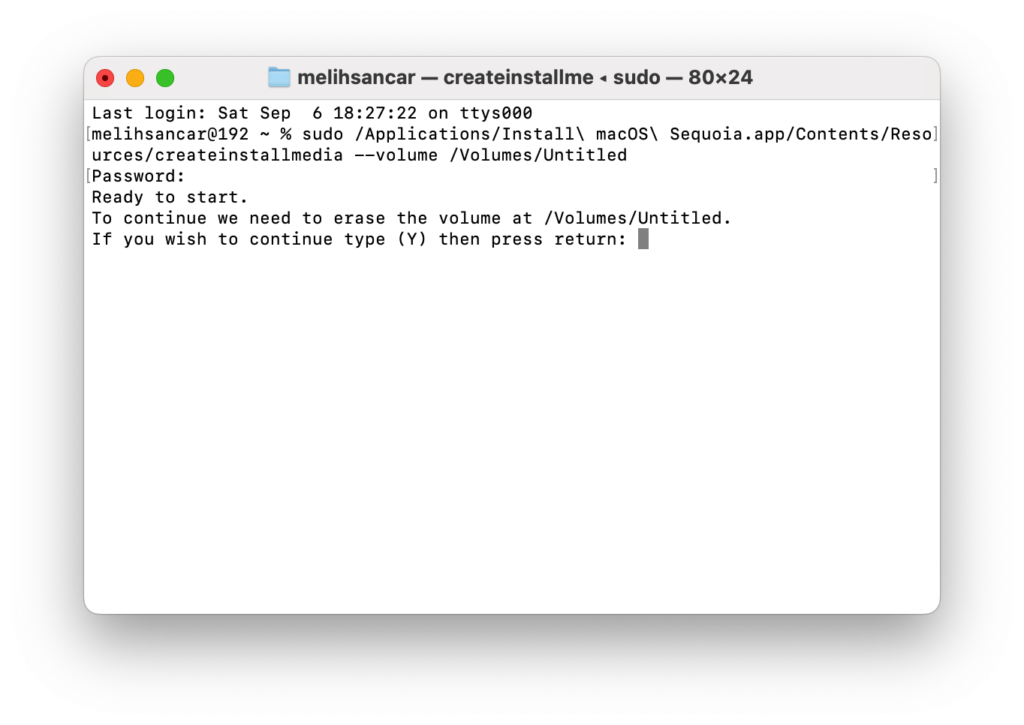
7. Disk is erasing
First it informs you that your disk is being erased with a message like 10%… 20%… After that, it begins writing the necessary components to the disk one by one. This operation varies depending on the read/write speed of the disk you use. But if you are using a simple flash drive, I can say that you can expect to wait at least 20 minutes.

8. Your Disk Is Ready
When the operation is complete, you see the phrase Install media now available at “/Volumes/Install macOS Sequoia” on the last line of Terminal. From this point on, to start your computer from this disk, you can shut it down with the Shut Down command and use the method I explained above to start it from macOS Recovery again.
Isn’t There an Easier Way?
There is. How could there not be? A small application called Install Disk Creator does the job that the createinstallmedia command does using a graphical interface, by having you first select your macOS Installer application and then your target disk. As an alternative, you can use this too. You can download the Install Disk Creator application at this address.
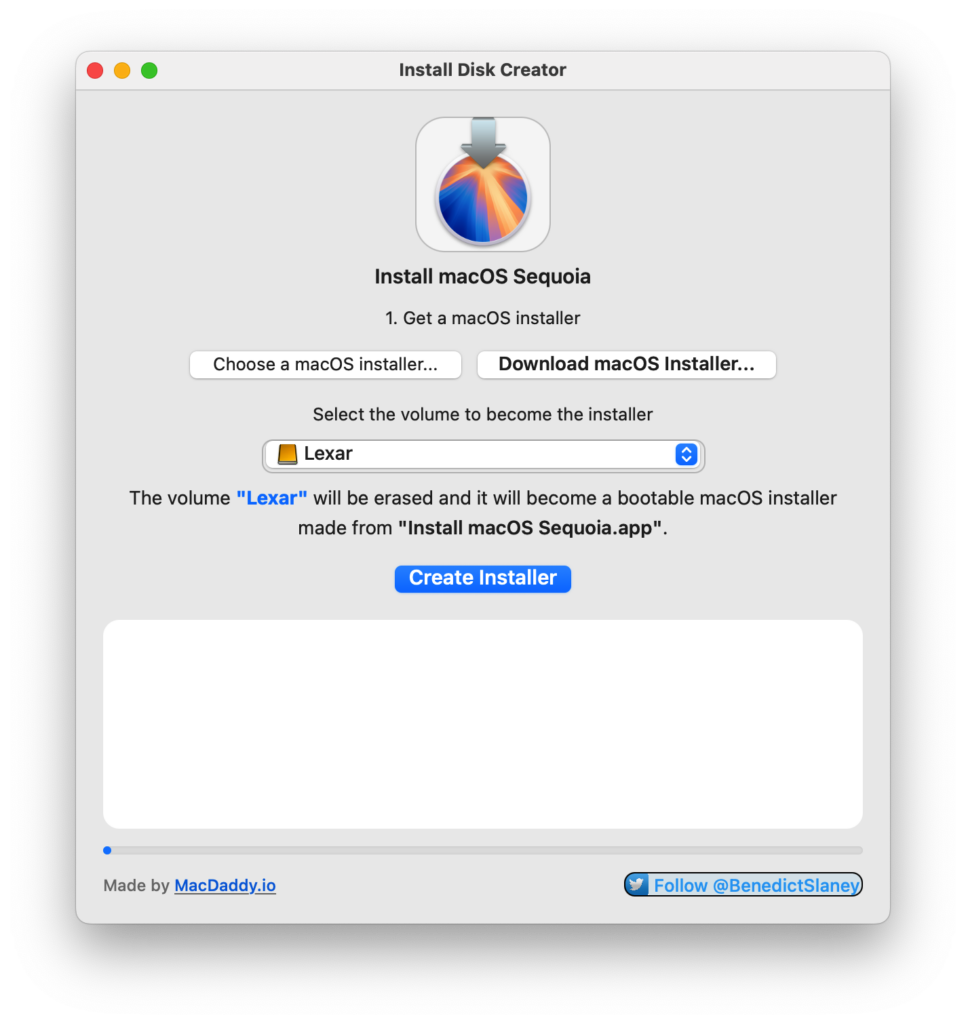
Photo by Brett Jordan on Unsplash
Leave a Reply