
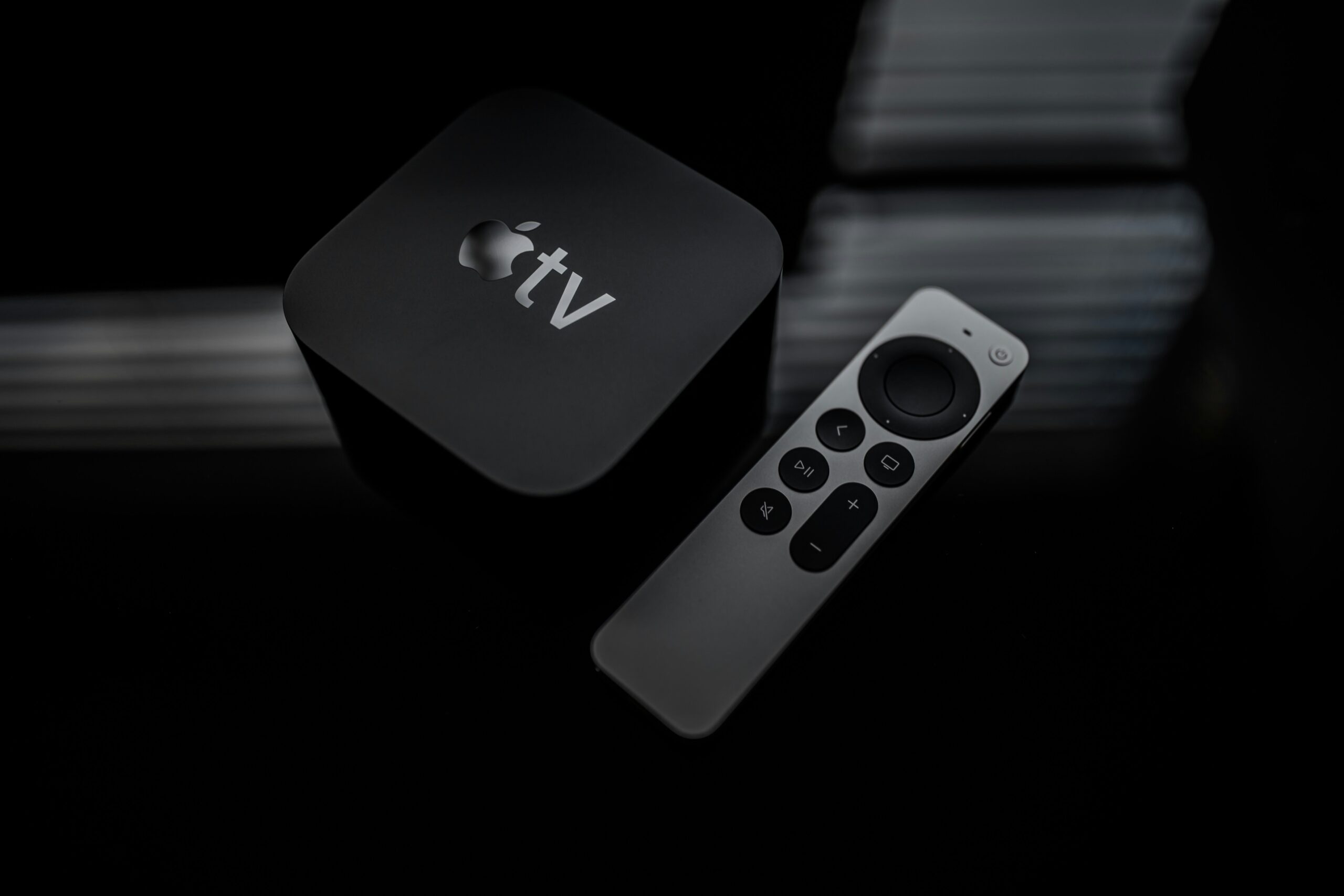
Apple has a hardware product that is not as popular as the iPhone, iPad, Mac, or Apple Watch: Apple TV. No, I am not talking about Apple TV+, Apple’s streaming service similar to Netflix or Disney+.
Let me give a brief summary for those who have not yet been introduced to Apple TV as hardware. Apple TV is a device that connects to any television via an HDMI cable and turns that television into a kind of smart TV. Let me give an example from the television in my own home. I use a Sony Bravia television I bought in 2008. It is not as high-resolution as today’s 4K TVs, but the Full HD resolution it has is sufficient for my TV-viewing distance. The only part that might fall short is the smart TV features. Yes, it has an Ethernet port on the back and connects to the internet. But there are only as many applications as Sony added back in 2008, and many of them no longer work because they are now outdated standards.
This is where the Apple TV device comes into play. When you connect Apple TV to a 2008 model Sony Bravia, it becomes capable of offering almost everything today’s smart TVs offer. In addition to YouTube, Netflix, Disney+, Amazon Prime Video, and all the streaming services you can think of, you can also use it as a mini game console by installing games specially developed for Apple TV. PlayStation or Xbox controllers can connect directly to Apple TV.
Before getting into the subject of this article, I want to mention one more feature you can get with Apple TV: AirPlay. You can play any content or your entire screen from your iPhone, iPad, or Mac on your Apple TV-connected television via AirPlay. About 10 years ago, Apple opened AirPlay to third-party developers as well, and now AirPlay support exists (without Apple TV hardware) on, for example, LG or Samsung brand televisions. But this is a service you can find on somewhat higher-end televisions.
So What Is the Situation in the Corporate World?
There are two environments where you can frequently see Apple TV devices in the corporate world.
- Classrooms in schools that conduct 1:1 iPad-based education
- Meeting rooms in companies
In schools, an Apple TV in the classroom can enable interactive teaching by instantly mirroring the screen of the device in the hands of the teacher or any of the students.
A similar use can be carried out in meeting rooms at companies. During a meeting, any participant can share a presentation from their own device with the other participants.
We Came Here to Adjust Color Balance — What Are You Talking About?
Yes, now let’s get into our topic. Whether you use Apple TV at home like me, or at school or at your company… if you think the image you mirror to Apple TV looks different from how it appears on your own device, you can perform a kind of color calibration on the Apple TV. I am of course not talking about a color calibration that can be done with a professional Spectrophotometer. But you can use this simple method to make the colors on the television or projector more consistent with the colors on the device you are mirroring there. And why wouldn’t you use it anyway?
First of all, you will need one iPhone for this process.
Step by Step
1. First, open the Settings application on the Apple TV.
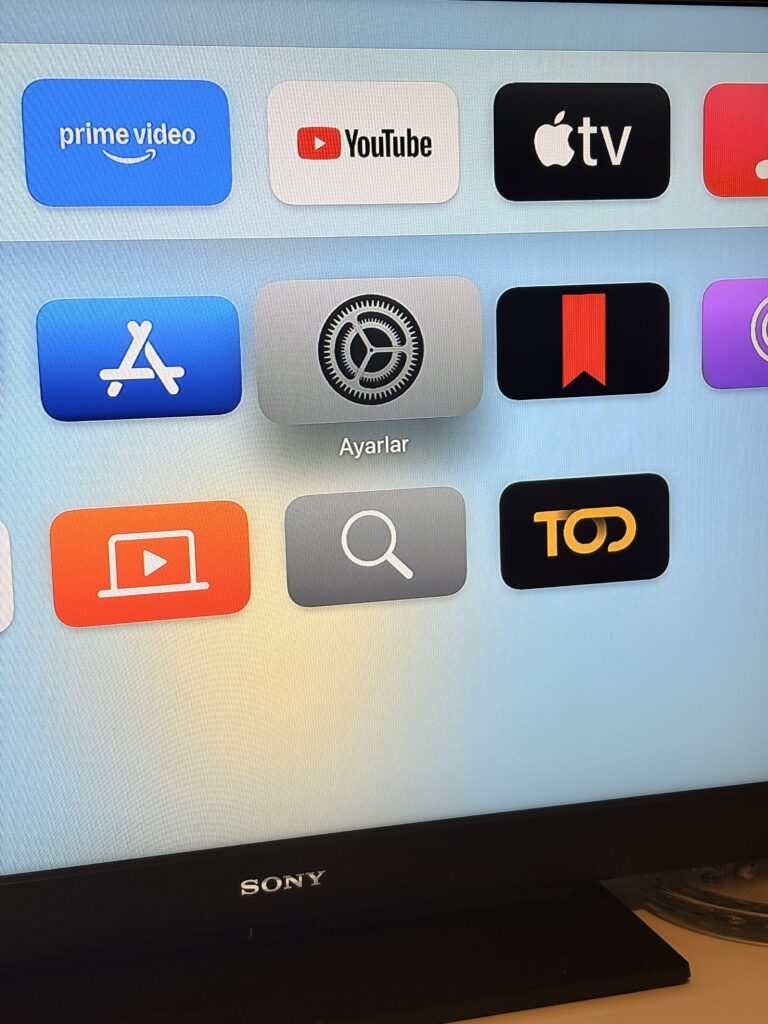
2. On the main screen of Settings, go to the Video and Audio section.
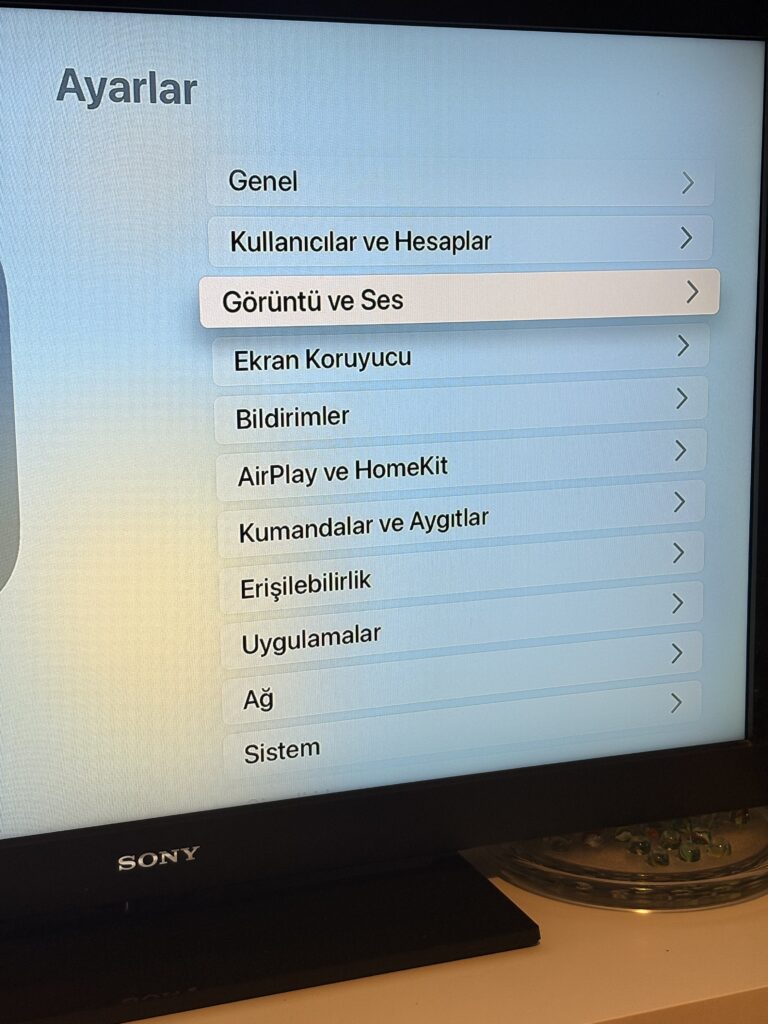
3. When the Video and Audio page appears, select the Color Balance option under the Calibration section.

4. A notification will appear on your iPhone‘s screen telling you to turn the phone toward the TV screen.
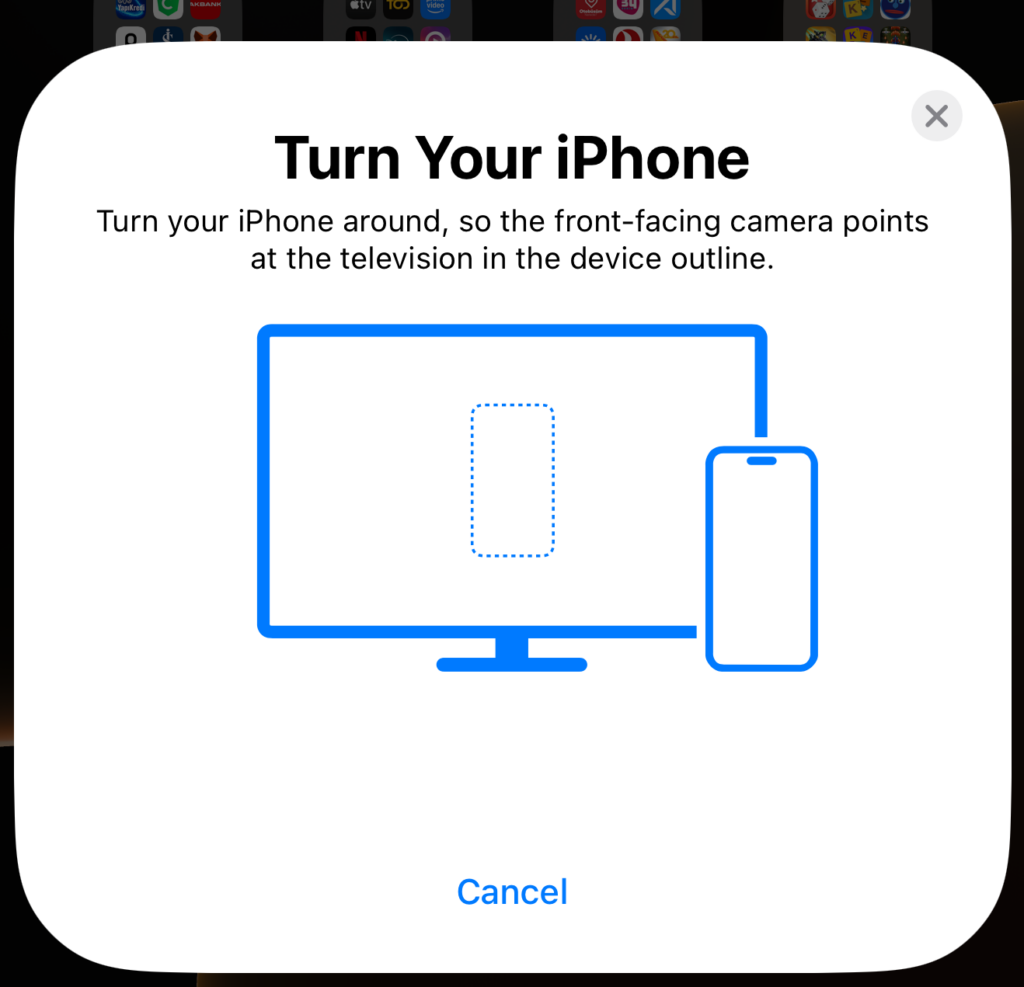
5. An image marked roughly the size of an iPhone will appear on your TV screen. Hold the iPhone toward this area with its screen facing the television.
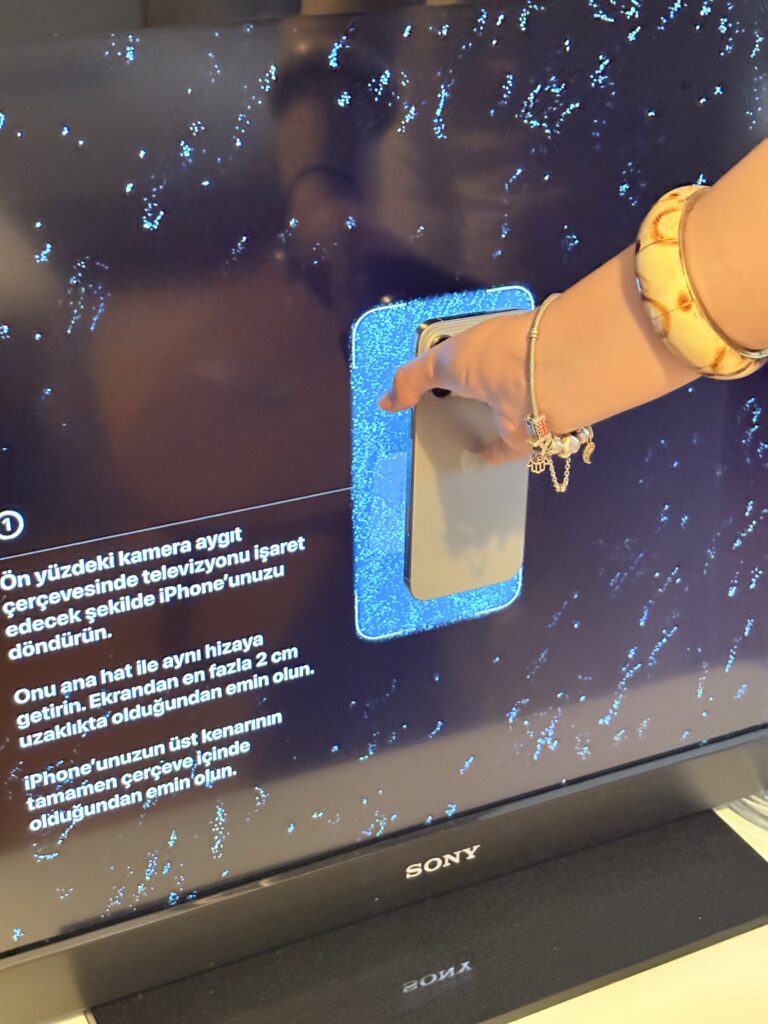
6. While different colors are displayed in this area, “Measuring” will appear right next to it. Continue holding the iPhone.
7. When the process is complete, you will receive the “Color balance adjustment complete” notification.
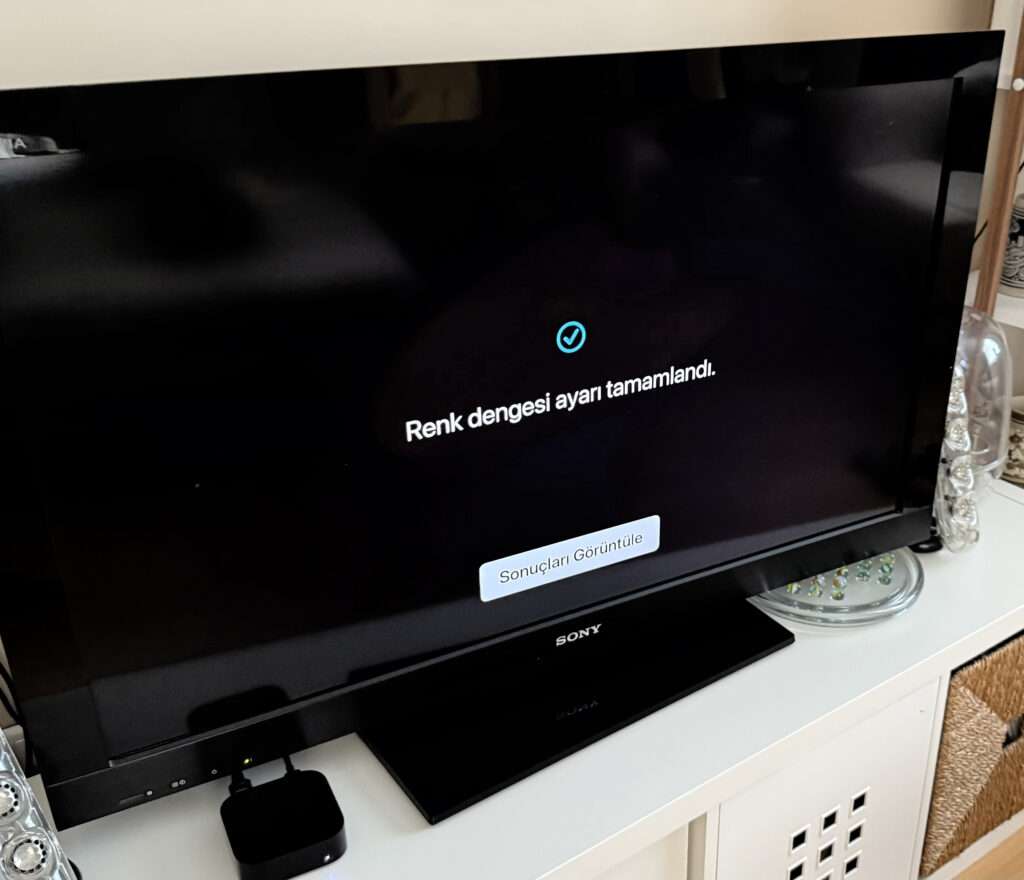
8. When you click the “View Results” button, the images with and without the color balance adjustment are shown comparatively.
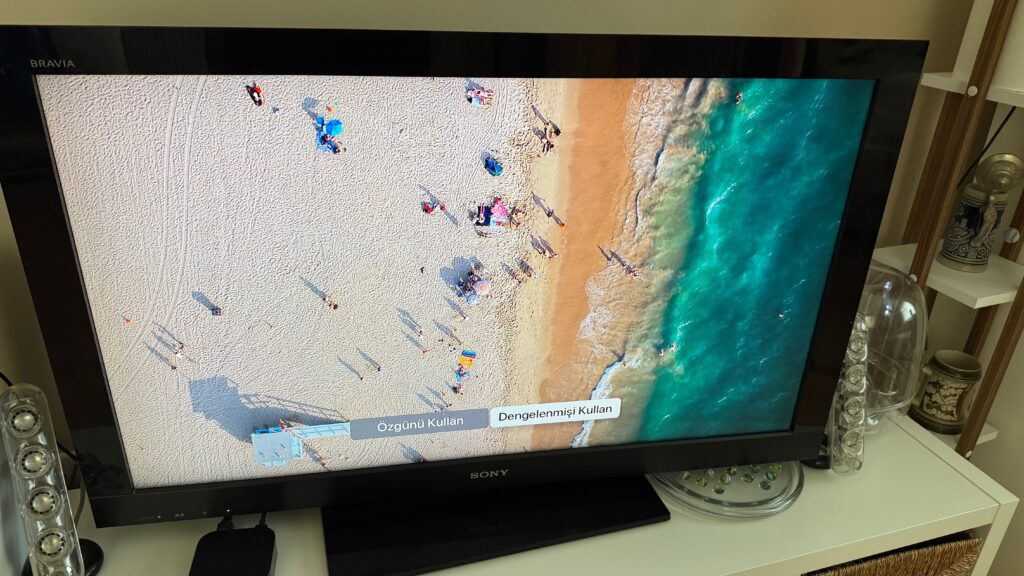
Photo by Omar Rodriguez on Unsplash
Leave a Reply