
Apple Business Manager is the backbone of corporate Apple device deployment and management processes for several different reasons. Via Apple Business Manager:
- You can see the devices belonging to your organization and assign them to MDM servers.
- You can purchase the apps you’ll deploy with MDM solutions.
- You can create corporate Apple identities and manage these accounts.
As of the day you open (and verify) your Apple Business Manager account, you can start creating Managed Apple Accounts. However, for every account you create as of the first day, the @organizationname.appleaccount.com domain address will be used. If you want to use your organization’s own domain address instead of this address that Apple assigns automatically, you need to perform a domain verification operation.
For example, if I, the one writing this article, want to use my own company email address melih@mdm.how as a Managed Apple Account at the same time, I have to verify the mdm.how domain address. Until I do this operation, the only address I can create will be melih@mdmhow.appleaccount.com.
To perform the domain verification operation, you must add a one-line TXT record that you’ll get from Apple Business Manager to the DNS records via the organization where you manage your domain address.
How Will We Do It?
First log in to Apple Business Manager. Click your own name in the bottom-left corner and select Preferences.
From the section that opens, select the Managed Apple Accounts option. If you haven’t done this operation before, you’ll only have the option to create accounts with the appleaccount.com domain address in front of you. To add your own domain address here, click the + Add Domain option. Type your domain address on the screen that opens.
When you make this new addition, your new domain address appears in the list. But to verify this new address, we need a one-line piece of information to be added to the DNS records. For this, you must click the Verify button across from your domain address.

When you click the Verify button, you’ll see a single-line code on the page that opens in front of you. You need to verify this by copying this code via the Registrar company where you purchased and manage your domain address. And you can carry out this verification by adding the code you received as a TXT record.
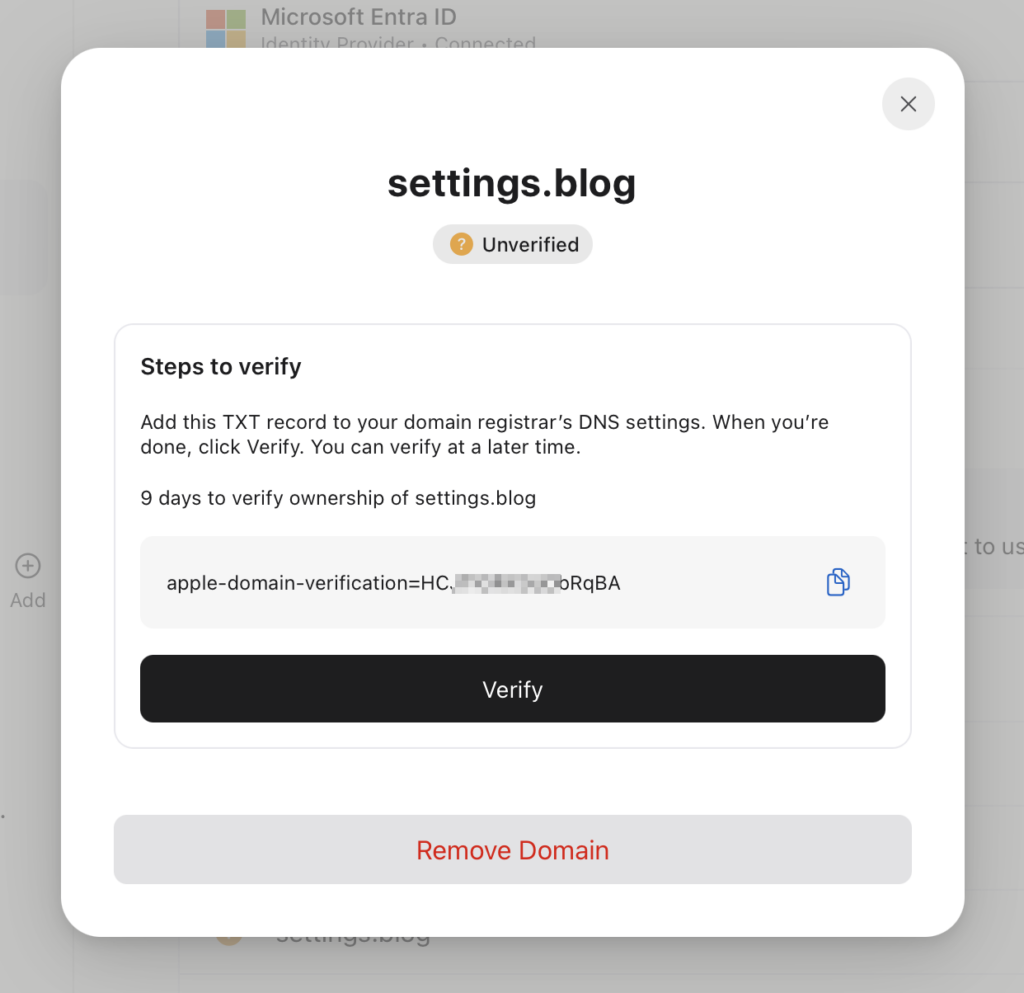
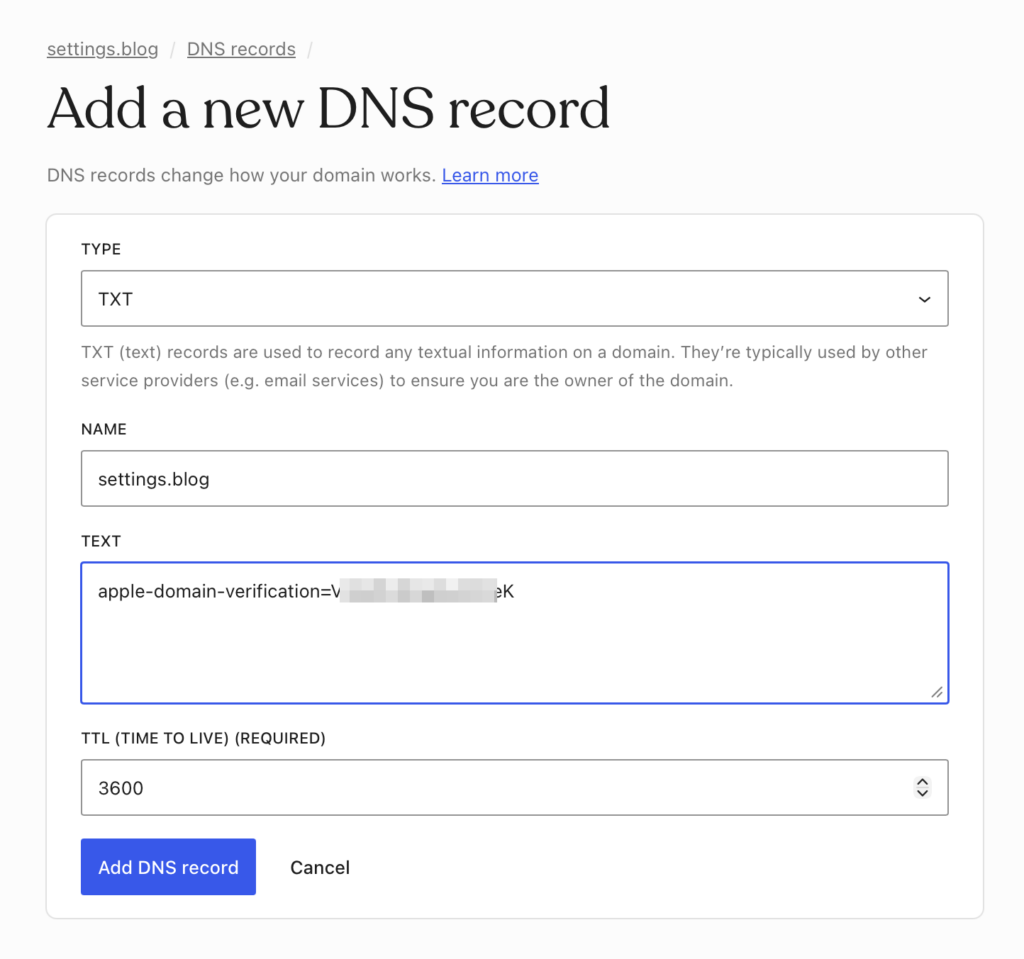
After getting the code, you must leave Apple Business Manager and go to the site of the company where you purchased or manage the domain address. When you select your own domain address on the Domain Registrar site, you should be seeing a screen where you can view the DNS records. In that area there should also be an option like Add Record. Click this option.

You must select TXT as the record type. Let me answer the question on your mind right away. Adding a TXT record here has no effect on your company’s website that’s live with the same domain address or on the email addresses in use. They continue to work just as they are. You can use the following settings while adding the record.
If you visit the Preferences / Managed Apple Accounts section in Apple Business Manager again a few hours after adding this record, you can see that your domain address’s icon has turned into a green check mark and that the Manage option — instead of Verify — is now written across from it.
Leave a Reply