
Today, one of the most important topics in device migrations is the transfer of existing data. Especially migrating between two devices with different operating systems can sometimes feel quite complicated or long to users.
But today we’ll talk about the Move to iOS application, a common solution for being able to migrate from the Android phone you currently use to your new iPhone.
The Move to iOS application (to summarize in a single sentence) is a practical solution that enables the transfer of the data on your Android phone to the iPhone. Another nice aspect of the application is that it’s published free of charge on the Google Play Store.
As preliminary preparation, it’s enough to download the Move to iOS application to the Android device and for the iPhone to be migrated to be on the setup (Setup Assistant) screen. If you’ve already turned the iPhone on, no problem. You can quickly reset it by following the path System Settings > General > Transfer or Reset.
If both devices are sitting close to each other on the table, you can now quickly begin the process.
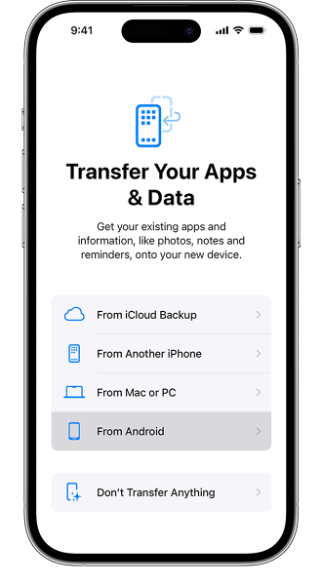
1. In the iPhone Setup Assistant, the “From Android” option is selected from the “Transfer Your Apps & Data” area. Until you reach this area, setup steps such as Language and Region selection, Wi-Fi definition, Face ID, and Password Creation will come up. You don’t need to stop until you see the “Transfer Your Apps & Data” area.
2. Connect both devices to the same Wi-Fi network and open the Move to iOS application.
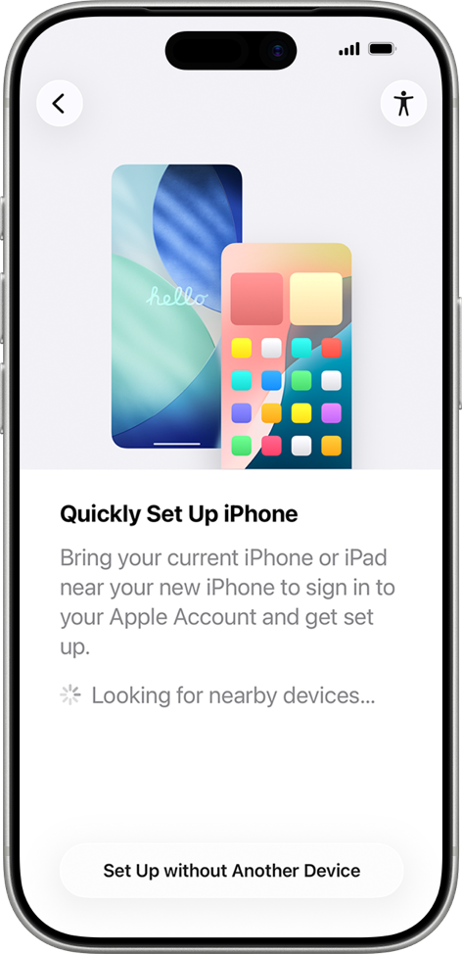
ATTENTION: One of the screens that will come up until you reach the “Transfer Your Apps & Data” area is the “Quick Setup” option. When this area is displayed, you should continue via the “Set up without Another Device” option.
3. When you continue by clicking the Transfer from Android option, the Move to iOS application will see the iPhone. You should continue from the “Connect via Code” option by clicking the detected iPhone. Simultaneously, by saying continue from the “Transfer from Android” screen on the iPhone, the verification code should be displayed.
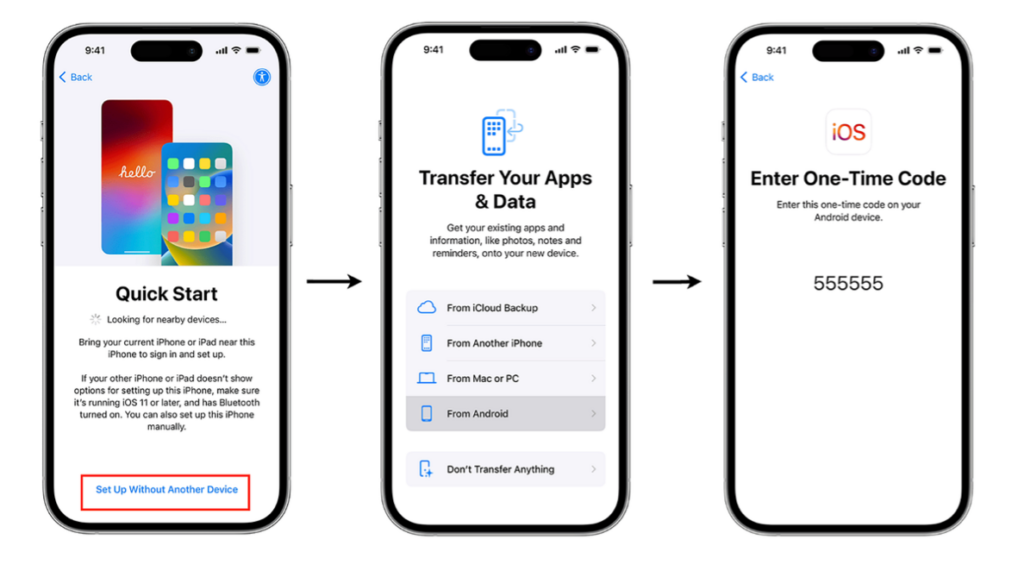
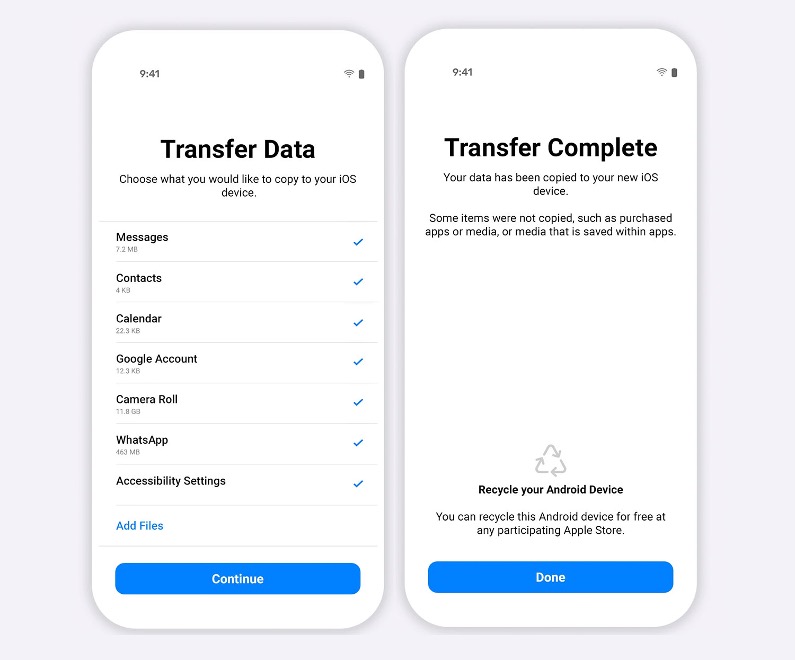
4. When this verification code is entered into the Move to iOS application, Move to iOS conveys to you as a list the folders that can be transferred.
- Messages
- Contacts
- Call history
- Events
- Google accounts
- Gallery
- Voice memos
- Applications
- Cellular plan (if any)
- Display and Accessibility settings
Also, via the “Add File” option located at the very bottom of the list, if there are different folders suitable for transfer (e.g. Downloads, etc.), you can add those too.
5. After all selections are complete, you can start the transfer by saying continue. If the “Transfer Completed” screen is displayed on both devices, it means the operation is complete. The operation that needs to be done now is to continue with the standard iPhone setup process.
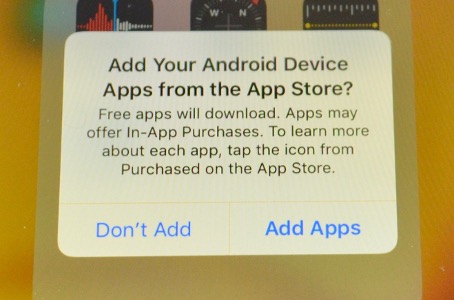
NOTE: When the setup is complete, the iPhone will ask you “Shall I add the applications on the Android device via the App Store?” If you say yes, it will start downloading the relevant applications on the Android (of course, if they have an iOS version on the App Store) to the iPhone.
Leave a Reply