
The long-awaited VPP innovations that Apple announced at the WWDC 26 event in June were put into use as of October 22, 2026. Now subscriptions offered from within applications distributed free of charge can be purchased centrally from within Apple Business.
And the only innovation isn’t limited to this. The method of purchasing free applications is also changing. Now, when purchasing a free application, you don’t need to enter a quantity. It’s enough to just select which Organizational Unit you’ll assign it to. Since paid application purchases are priced on a quantity basis, there’s no change on that side.
A noteworthy change has also occurred in the address of the VPP Tokens. We used to be able to download the tokens under Settings > Payments & Billing. Now they reside at their new address, Settings > Organizational Units > OU name > Content Token.
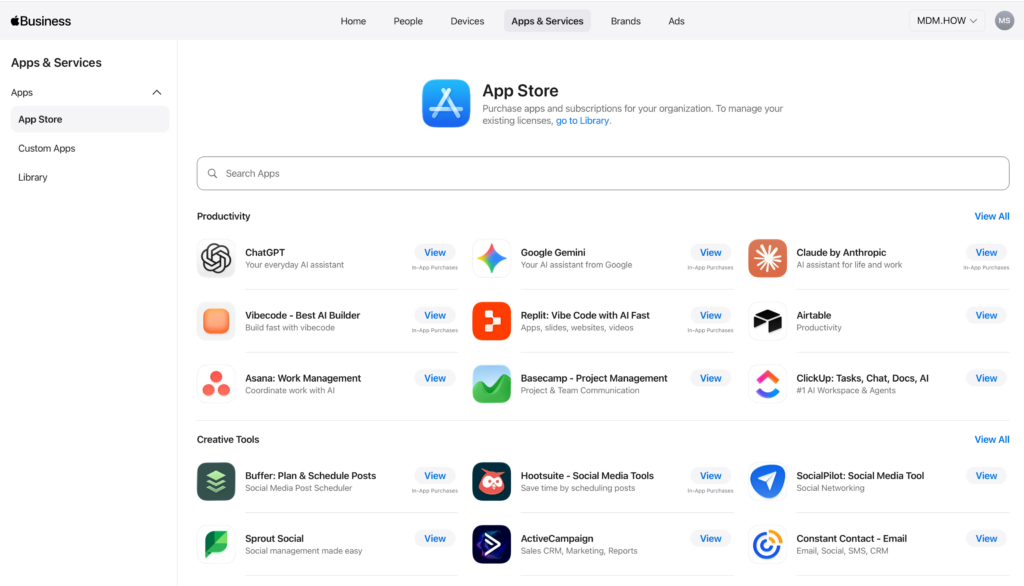
Adding a Payment Method
If you haven’t previously added a payment method to Apple Business, you should connect a payment system for subscription and paid application purchases. You can do this in Apple Business from the Payment Methods part of the Settings > Payments & Billing > Apps & Services section. If you’re going to define a single shared credit/debit card here for all authorized Apple Business users, you can use the Shared Payment Method option.
If you want all users defined in Apple Business to use their own credit/debit cards for their own use, you can use the Individual Payment Method option. A credit/debit card added with this method will not be visible to other Apple Business users.
The last option, Apps & Books Store Credit, allows adding a balance amount with credit codes that can be purchased from the Apple Store or Apple business partners, without defining a credit/debit card. You can check in which countries and regions this purchasing method is available from this address.
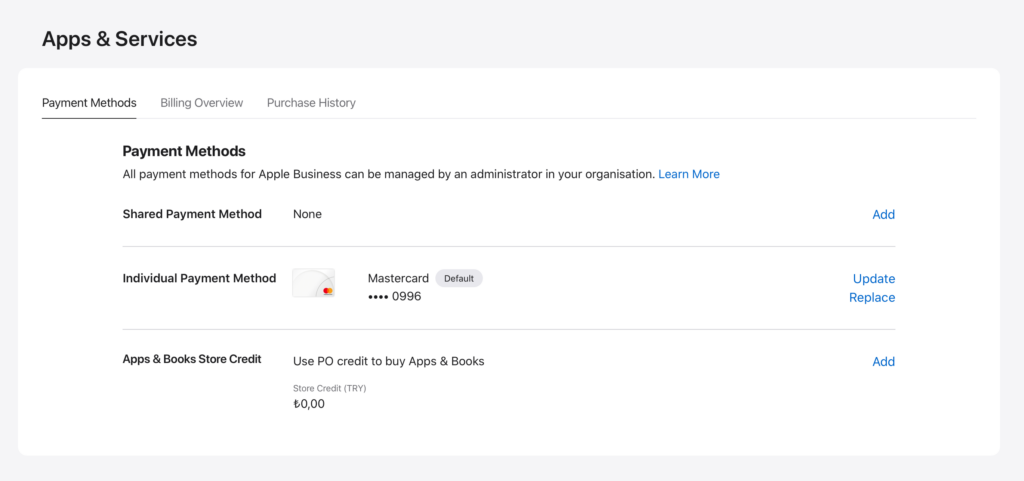
Purchasing a Free Application
As we touched on in the introduction of the article, the method of purchasing applications that are free has changed. They are no longer purchased by entering a quantity. When you open the application’s page and click the Add button, a second screen opens up asking which Organizational Unit you want to assign it to. From here you can assign it to the OU you want (formerly named Location). For those of you wondering “So how many total can we use?”, let me say it right away: 2,147,483,647 (in words, two billion one hundred forty-seven million four hundred eighty-three thousand six hundred forty-seven). I’m sure there’s a logical reason in the calculation of this number. Otherwise, I might start thinking at any moment “One of the Apple engineers randomly banged out a number on the keyboard.”
There’s one more new detail here. In addition to the Organizational Units you create yourself, an option named All Current and Future has been added. If you select this option, you automatically assign the application to all Organizational Units that currently exist and that you’ll create from now on.
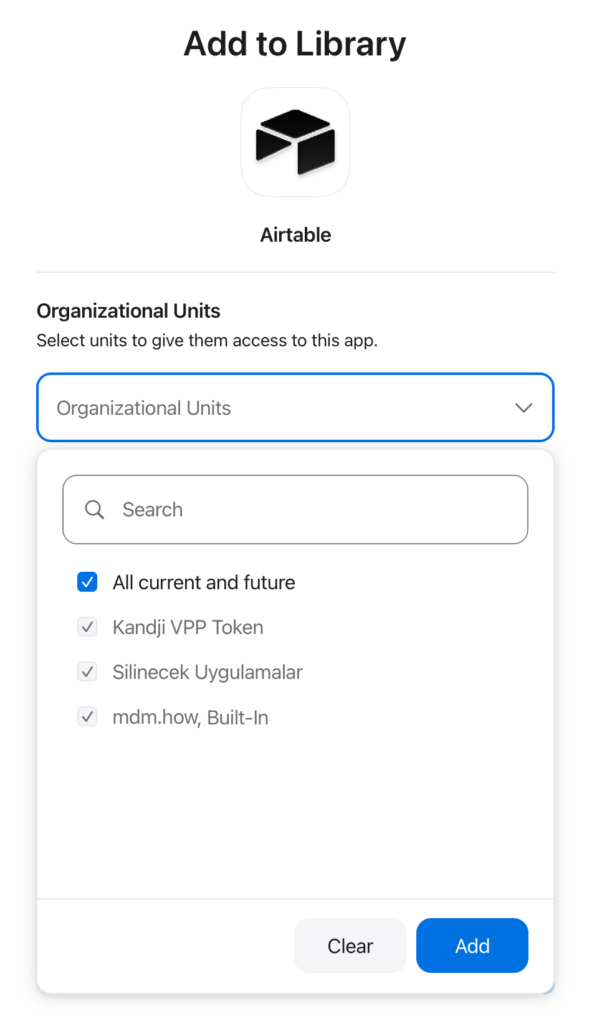
Free applications are divided into two among themselves: those purchased before October 22, 2026, and those added after this date. Until now, it wasn’t possible for the applications you’ve purchased to date to be deleted from the Apple Business inventory. For exactly this reason, we used to create an Organizational Unit like the “Applications to Be Deleted” seen in the screenshot above for applications we didn’t want to appear on our MDM servers and transfer them there.
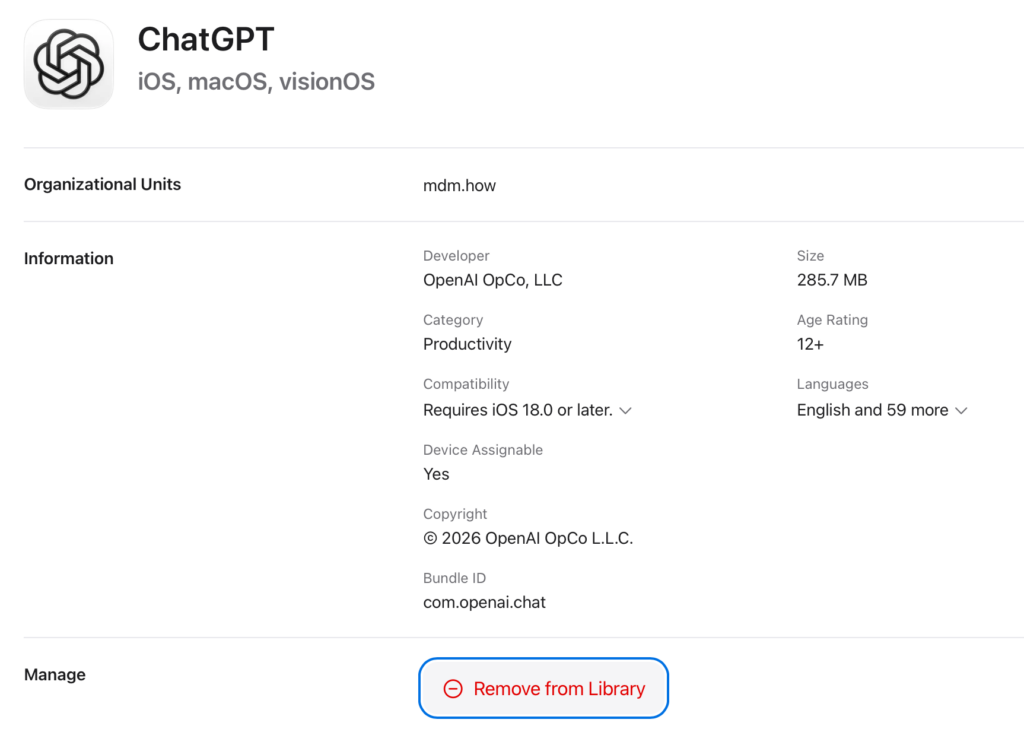
For applications purchased before October 22, 2026, this situation remains valid. We still can’t delete them. But free applications added after this date can, if desired, be removed with the Remove from Library command.
Starting a Subscription
If an application offers a subscription-based service as an In-App Purchase, you can centrally purchase subscription packages for your users via Apple Business. Currently, not every application’s In-App Purchase service has been updated to support this feature. But over time, the number of applications supporting this feature will increase.
To purchase a subscription, you should go to the application’s own page within Apple Business. As you see in the screenshots below, if you can see various subscription Tiers, this means that that application supports subscription purchasing via Apple Business. You can proceed by selecting the one of the Tiers suitable for you.
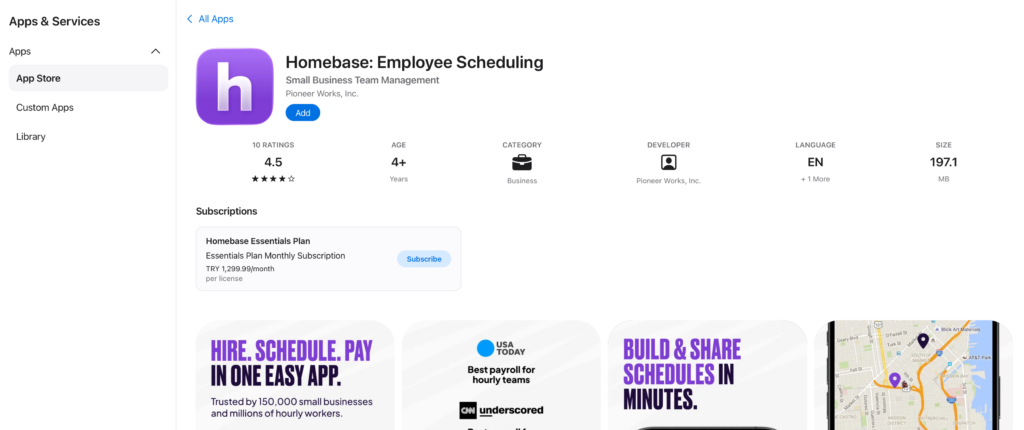
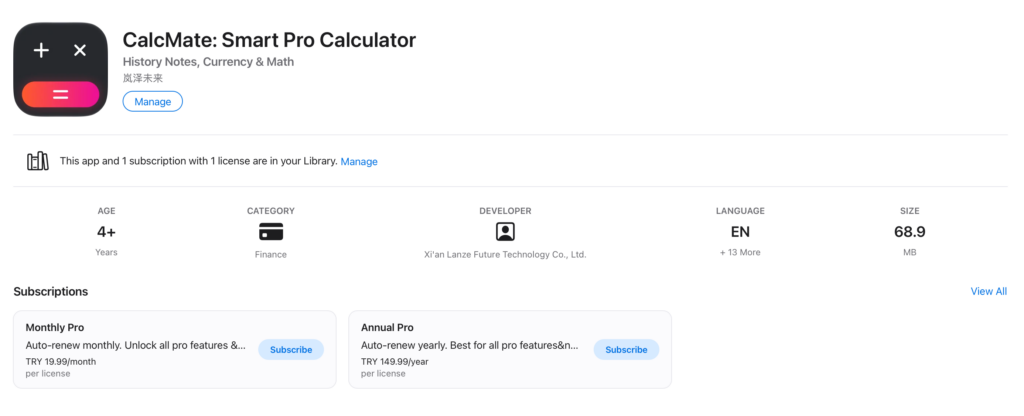
When you click the Subscribe option across from the subscription model suitable for your needs, a second screen will open up in front of you. From here you can select the Organizational Unit you’ll assign the application to and specify how many licenses you want to get. After you carry out the purchase once, you can distribute the licenses among the OUs.
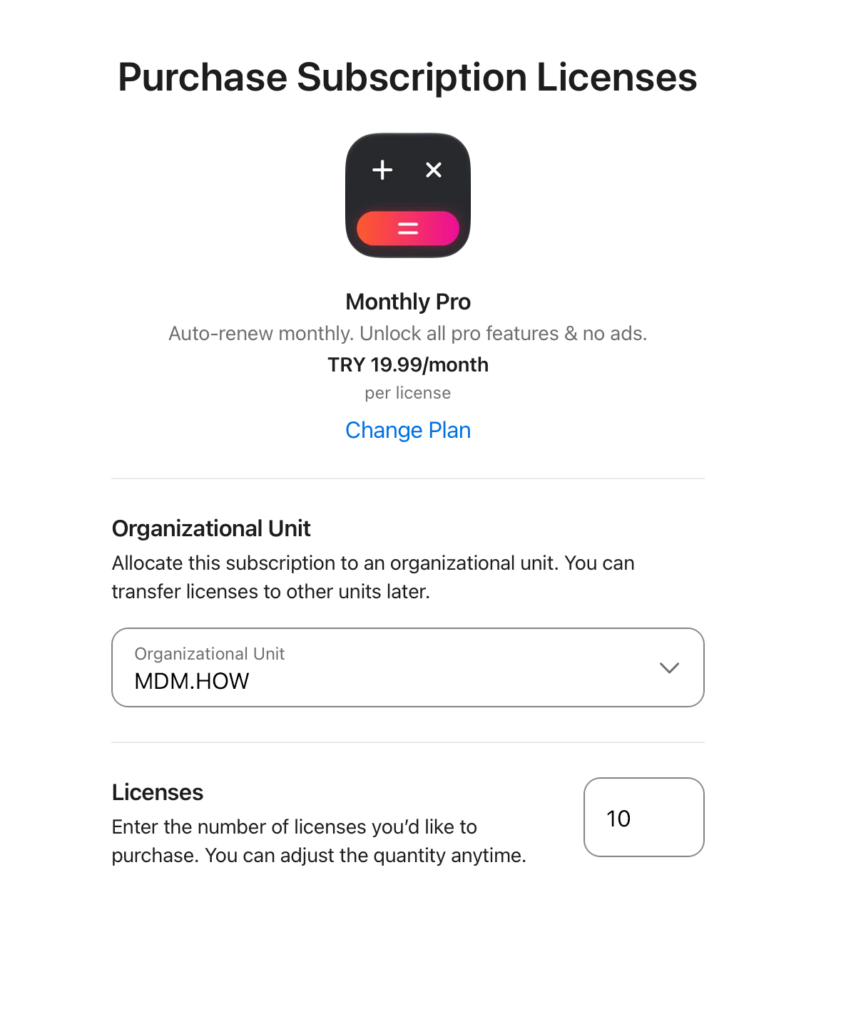
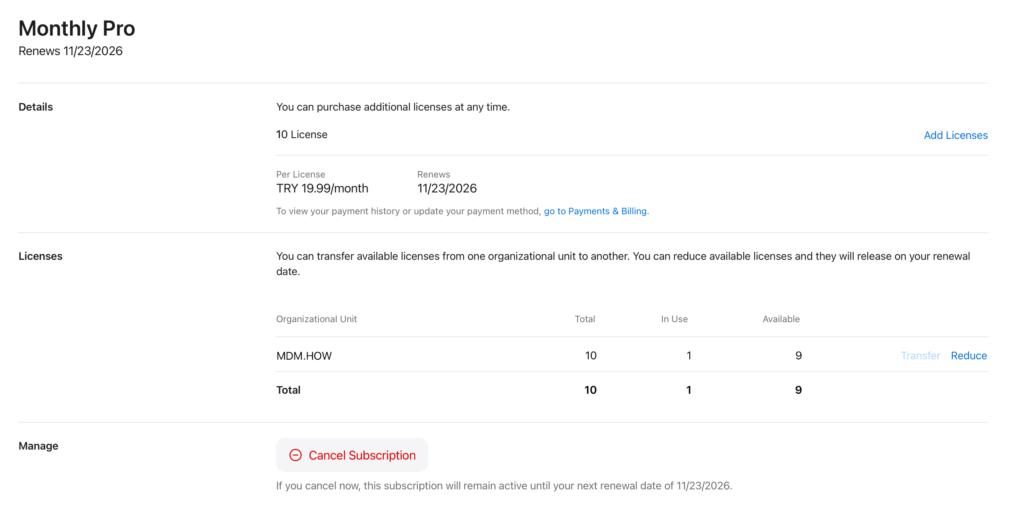
When you confirm the purchase on the next screen, the licenses are defined to the application. You can examine the purchases you made from the Library / Application Name / View Details / In App Purchases / Manage section. You can see how many licenses you have, how many are in use, and the amounts you’ll pay per license from this area. At the same time, operations like adding new licenses and reducing the existing license count are also done from here.
You can access the Apple support article about these innovations in Apple Business at this address.
Leave a Reply