

There’s a concept Apple attaches great importance to in its device deployment scenarios: Zero Touch Deployment. That is, deployment without touching. So what does this mean?
For this, let’s picture old-fashioned device deployment scenarios in our minds. An organization purchases new devices. Those devices are delivered to the information technology unit. And the information technology team sets up the devices one by one. Perhaps to do this it gets help from various imaging methods. The setup generally includes the operating system, software, settings, and updates. As the devices become ready, users are called and the devices are delivered to them in exchange for an assignment form.
In contrast, Zero Touch Deployment proposes this. When devices reach your organization from the vendor, deliver them directly to the user. Let the user experience opening the device for the first time. Thanks to Apple Business Manager and MDM running in the background, as soon as the user opens the device, profiles, apps, and updates will be installed automatically. This way, information technology won’t need to lay a hand on it.
I can almost hear you saying “Okay, wonderful scenario, let’s do this right away.” Before diving into the topic headfirst, I want to remind you of a very important factor: Users. I can guarantee you that users will not behave the way you expect them to.
For the Zero Touch Deployment scenario to work, the following steps are necessary:
- The device will be present in Apple Business Manager
- It will have been assigned from Apple Business Manager to the MDM you use
- The enrollment profile will be ready on your MDM server
- The settings to be applied and the apps to be installed during the initial setup will have been prepared on the MDM server
If these steps have been completed, you can send the device to the user. And the user can do the initial setup of the device on their own.
What’s the Problem Then?
The problem is exactly this: a device that enrolls in MDM begins to receive a significant part of the policies and the apps after reaching the desktop. Apps are installed one after another, etc. This process varies according to the size of the apps to be installed and the network access speed. But it’s best to wait at least 30 more minutes after reaching the desktop.
However, the user doesn’t know this. And the moment they reach the desktop, they think the process is complete. As I said above, users will not behave the way you expect them to. For example, the moment they pass the Setup Assistant screens and reach the desktop, they may turn off the computer, put it in their bag, and set off toward home. In this case, the device won’t have received many policies.
So What’s the Solution?
The solution is to not let the user reach the desktop. To show that the computer is still doing some installations at that moment. And you can do this with the tools the MDM server you use offers you. Different MDM vendors offer various tools on this subject. For example, in Jamf Pro the name of this feature is Onboarding. In Iru / Kandji, Liftoff. Although a special name isn’t used for this in other MDM solutions, similar functions exist. In this article I’ll examine Iru / Kandji‘s Liftoff feature.
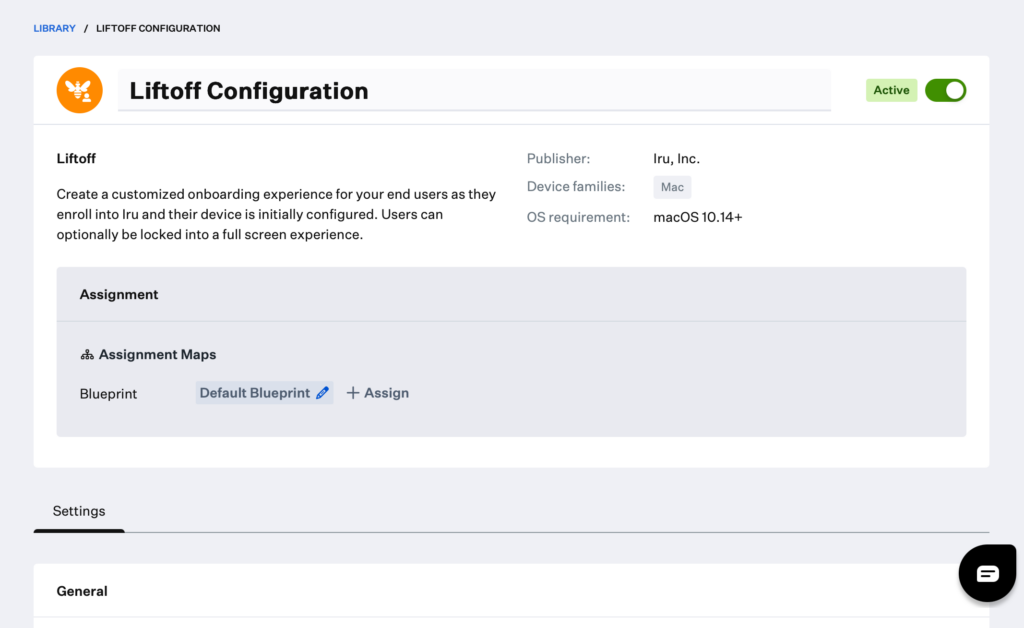
Let’s Configure Liftoff
Liftoff, like many things in Iru / Kandji, can be used as a Library Item. Therefore, to prepare a Liftoff configuration, you must first go to the Library section and click the + Add Library Item option in the top-right corner. When you do this, if you select Liftoff from the list that opens and click the Add and Configure button in the bottom-right corner, you reach the screen you see in the screenshot above.
You can start by first giving your configuration a name and activating it. An average MDM configuration has dozens of configurations. If the word “Liftoff” won’t be explanatory enough for you, you can give a more memorable name.
Under the Assignment section, you must decide which Blueprint you’ll assign the Liftoff configuration to. You can select the Blueprint you want under the Assignment Maps section.
Under the Settings section, you can determine your other options. The first option in this area is the Enrollment Trigger function. You can specify which enrollment types you want to use Liftoff for. If you want, you can make it valid for all Enrollment types. Or if you want, you can prefer only the Automated Enrollment or Manual Enrollment option. In the Manual Enrollment process, Liftoff opens at some point and takes over the remaining steps.
You can add your company’s logo to the logo part. Otherwise, the Kandji logo will appear. You can upload your logo separately for Light and Dark modes.
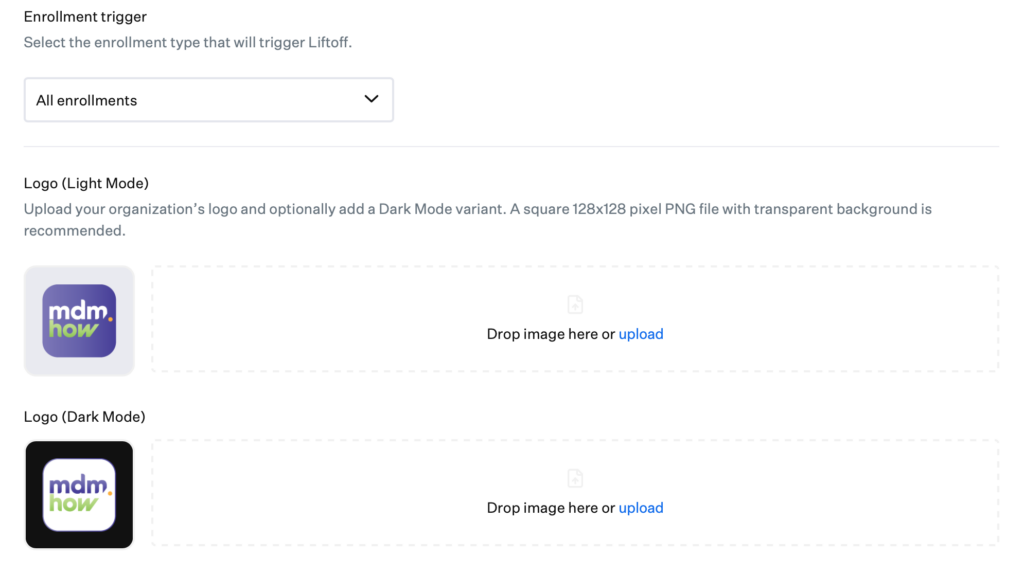
From the Display Mode section, you can make Liftoff run within a window or full screen. Since our basic aim is to not let the user reach the desktop, I would recommend you prefer the Full Screen option.
If you want to enable users to be able to exit the full-screen view for any reason while Liftoff is running — that is, while apps and configurations are installing in the background — you can define an Exit Password for this. While Liftoff is open, users can bring the password screen to the front by pressing the Command + Shift + K + J + D key combination. And by entering the password you determined (and conveyed to users), they can end Liftoff. After Kandji‘s name changed to Iru, this key combination may also change over time…
From the Install Screen section, you can personalize the screen users will see while the installation continues. For this, by clicking the Customize button, you can write the title and text you want.
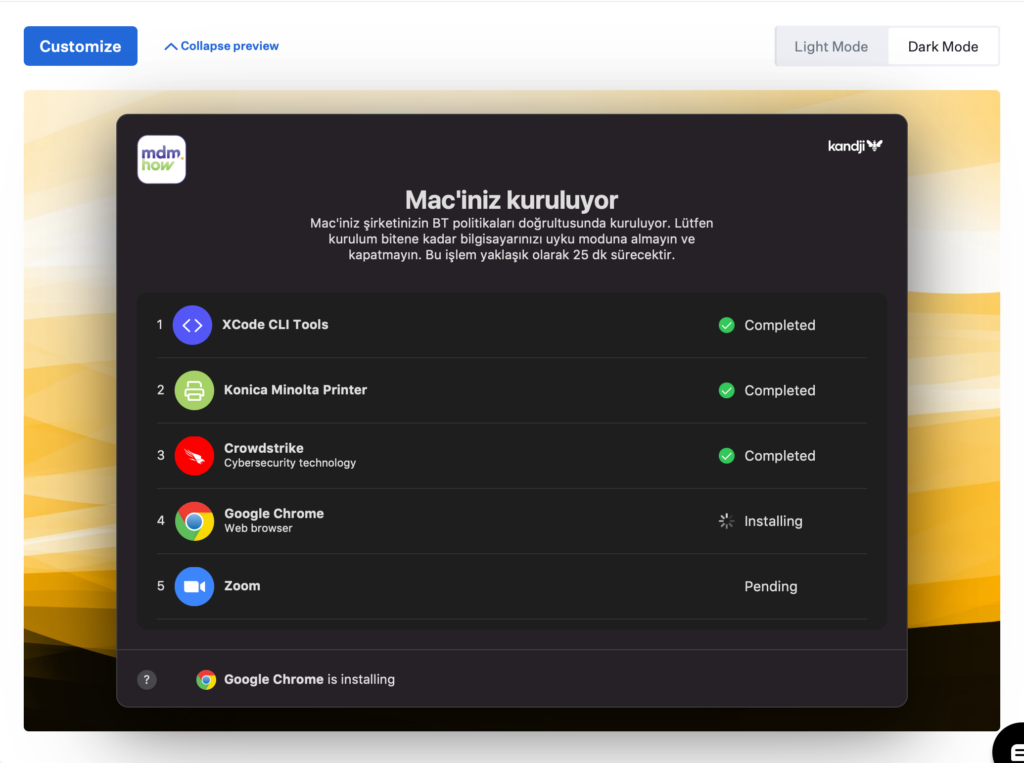
There are two more screens that can be personalized in Liftoff. The first of these is the Help Screen. You can also edit the information written on the Help Screen that opens when users click the ? icon in the bottom-left corner while on the Install Screen.

The last screen that can be personalized is the Complete Screen. Actually, this is also the most flexible screen. Through the screen users will see in front of them after the setup is complete, you can send users to different addresses. You can add a total of 4 links to this area.

After doing this last personalization too, you can save the configuration by clicking the Save button.
Final Word
If you do Mac setups at the company headquarters, you can do a Caching Server installation so that app, operating system, and system update installations can be done faster. This way, the user who first downloads an app downloads it both to their own device and to the caching server. This way, the 2nd and subsequent users can download not from Apple but over the local network. To learn how you can do a Caching Server installation, you can read my article titled What is Content Caching? that I wrote before.
Leave a Reply