

You may be using various tools to check whether the devices you manage are compliant with your corporate policies. Microsoft offers the Compliance Policy feature built into Intune. With a Compliance Policy definition, you can check whether the SIP of the Macs you manage is off, whether the operating system is up to date, that the Gatekeeper settings have been made, and even FileVault encryption. As a result of this, you can mark devices as Compliant or Non-Compliant.
If you haven’t read it before, you can take a look at our article Using Compliance Policy for macOS in Microsoft Intune, where we addressed the use of Compliance Policy in Intune.
Among the Compliance Policy options in Intune, it’s also possible for you to apply some enforcements for devices marked as Non-Compliant. Like informing the user and the IT team, retiring the device, etc.
But instead of applying these kinds of enforcements, organizations just check that a device is Compliant. And they can use this information for the control of other rules. For example, to give network access with NAC solutions, they can include a device being managed with Intune + the device being Compliant in their rule sets. When this is the case, they can ensure that Non-Compliant devices don’t have corporate network access.
A device being Compliant or not may actually be enough for you. But you may still want to check more than what Intune offers you as a Compliance Policy and to take some actions for this.
In its current form, Intune‘s built-in Compliance Policies check the following:
Require system integrity protection: whether System Integrity Protection is on or off
Minimum OS version: the lowest macOS version that can be used
Maximum OS version: the highest macOS version that can be used
Minimum OS build version: the lowest macOS build version that can be used
Maximum OS build version: the highest macOS build version that can be used
Require a password to unlock devices: whether there is a password or not
Simple passwords: whether simple passwords are accepted or not
Minimum password length: minimum password length
Password type: password type (alphanumeric or only numbers)
Number of non-alphanumeric characters in password: the number of special characters in the password
Maximum minutes of inactivity before password is required: the information on after how many minutes of inactivity the device will start asking for a password
Password expiration (days): password validity period
Number of previous passwords to prevent reuse: the number of most recent passwords that will be accepted
Require encryption of data storage on device: whether FileVault is on or off
Firewall: whether the Firewall on the device is on or off
Incoming connections: whether incoming connection requests with the Firewall on the device are on or off
Stealth Mode: whether stealth mode in the Firewall on the device is on or off
Allow apps downloaded from these locations: the Gatekeeper setting — that is, what the preference is regarding which sources applications can be installed from
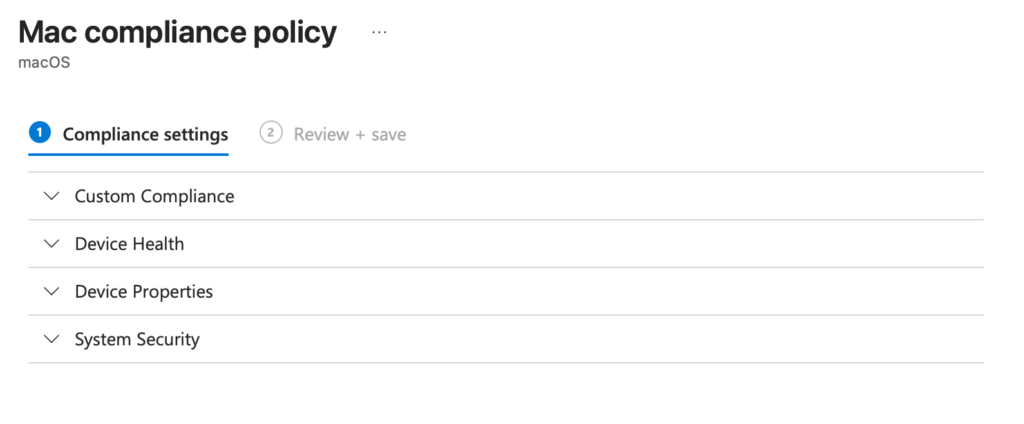
Those listed above may of course be enough for many uses. But you may want to use a rule outside this list too for marking the device as Compliant. In this case, the use of Custom Compliance Policy will help you. The use of Custom Compliance Policy that was previously available in Intune for the Windows and Linux side has, as of this past July 2026, been opened for macOS too.
Every detail that’s in the rule set of CIS or NIST but isn’t among Intune‘s built-in Compliance Policies can be a part of a Custom Compliance Policy. SSH access being on, the control of whether a specific certificate is on the device, the control of whether any software — for example AnyDesk — is installed on the device, free disk capacity… You name it.
How Is Custom Compliance Policy Used?
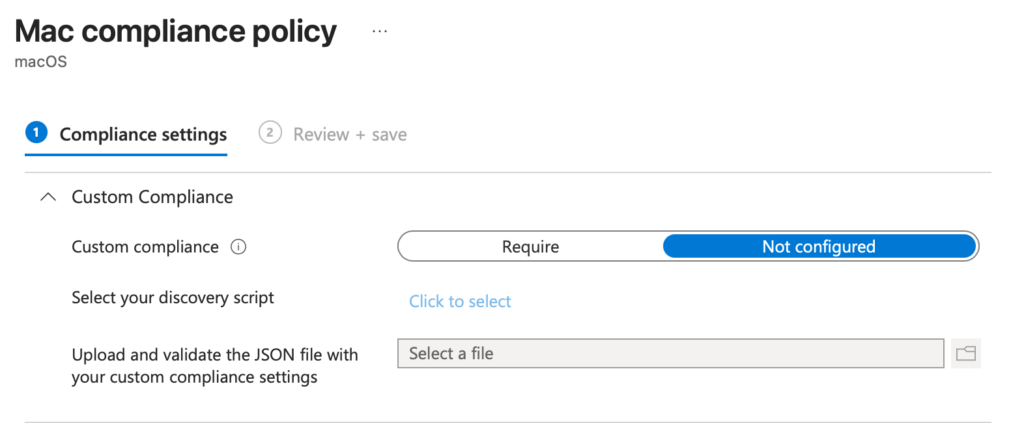
To be able to use Custom Compliance Policies, you need two components. A Script and a JSON document.
1. Discovery Script: You should use the Discovery Script to be able to learn the status on the devices you manage for the rules you determine.
2. Compliance Rules: After learning the status on the devices, to be able to compare it with the values it should be, you should upload this rule set as a JSON document into the Custom Compliance Policy.
You can examine an example Discovery Script below. This .sh document pulls the information on whether SSH access on the device is on, whether the Screen Sharing service is on, whether the Guest Account is enabled, whether the Automatic Login option is active, whether the Firewall Stealth mode is on, and how many days the device has been up. You can also do a test by copying the script below.
#!/bin/bash
# Settings Blog Intune macOS Custom Compliance - Discovery script 1: System hardening
# Runs as root via the Intune management agent. Must print ONE line of JSON to stdout.
# SSH (Remote Login)
if launchctl print system/com.openssh.sshd >/dev/null 2>&1; then ssh=true; else ssh=false; fi
# Screen Sharing
if launchctl print system/com.apple.screensharing >/dev/null 2>&1; then screenshare=true; else screenshare=false; fi
# Guest account
guest=$(defaults read /Library/Preferences/com.apple.loginwindow GuestEnabled 2>/dev/null)
[[ "$guest" == "1" ]] && guest=true || guest=false
# Automatic login
if defaults read /Library/Preferences/com.apple.loginwindow autoLoginUser >/dev/null 2>&1; then autologin=true; else autologin=false; fi
# Firewall stealth mode
if /usr/libexec/ApplicationFirewall/socketfilterfw --getstealthmode 2>/dev/null | grep -Eqi "is on|enabled"; then stealth=true; else stealth=false; fi
# Uptime in days (catches devices that never reboot to apply updates)
boot=$(sysctl -n kern.boottime | awk -F'[ ,]' '{print $4}')
uptime_days=$(( ( $(date +%s) - boot ) / 86400 ))
echo "{\"SSHEnabled\":$ssh,\"ScreenSharingEnabled\":$screenshare,\"GuestAccountEnabled\":$guest,\"AutoLoginEnabled\":$autologin,\"FirewallStealthMode\":$stealth,\"UptimeDays\":$uptime_days}"To be able to use your Discovery Script, you should first upload it to Intune. But you need to do this upload job again from the Scripts tab in the Compliance Policy area. Don’t accidentally go to the Devices / macOS / Scripts section.
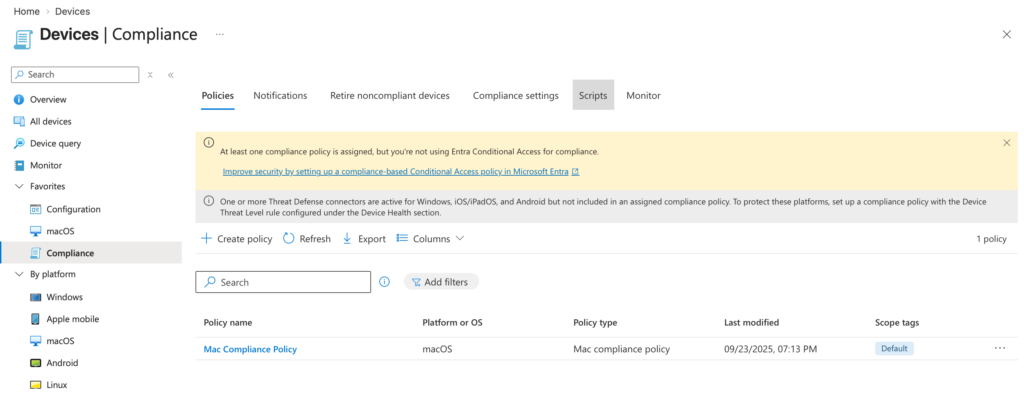
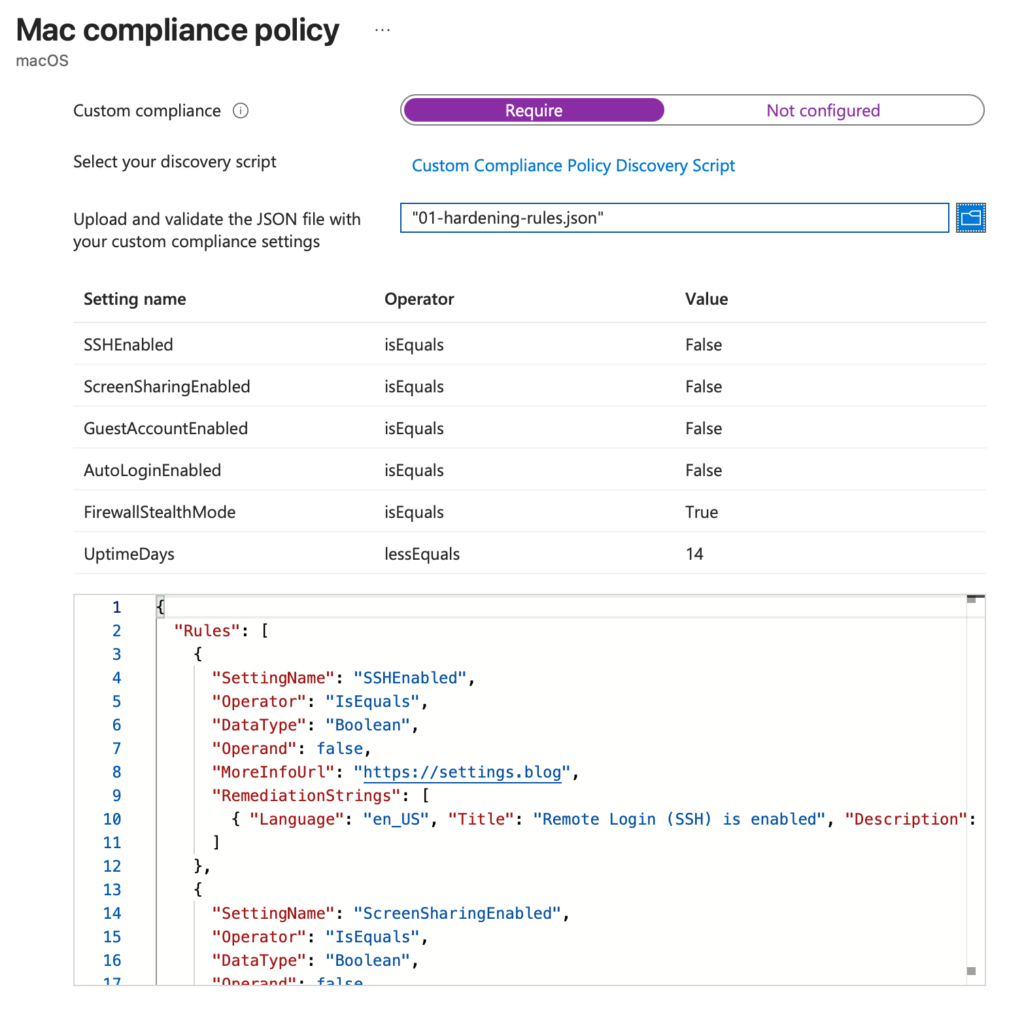
After uploading your Discovery Script, you need to upload your JSON document containing your rule set. You can do this directly from the Custom Compliance Policy editing screen. You can examine an example JSON document that will match the Discovery Script above below.
{
  "Rules": [
    {
      "SettingName": "SSHEnabled",
      "Operator": "IsEquals",
      "DataType": "Boolean",
      "Operand": false,
      "MoreInfoUrl": "https://settings.blog",
      "RemediationStrings": [
        { "Language": "en_US", "Title": "Remote Login (SSH) is enabled", "Description": "Turn off Remote Login in System Settings > General > Sharing." }
      ]
    },
    {
      "SettingName": "ScreenSharingEnabled",
      "Operator": "IsEquals",
      "DataType": "Boolean",
      "Operand": false,
      "MoreInfoUrl": "https://settings.blog",
      "RemediationStrings": [
        { "Language": "en_US", "Title": "Screen Sharing is enabled", "Description": "Turn off Screen Sharing in System Settings > General > Sharing." }
      ]
    },
    {
      "SettingName": "GuestAccountEnabled",
      "Operator": "IsEquals",
      "DataType": "Boolean",
      "Operand": false,
      "MoreInfoUrl": "https://settings.blog",
      "RemediationStrings": [
        { "Language": "en_US", "Title": "Guest account is enabled", "Description": "Disable the Guest User in System Settings > Users & Groups." }
      ]
    },
    {
      "SettingName": "AutoLoginEnabled",
      "Operator": "IsEquals",
      "DataType": "Boolean",
      "Operand": false,
      "MoreInfoUrl": "https://settings.blog",
      "RemediationStrings": [
        { "Language": "en_US", "Title": "Automatic login is enabled", "Description": "Set automatic login to Off in System Settings > Users & Groups." }
      ]
    },
    {
      "SettingName": "FirewallStealthMode",
      "Operator": "IsEquals",
      "DataType": "Boolean",
      "Operand": true,
      "MoreInfoUrl": "https://settings.blog",
      "RemediationStrings": [
        { "Language": "en_US", "Title": "Firewall stealth mode is off", "Description": "Enable stealth mode in System Settings > Network > Firewall > Options." }
      ]
    },
    {
      "SettingName": "UptimeDays",
      "Operator": "LessEquals",
      "DataType": "Int64",
      "Operand": 14,
      "MoreInfoUrl": "https://settings.blog",
      "RemediationStrings": [
        { "Language": "en_US", "Title": "Restart required", "Description": "Your Mac has not been restarted for more than 14 days. Please restart it." }
      ]
    }
  ]
}
After uploading your Discovery Script and Rules JSON documents, you’ll see a screen like the one below. As you’ll understand from here too, our JSON document dictates that SSH, Screen Sharing, Guest user access, and the Auto login feature be off; that the Firewall Stealth mode be on; and that the device’s up time be less than 14 days.
So What Happens After Sending?
After you Assign the general Compliance Policy that also includes the Custom side to your users, if there’s a non-compliant point on your devices, the devices will be marked as Non-Compliant.
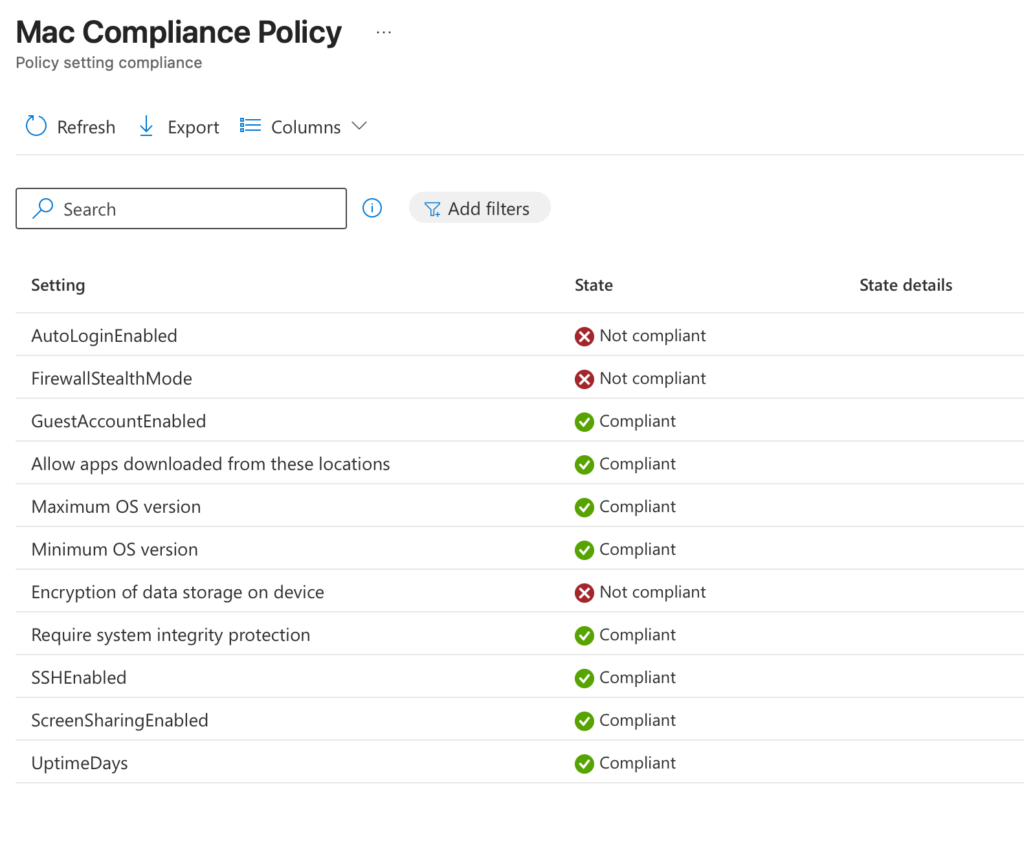
If you look under the Device Compliance heading on any device’s own detail page, you can see the information on which headings the Compliance Policy you sent passed and which headings it failed. In the screenshot below, the checked device appears as marked non-compliant on the Auto Login, Firewall Stealth Mode, and Full disk encryption headings. Of course, until all the criteria are met, this device will appear as Non-Compliant. After these criteria are met, it will be marked as Compliant again.
Finally, an application example
Microsoft recently published an article that can serve as an example of Custom Compliance Policy use. It addresses using the outputs created within the scope of NIST’s macOS Security Compliance Project as a Custom Compliance Policy. You can read the article, which uses the CIS Level 1 baseline as an example, at this address.

Leave a Reply