

Had you heard of Rapid Security Response updates? If you haven’t heard of them until now, there’s no need to spend time and effort learning about them from now on either. Because Background Security Improvements has taken their place. The basic principle of RSR updates was that security-focused updates could be done automatically and independently of user interaction. With this new structure, it could separate the security update period from operating system updates.

Apple had introduced Rapid Security Response updates in macOS 13. The single RSR update released so far turned the operating system version, which was 13.3.1, into 13.3.1 (a). Apple had withdrawn this update a few hours after distributing it. Because it had created a problem with the operating system version numbering system. The (a) notation added to the end of the operating system version number was not perceived as a system update by 3rd-party software developers. This had led to serious problems especially in updating Safari‘s User Agent version number.
From that day to today, Apple continued to keep Rapid Security Response updates in its own guides but did not do any second update distribution. Instead, after macOS 26, it switched to a new structure: Background Security Improvements.
Background Security Improvements is not an operating system update. It behaves like an additional installation that updates some components inside the system. You can’t see Background Security Improvements patches by entering the Software Update section of your System Settings application anyway. They are viewable and installable under Privacy & Security.
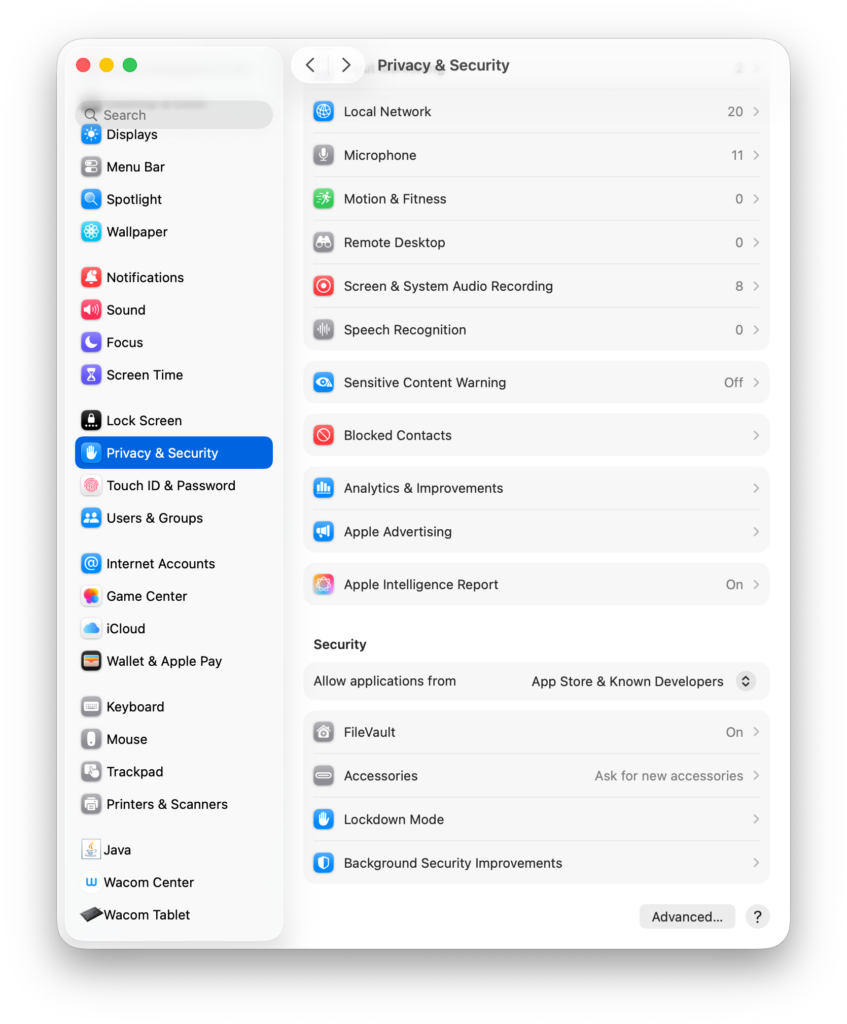
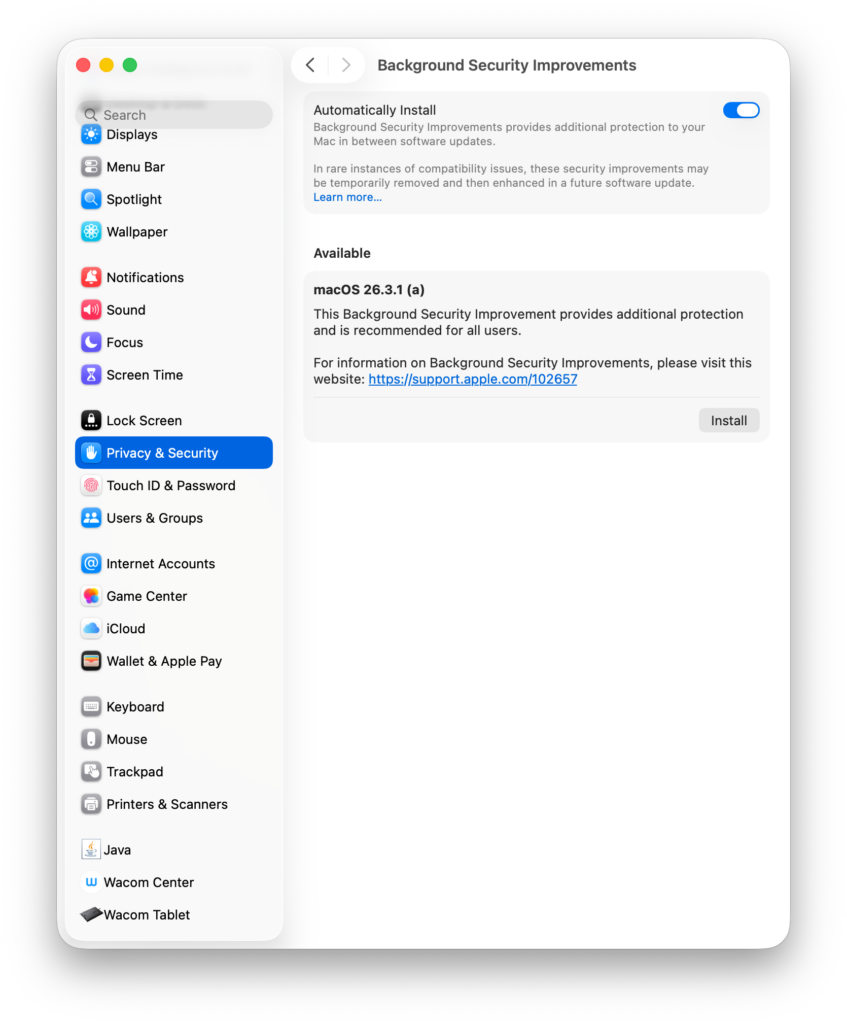
Although Background Security Improvements patches now do the task originally intended for Rapid Security Response updates, their working logic is not the same as RSR. As I wrote above, they no longer appear in the Software Update section. When you activate the Automatically Install option, it downloads the BSI patch but waits for you for installation. After you press the Install button, it needs your Admin password and a Restart is required.
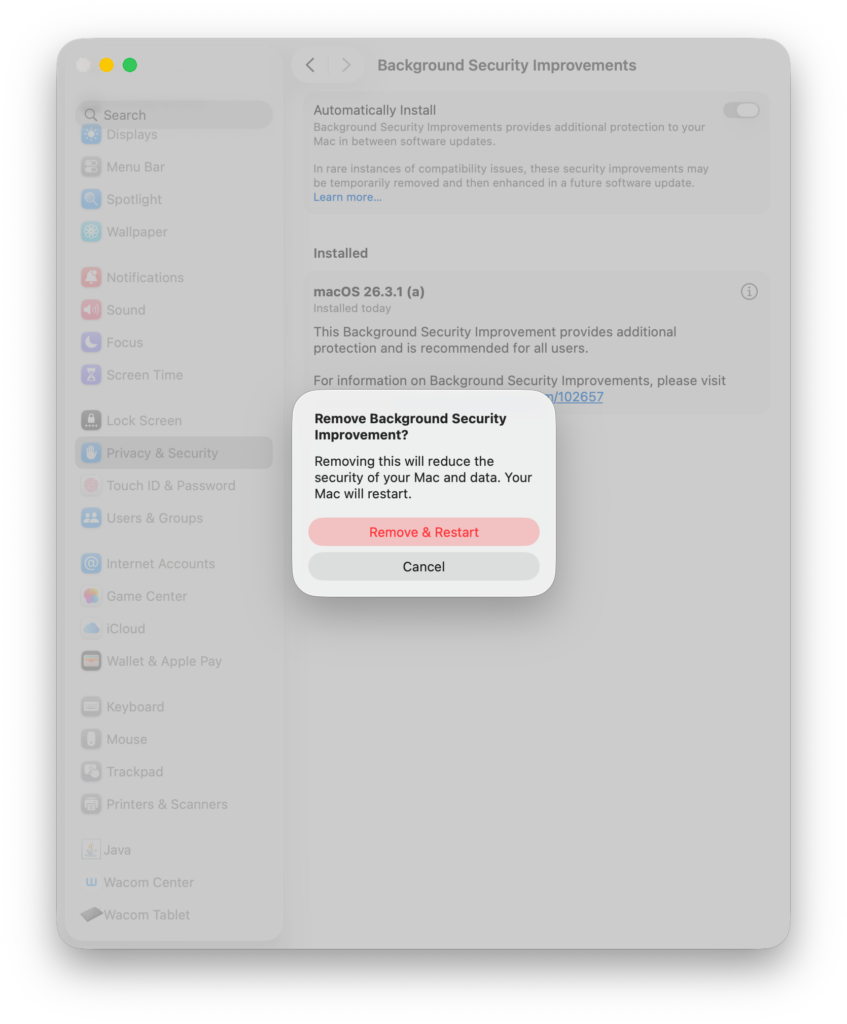
I haven’t yet written what will perhaps seem the strangest part of these patches to you. If you encounter an unexpected situation after installing, you can undo the installation. For this, after installation, you can undo the installation by going to the Privacy & Security > Background Security Improvements section again and clicking the (i) button across from the installed BSI patch.
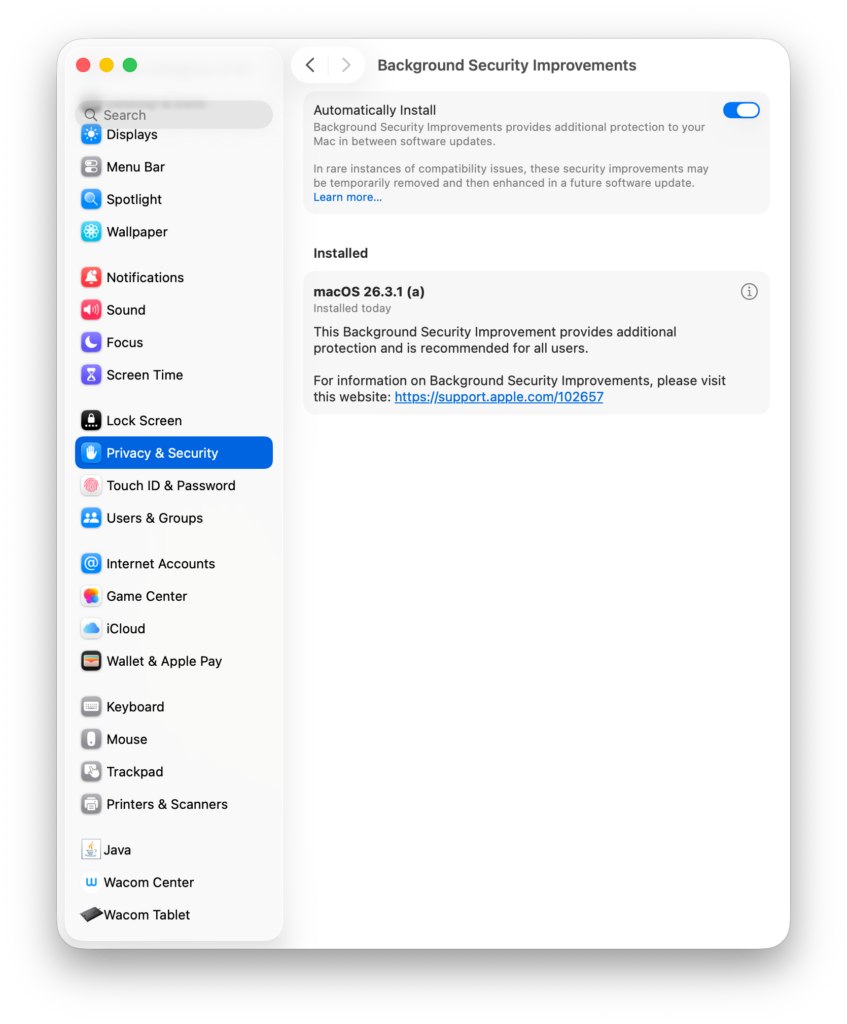
The first Background Security Improvements patch, released last week, closes the WebKit vulnerability numbered CVE-2026-20643 reported by Thomas Espach in the macOS, iOS, and iPadOS operating systems. You can reach detailed information from this address.
How Can We Manage It with MDM?
Different MDM vendors started supporting this new feature right away. You can manage Background Security Improvements patches via the MDM you use. If you like, let’s look at how you can do this via a few different MDM solutions.
Iru / Kandji
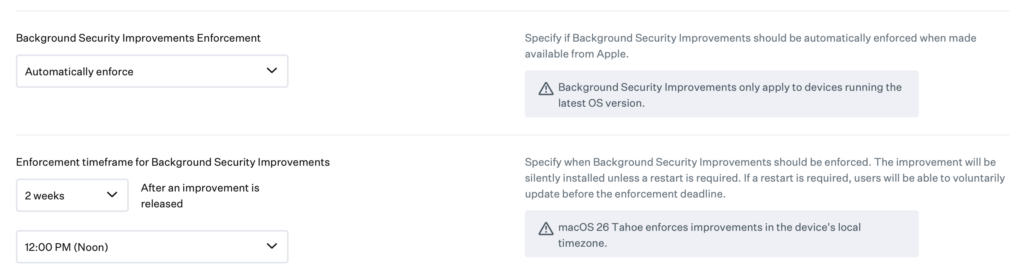
In Iru / Kandji, you can apply Background Security Improvements control as a Library Item under the Managed OS section. When you select the macOS 26 Tahoe option as a Library Item, you can ensure it’s automatically distributed to your users by selecting the Automatically enforce option under the Background Security Improvements Enforcement section from the options that open in front of you.
Iru / Kandji, taking into account the experience left over from the Rapid Security Response period, has also included an option to add a period for the application of this patch. You can ensure the relevant patch is applied within the period you determine after it’s released by Apple. The standard period determined here is 2 weeks.
Microsoft Intune
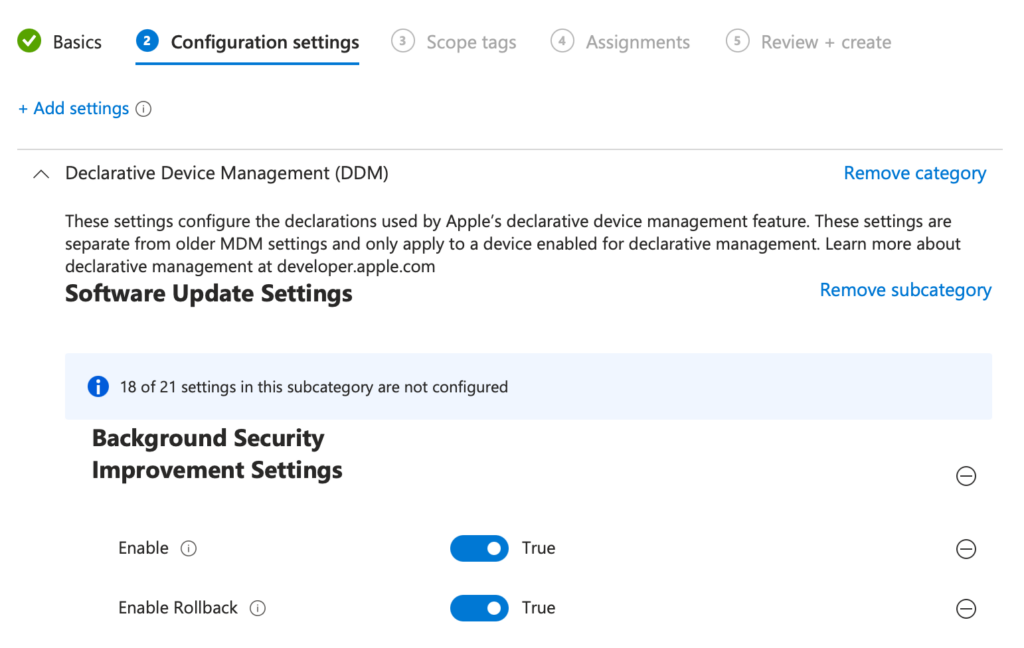
In Microsoft Intune, you can do Background Security Improvements management from within the Declarative Device Management (DDM) / Software Update Settings subsection located in the Settings Catalog. When you activate the Background Security Improvement Settings option, there are two areas you can manage. Enable activates the Background Security Improvements patches. And Enable Rollback enables the user to undo the patches.
Jamf Pro
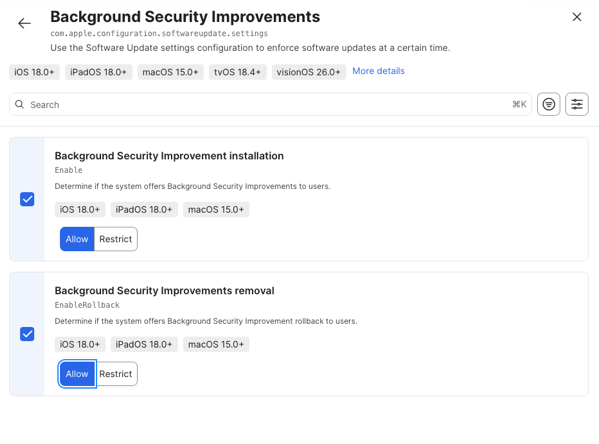
In Jamf Pro, you can do Background Security Improvements management under the Blueprints / Software Update Settings section. After adding the Software Update Settings option to the Blueprint you’ll create, you can configure installation and undoing installation just like in Intune by configuring the Background Security Improvements option.
I Can’t Get Enough of This Topic, Let Me Read a Bit More
Let’s close the topic by also sharing a few additional articles about Rapid Security Response and Background Security Improvements.
Apple Platform Security
Background Security Improvements in Apple operating systems
The Eclectic Light Company
What is a Background Security Improvement, and how does it work?
Der Flounder
Managing Background Security Improvements for macOS using Blueprints in Jamf Pro
Leave a Reply