

Is access to cloud services like iCloud open at the organization you work at? Many organizations close such services to use on the grounds of information security. And if you follow security standards like CIS or NIST while creating your company security policy, they too recommend that you close such services.
If you use an MDM or UEM solution to manage your Apple devices, to be able to meet these conditions you must have closed iCloud services from the Restrictions section. Yes, this is also an option. In organizations that have refrained from using iCloud for years, this method was preferred anyway.
In addition to this, we recently got one more alternative: Access Management via Apple Business Manager. Through the Access Management section, you can determine what Managed Apple Accounts can and cannot do. This article you’re reading is heavily about Managed Apple Account usage. If you don’t know what a Managed Apple Account — that is, corporately manageable Apple identities — is, at this point of the article I recommend you set this page aside and read my article titled What is a Managed Apple Account?
If you’re too lazy to click the link to that article, let me give you a very short summary. Our personal Apple accounts we’ve used for years belonged to the people using them, that is, to us. Using them on the devices the organizations we work at gave us led to a series of security problems from the organization’s perspective. With your personal iCloud account, you can upload, for example, a sales report or a confidential document to your personal iCloud Drive area. And your organization’s information security team — if iCloud services aren’t closed — can’t do anything to prevent this.
However, some services Apple offers to users also elevate the device usage experience to great heights. For this reason, organizations too prefer to give their employees an iPhone instead of any affordable Android device. If you say you want employees to both use an iPhone, have access to many Apple services, and not have the security of company data threatened, at the intersection set of these three requirements is the Managed Apple Account.
Managed Apple Accounts can be created manually from Apple Business Manager. Or additionally, with the use of Federated Authentication, all company accounts on Entra ID and Google Workspace can be converted to managed Apple identities in one go.

Access Management
With the Access Management section added to Apple Business Manager last year, we can determine which Apple services managed Apple identities can and cannot access. And we do this independently of the MDM / UEM solution you use.
The Access Management section has 3 sections: Roles, Sign in with Apple, and Apple Services. Now, if you like, let’s examine these.
Roles
When you do the verification of your Apple Business Manager account, the first account that opens has Administrator privileges. When Apple calls you for the verification of the ABM account, it asks for a second Admin account to also be created. There can be a total of 5 Admin users on Apple Business Manager. Along with this, all users who have access to Apple Business Manager don’t need to be Admin. You can create users in different roles. These roles are, respectively:
- Administrator: It’s the Apple Business Manager user type that has all privileges.
- People Manager: It’s a manager user who can manage the Users section on Apple Business Manager. Users with People Manager privileges can also incorporate Device Enrollment Manager and Content Manager privileges within themselves.
- Device Enrollment Manager: It’s the user type that has the privilege of adding and removing devices to Apple Business Manager.
- Content Manager: It’s the user type that has app purchase privileges via Apple Business Manager.
- Staff: It’s the user type that will use Apple devices with the privileges granted from Apple Business Manager.
If you want to see as a table which privileges the user types in Apple Business Manager have as standard, you can visit this address.
In Apple Business Manager, through the Access Management / Roles section, you can determine which privileges these user types will have. The basic usage options can’t be changed here. But you can, for example, put a limit on a user with Content Manager privileges accessing the AppleSEED for IT site or on iMessage / FaceTime usage.
Sign in With Apple
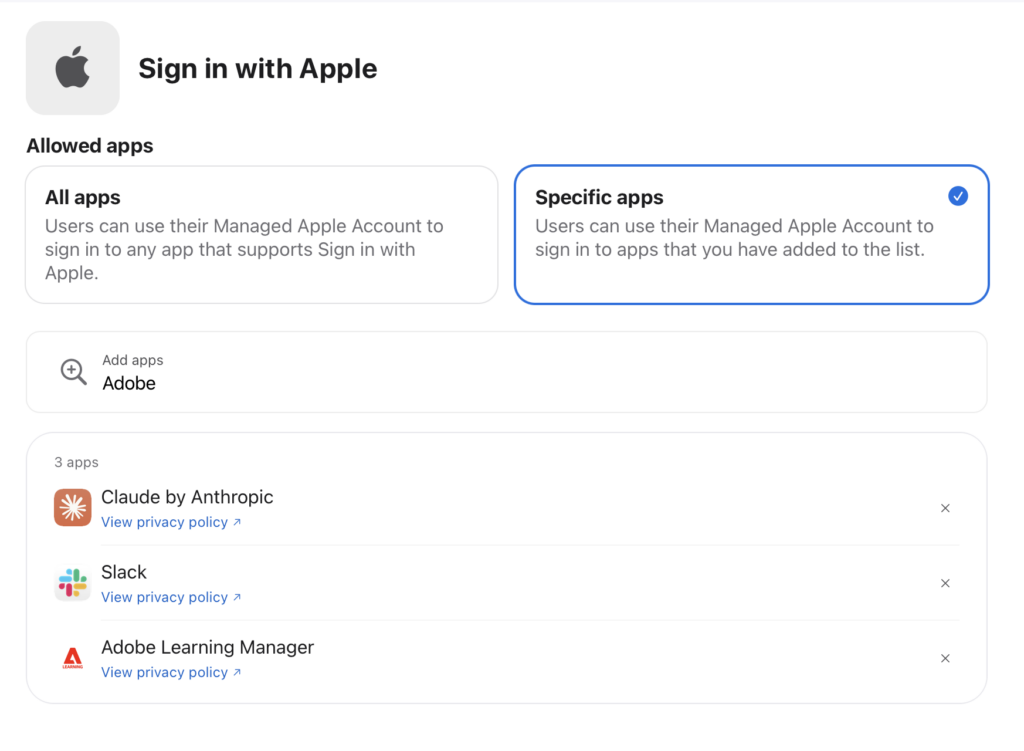
Instead of creating a membership to various websites or apps, the option to sign in with Google or Microsoft accounts was already being used for a long time. Apple joined that train too, and now we can also use our Apple accounts to sign into apps or websites.

If you don’t prefer company employees to sign into any app with their corporate Apple identities, you can put a restriction on this from the Sign in With Apple section. If you want, you can allow all apps. Or if you want, you can limit this to only the apps you determine.
Apple Services / iCloud
The most comprehensive part of the Access Management section is without doubt the Apple Services part. From this section you can audit which Apple services users who have a Managed Apple Account can access.
When you enter the Apple Services section, at the top of the list there are access options for iCloud services. You can select one by one which iCloud service users can access with their Managed Apple Accounts. First, you can select which types of devices iCloud services can be used on. If you select the Off option from the menu at the top of the list, you will have closed all of the iCloud services. With Any Device you grant access permission to the selected iCloud services from any device. If you want access to managed Apple identities to be made only from corporately distributed devices, you can use one of the Managed Devices Only or Supervised Devices Only options.

From the sections in the lower part, you can close one by one the services you want to be closed. To highlight some of the headings here:
Collaboration: You can audit the shared-file creation of the Pages, Numbers, and Keynote software (its old name was iWork), Apple’s Office suite. If you mark Off within the Collaboration option, you will have closed it completely. The Anyone option enables file collaboration to be done with any Apple Account. The Organization Only option enables file collaborations to be done only within the company.
iCloud Drive: It audits iCloud Drive usage being usable for Managed Apple Accounts. Don’t forget that while using iCloud storage space, you only have 5GB of space and it can’t be increased. If you’re thinking of syncing your Desktop and Documents folders, you can slowly set that thought down on the ground.
Passwords and Keychain: The iCloud Keychain service enables the passwords you keep on your Apple devices to be synchronized with iCloud. With this method, for example, the password of an SSID you previously accessed with your iPad is automatically shared with your other devices too. It’s certainly a feature that makes life easier from the end user’s perspective. But if you look at it from the information security perspective, it requires trusting Apple. The Passwords and Keychain option audits being able to use this feature for Managed Apple Accounts.
Access iCloud Data on the Web: To access iCloud services, you need to have entered your account into an Apple device. But in addition to this, the data kept in iCloud can be accessed by going to the icloud.com address with a web browser from a Windows PC or an Android tablet as well. It’s possible to close this access using the Access iCloud Data on the Web option.
Apps using iCloud: The access of contacts, calendars, photos, and all apps and services that can sync via iCloud can be turned on and off from this section. Here I want to remind of this small piece of information. On a corporately used device, there may be contacts and calendars coming via IdP. The Contacts section that provides you with the contact information of someone working at your company generally comes not via the Managed Apple Account but via the IdP. Therefore, closing the Contacts or Calendars options from this section does not affect corporate contacts coming to or going from the devices.
Apple Services / Others
Developer: You can use the Developer section to audit users accessing services like the Apple Developer Program, the Made For iPhone (MFi) program, and Xcode Cloud. If there are developers within the organization and they too need to access Apple Developer pages, I would recommend you keep the Apple Developer Program section open.
AppleSEED for IT: You can audit whether AppleSEED for IT — a page from which beta versions of Apple products can be downloaded and useful tools like the Mac Evaluation Utility can be accessed — can be accessed with corporate Apple accounts.
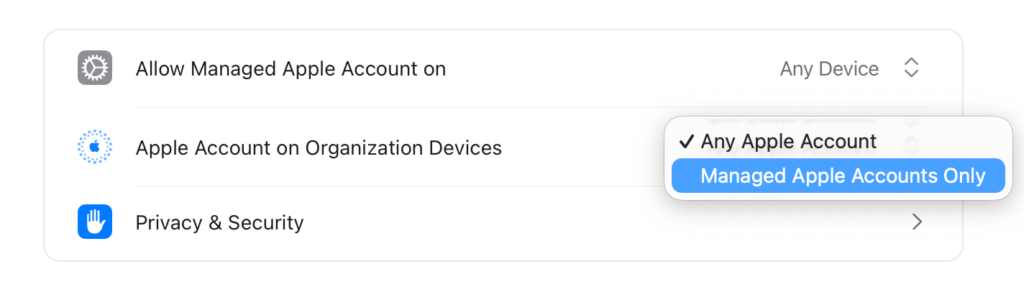
Allow Managed Apple Account On: You can select from this section which types of devices can be signed into with managed Apple accounts. The Any Device option means not making any restriction. The Managed Devices Only option means limiting to devices enrolled to an MDM server by any method. The Supervised Devices Only option requires the devices to be in supervised mode.

Apple Account on Organization Devices: It fulfills a function similar to the option one above. This option is used to determine what type of Apple accounts you can use on corporately managed devices. The Any Apple Account option gives your users the permission to sign into their corporate devices with their personal Apple Accounts. If you want to prevent personal accounts from being used, you must keep the setting on the Managed Apple Accounts Only option.
Privacy & Security: You can reach options related to the privacy of corporate Apple accounts and the processing of data kept by Apple under this heading.
Apple has a website called privacy.apple.com. When you sign into this address with your Apple account, you can see all of your data kept by Apple, download a copy for yourself, and close your account if necessary. The Data & Privacy Access option regulates whether or not to give users the right to access this address.

The second option in this area, the User Account Lookup option, regulates giving your users access permission to the contact information of other users in your organization from within apps like Mail, FaceTime, and Calendar.
The last option, the Automatic Sign-in on Apple Watch option, gives users the ability to pair an Apple Watch with an iPhone signed in with a Managed Apple Account.Son seçenek olan Automatic Sign-in on Apple Watch seçeneği de kullanıcılara Managed Apple Account ile giriş yapılmış bir iPhone ile bir Apple Watch’ı eşleyebilme imkanı verir.
Leave a Reply