

I hear this question so often that writing a special article for it has now become a must.
The answer: no, there isn’t. In its place there is FileVault. We use FileVault for full disk encryption on our Macs. FileVault is macOS’s Full Disk Encryption (FDE) solution that uses the AES-XTS encryption algorithm with a 256-bit key. Personal and corporate uses of FileVault are possible. Within the scope of this article, we will address:
• Basic information about FileVault
• Its use on personal computers
• Usage scenarios in corporate environments
• Its configuration with different MDMs
First, the Basics
FileVault 1
This feature, now called FileVault 1 or Legacy FileVault, was first announced in the MacOS X 10.3 (Panther) version. In its first version, the encryption logic was a bit further from the current structure. The whole disk was not encrypted; the Home folders belonging to users were encrypted and converted into Sparseimage images.
FileVault 1 was protected only by the user’s password (and the Master Password if forgotten). For this reason it was not considered very secure, and breaking it didn’t take much time anyway.

FileVault 1.5
Let me tell you before you Google it: there’s no such thing. At least not by that name. But the FileVault 2 we use today evolved over time until it reached its current state. To emphasize the intermediate stages it went through, I see no harm in calling it v1.5.
Apple announced FileVault 2 in 2011. FileVault 2, unlike its predecessor, encrypted the entire disk. These encryption or decryption operations could take hours depending on the size of the disk. Not only opening or closing but also working with files could cause a lot of time loss. Because a file had to be encrypted before being written to the disk and decrypted before being read from the disk. And this meant plenty of blood, sweat, and tears in the pre-SSD / Flash disk era. This period continued until SSD disks became widespread and the APFS disk format arrived.
But what really separated today’s FileVault from the period I call FileVault 1.5 was the T2 chip beginning to be used. The T2 chip, as is known, began to be used in Intel devices after 2018. After 2020, the transition was made to Apple Silicon processors and it was integrated into the Apple Silicon chip. In the period after the T2 chip, the concept of Secure Enclave entered our lives and a transition was made to a hardware-supported encryption method. In the period before the T2 chip, FileVault did not provide for the encryption of files on the disk before it was activated. After T2, the structure changed. If you like, let’s explain what comes after this under the FileVault 2 heading too.
FileVault 2
You bought a Mac, pressed the Power key, and started setting it up. Among the Setup Assistant steps, the FileVault option came up and asked whether you wanted to encrypt your disk. And you said “No thanks, dear.” Your disk is encrypted anyway. If your computer is T2-chip or Apple Silicon, your disk comes automatically encrypted. This encryption is protected by a key called the Hardware Key held in the Secure Enclave. Later, when FileVault is activated by the user, the Hardware Key is combined with the Key Encryption Key generated with the user’s password and the xART Key used to prevent brute force attacks to create a Volume Encryption Key.
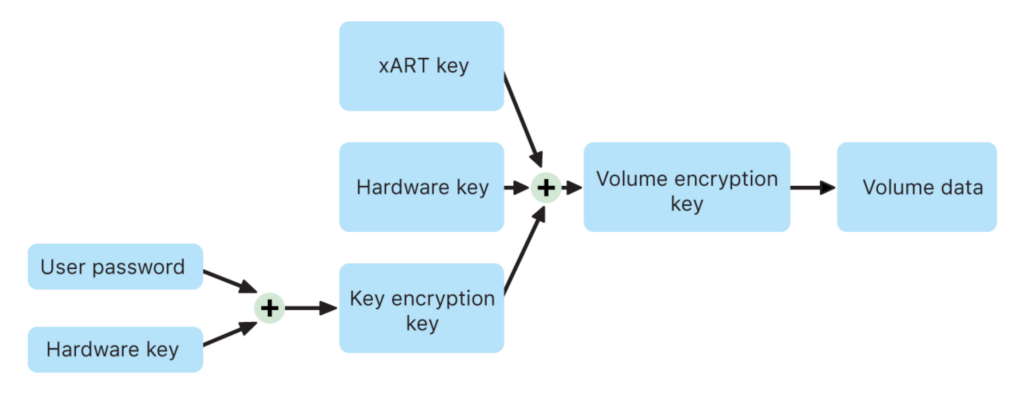
When you decide to turn on FileVault on a computer where FileVault is off, you may have noticed that the disk switches to encrypted mode within seconds. Actually, the operation done at that moment is not real encryption, but the inclusion of the KEK (Key Encryption Key) generated with the user password into the chain. The management of all these keys is done by the Secure Enclave. These keys, on T2-chip Intel Macs, are in no way kept open to the access of the Intel processor.
When a computer with FileVault activated and in an off state is turned on, it behaves differently from computers where FileVault is off. On computers with the APFS disk format, there are some partitions on the disk that are not visible to the user in the graphical interface. Like Macintosh HD, Macintosh HD Data, Recovery, PreBoot, VM… You can open Terminal and type diskutil list to see these hidden partitions and the space they occupy. A computer on which FileVault has been activated boots not from the system volume called Macintosh HD but first via the volume called PreBoot. For this reason, the Login Screen appears faster on computers where FileVault has been activated. Because macOS first learns whether you have the key that will unlock the box and only after that continues to load the operating system components.
Secure Token ve Bootstrap Token
Another subject concerning user accounts and FileVault in macOS is the use of Secure Token and Bootstrap Token. The user who creates the first account on the computer using Setup Assistant comes to have a special key called Secure Token. Thanks to this key, they can turn FileVault on and off, log into the computer by unlocking FileVault, and do system updates. The 2nd and 3rd users to be created by this user via Users & Groups System Settings also automatically become Secure Token owners.
But if an Admin user was not created with this method — for example, if it was created with a script or policy distributed via an MDM — it may not be a Secure Token owner. In such a case, the user having Admin privileges does not carry them to a point where they can do all administrative operations.
A Secure Token-owner user can grant the Secure Token privilege to other users via Terminal. But this operation is done manually and is not very suitable for corporate work environments where devices are managed remotely. For this reason, another key called Bootstrap Token was developed. Bootstrap Token grants the Secure Token privilege regardless of how the user was created. This includes locally created users, management accounts created with MDM, and mobile accounts. The Bootstrap Token is created by the first user who owns a Secure Token and is entrusted to the MDM. The MDM server in turn ensures that it is shared with other users.
“I’m honestly bored stiff, shall we simplify it more?”
You’re right. If you like, let’s look at how FileVault is used on personal computers. If we explain the basic working logic as a few items:
- The user activates FileVault on their computer.
- After FileVault completes the encryption, it generates a recovery key (Recovery Key) for the user. The user can store this recovery key in iCloud or can also note it down on a piece of paper.
- When logging into a computer with FileVault on, the Login password the user will enter also unlocks FileVault.
- If the user has forgotten the login password, they can use the recovery key instead of the login password and reset their forgotten password.
Even though FileVault‘s encryption method, algorithm, and manageable areas have changed over time, this basic logic has remained the same from the first day until today. In the periods when FileVault 1 was used, when you activated FileVault to do Home Folder encryption, you had to define a Master Password, not a Recovery Key.
Again in the same periods, when you forgot your password, you could change the password directly via the Login Screen instead of macOS Recovery as is the case now.
If you forgot your login password and you have the Recovery Key (or your iCloud password) on hand, you can reset your password by starting the computer from macOS Recovery.
If you forgot your login password and you don’t have the Recovery Key (or your iCloud password) on hand, I would suggest you push your mind a little more to remember your password. Try your child’s birth date or your cat’s vaccination date or something. Because if you don’t remember that password, you can never reach your data. There are users who take their computer in this situation to Apple stores or Apple Authorized service providers. Even if you hop on a plane and take it to Apple’s headquarters in Cupertino, California, the situation doesn’t change. No element other than your password (or the recovery key) can decrypt that disk.

How Do These Things Work in the Corporate World?
Activating FileVault with an MDM solution, not giving the end user permission to make a change on FileVault, and also collecting the recovery keys on the MDM server can be considered the most common usage.
After reading this article, if you also read the documentation of the MDM solution you use regarding activating FileVault, you can see that there are two different recovery keys.
• Institutional Recovery Key – IRK
• Personal Recovery Key – PRK
Rolling up your sleeves by saying “We are an institution, so we should prefer the institutional recovery key method” will drag you onto a very wrong path. Because the thing we call the Institutional Recovery Key is actually a certificate consisting of a private and public key pair. It requires you to connect to the disk of the Mac whose password is forgotten with the Target Disk method and place the certificate you created there.
Yes, you guessed correctly, this method ended along with Intel devices. Therefore, I want to write the sentence I wrote above one more time. Activating FileVault with an MDM solution, not giving the end user permission to make a change on FileVault, and also collecting the recovery keys on the MDM server is the most common usage. The recovery keys collected here are the Personal Recovery Key. The thing that will make that ‘personal’ recovery key ‘institutional’ is the fact that it is held on an MDM server.
How Is It Set Up in MDM Solutions?
Every MDM solution that can manage Macs has various tools for managing FileVault. If you like, let’s look at where FileVault settings are located in a few popular MDM solutions and what kind of settings they contain:
Iru (Kandji)
A short time before the writing of this article, Kandji changed its name to Iru and announced that it would also start managing Windows and Android. Although there are some changes in the test environment I use while writing these articles, I can still see the original Kandji name. After the full transformation takes place, what I write below may also differ.
You can start configuring FileVault by selecting the Library > Add Library Item > FileVault option.
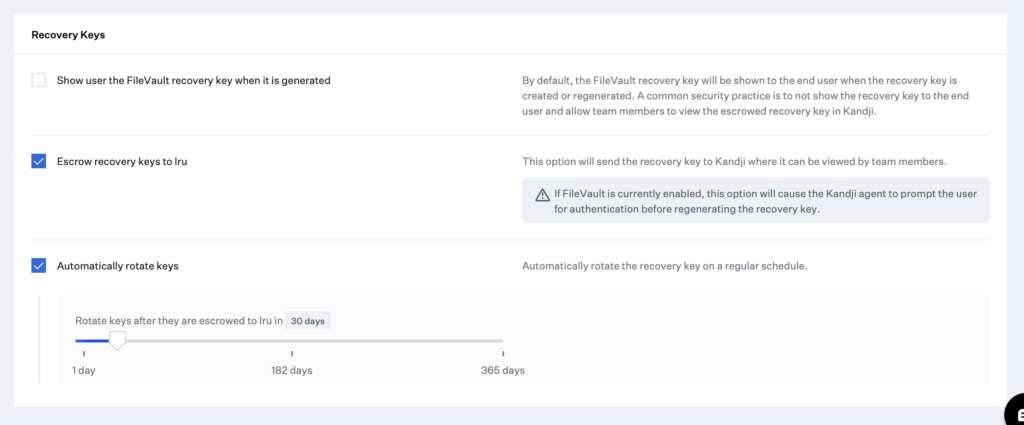
There are standard settings such as activating FileVault immediately or granting the user the ability to postpone. There are also various options for sending the recovery key to Iru and determining the period in which it is subsequently automatically changed.
Microsoft Intune
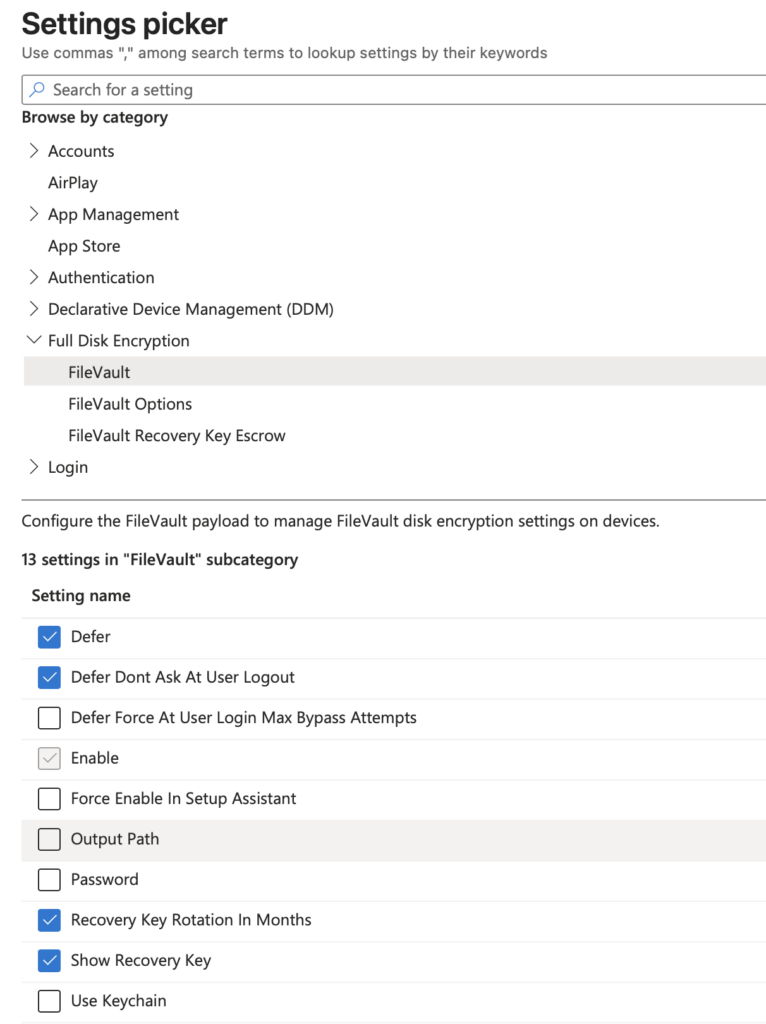
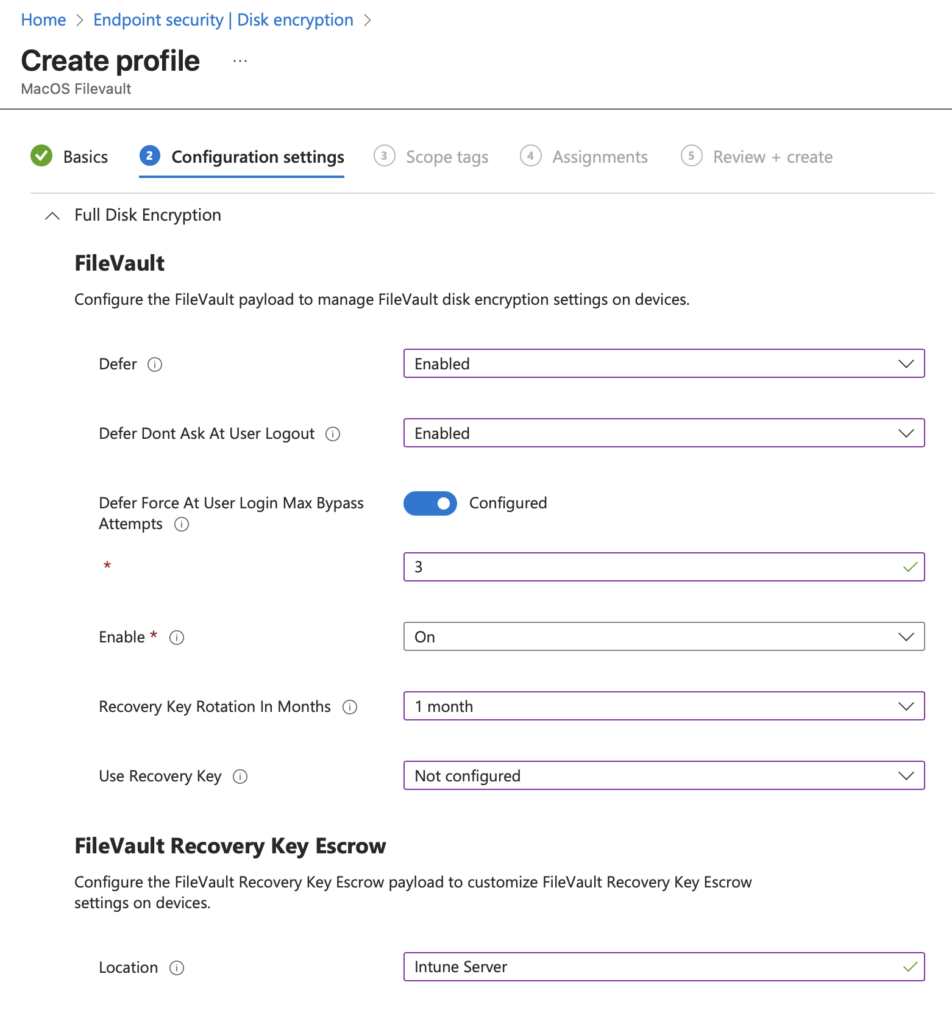
You can do the FileVault configuration by using the Full Disk Encryption category from the Devices > Configuration > +Create > Settings Catalog address. From the FileVault subcategory under the Full Disk Encryption category you can do the general settings, from the FileVault Options subcategory the settings of whether the user can turn FileVault off, and from the FileVault Recovery Key Escrow subcategory the location information setting where the Recovery Key will be escrowed.
Microsoft Intune also allows you to do Disk Encryption configuration under the Endpoint Security heading. If you prefer to do all of the general endpoint security settings on the systems you manage from this area, it is possible for you to manage FileVault not with a configuration profile but with a Policy you will create under the Endpoint Security heading.
Jamf Pro
You can prepare your FileVault configuration by entering the FileVault section under the Computers > Configuration Profiles > +New > Security & Privacy section.
The basic FileVault configuration settings found in many other MDMs are also found in Jamf Pro. Like whether the Recovery Key will be escrowed to the MDM server, whether the user has options to postpone or turn off FileVault…

In Jamf Pro, you can also prepare a FileVault setting and send it to users under the Policies section instead of Configuration Profiles.
You can deliver a FileVault configuration previously prepared from the Settings > Disk Encryption Configuration section to users from the Computers > Policies > Disk Encryption section. An important point you need to pay attention to here is that the FileVault configuration sent as a Policy will turn on FileVault on the user’s computer. However, any change you make on the same configuration again does not affect existing users. Policies, unless there is a special situation, have a one-time working logic. So unless you have a special reason, I would suggest you turn on and manage FileVault via Configuration Profiles, not via Policies.
FileVault vs Recovery Lock
There is a key called SetRecoveryLockCommand in Apple’s MDM protocol. With your MDM solution that uses this, you can prevent a user from starting the computer from macOS Recovery without authorization. A user reaching the macOS Recovery environment is a situation that Apple system administrators avoid, because it can mean being able to reset the computer’s disk, reset local users’ passwords, or change the computer’s Secure Boot settings.
Different MDMs can use this key in different ways. Some have it used as part of the enrollment profile, some can send it to all devices afterward as a configuration profile. In fact, in some MDMs this feature may not exist at all. If the MDM solution you use does not have a mechanism that will prevent the end user from logging into the macOS Recovery environment, you can use FileVault for this.
For this, just activate FileVault with the MDM solution you use and prefer not to show the recovery key to the user. When the end user wants to start their computer from macOS Recovery, a lock icon will not appear in front of them immediately, but afterward they will be asked to enter the FileVault recovery key to be able to proceed. If the recovery key is not in their possession, the user can in no way reach the macOS Recovery environment.
Let’s say that for some reason you had to give the end user the recovery key, which is a 24-digit alphanumeric code. In this case, the user can note that recovery key on a piece of paper and may think they can use it again later. The solution to this too is to automatically rotate the recovery keys. Some MDM solutions can offer this as a feature within themselves. In those that don’t, it can be applied with the help of a script.
Photo by Jason Dent on Unsplash
Leave a Reply