

It is inevitable for end users to open tickets with support teams for the problems they experience. Especially when you install a new application for users or perform an operating system update, the tickets that get opened will start crashing onto the shore in waves.
The opened tickets are handled by different levels of expertise from the help desk teams depending on the difficulty level of the problem. And ultimately, it can go as far as opening a ticket with Apple or the support teams of the MDM vendor.
Once a problem lands in front of the help desk teams, it is resolved one way or another. But a ticket being opened about, say, a printer not working when it isn’t even plugged in will make the help desk teams’ jobs harder. Enabling end users to solve some of the problems they encounter on their own could undoubtedly make the lives of many help desk employees easier.
In this context, it can be useful to share a knowledge base, FAQ documentation, assistants or chatbots created with AI tools, blog posts, etc. that end users can easily access. But the problem is, even if you pile the Library of Alexandria in front of them, users will not read it. Therefore, it is useful to place tools with which they can perform basic operations on their own somewhere readily at hand. And if they cannot solve their problems on their own and are definitely going to open a Jira or ServiceNow ticket, it is important that they can give the help desk specialist the basic information about their computers correctly. For example, which operating system version they are on or how much free space they have on their disks…
Among these tools you can offer to users is Root3‘s Support App. The Support App is a Menu Bar application that offers the help tools users can most frequently use. You can download the Support App from Root3’s GitHub page.
As a similar application, we can also recommend MacAdmins‘ Support Companion application. If you want to try it, you can download Support Companion at this address.
When you download this PKG-format installer and run it for the first time, the application’s icon appears in your operating system’s menu bar. The Support App initially opens in the form the company itself has configured. But you can edit this screen you see from start to finish according to your own wishes. And that’s precisely the beauty of it.
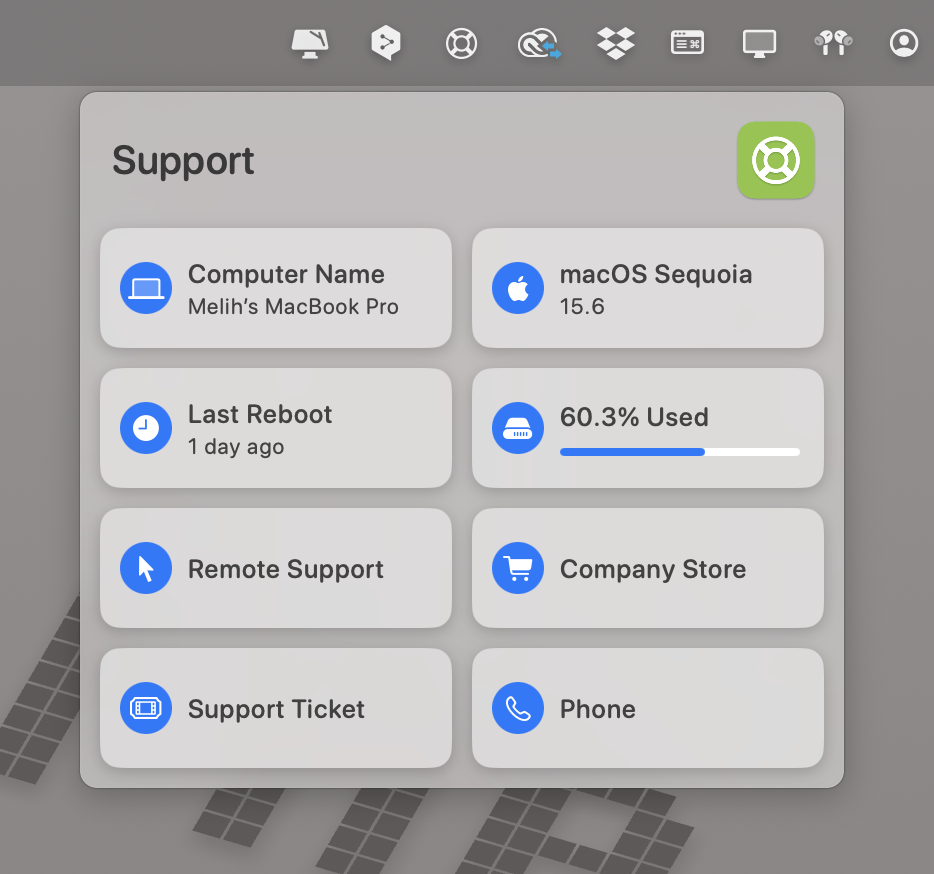
How Can I Customize It?
Root3 also provides you with a sample configuration profile via GitHub so you can customize the application as you wish. You can download the relevant configuration profile at this address. If you look at the details of the .mobileconfig document you downloaded, you can see keys like “left column-top” or “right column-middle.” Between the String tags, you can write which content should be in the middle of the left column. You can add a URL to these fields, or an application link too…
All you need to do is edit this mobileconfig document, upload it to the MDM you use, and distribute it. However, you may need to get some additional help for this. For example, if you are going to put a link to an application in one of the Support App sections, you need to obtain that application’s Bundle ID information. For this, you can take a look at our article on finding an application’s Bundle ID.
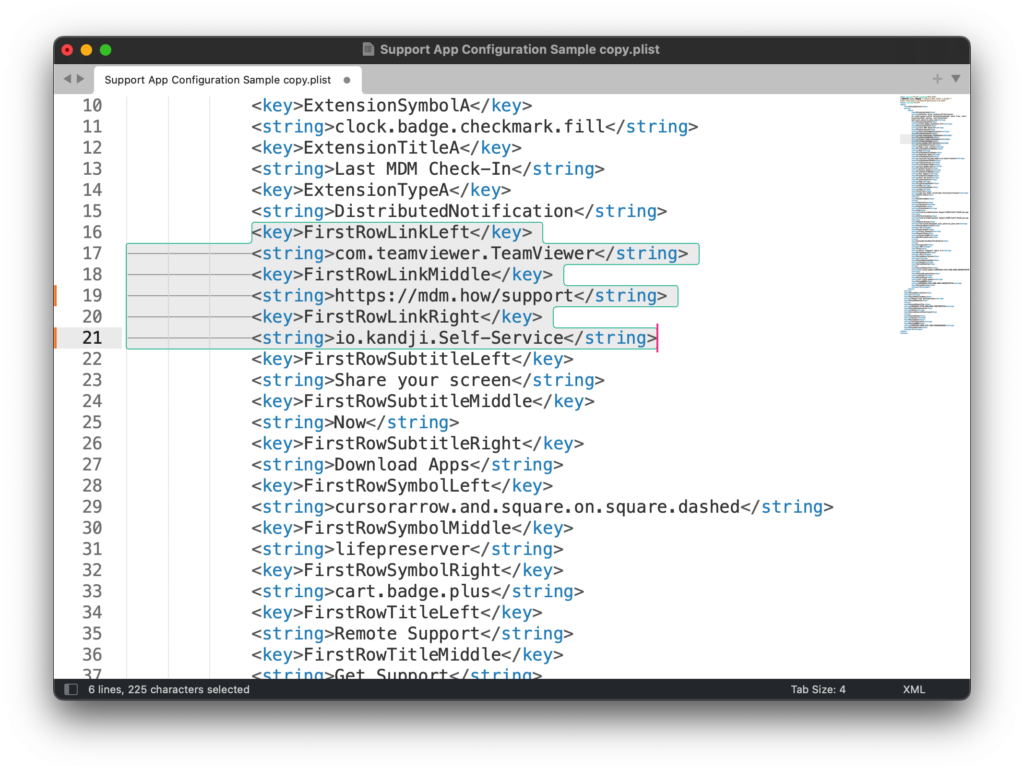
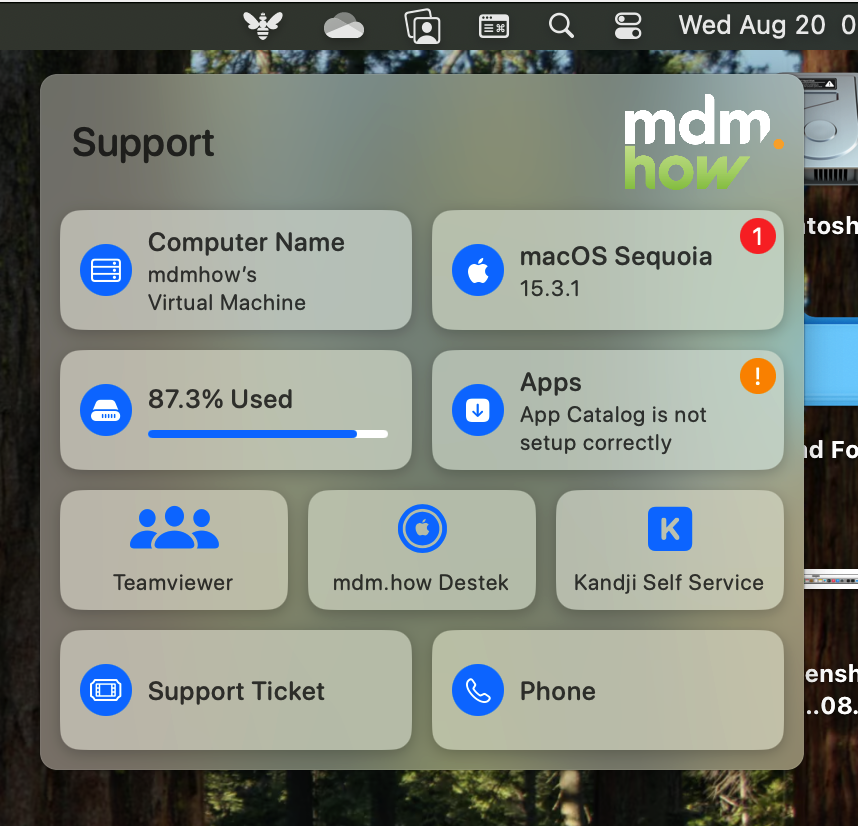
For example, in the sample you see below, the marked areas are used to determine the contents of the buttons that will be displayed in the first row. The TeamViewer application is added to the button on the left, the https://mdm.how/support web page to the middle button, and the Kandji Self Service application to the button on the right.
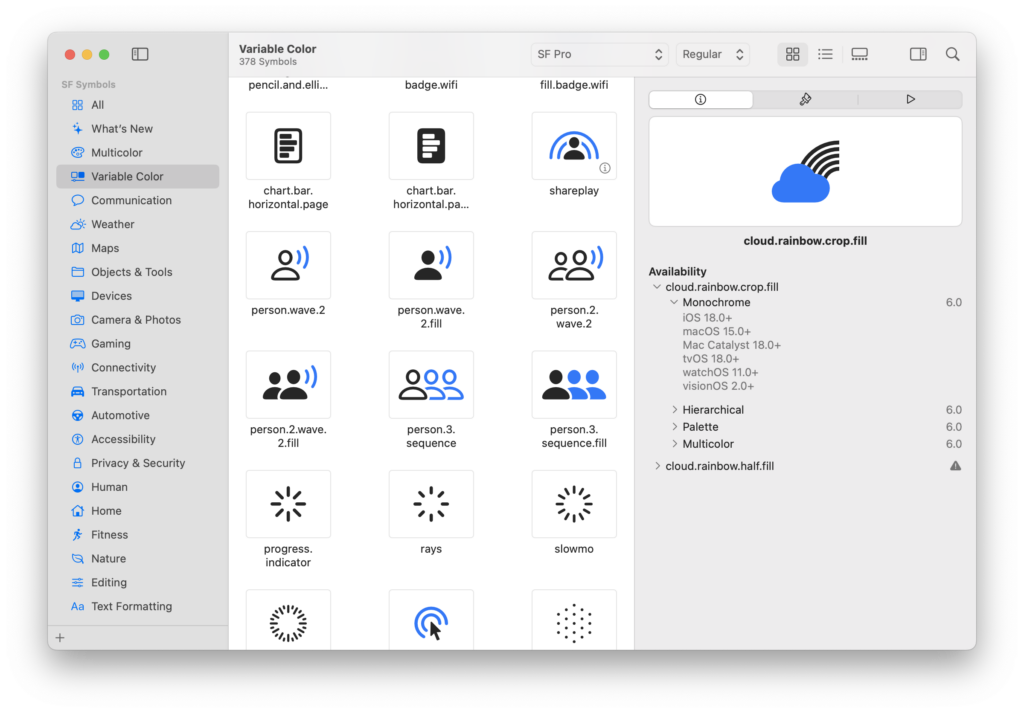
Each icon visible in the screenshot of the Support application above is taken from Apple’s SF Symbols application. When configuring the application, you will need the names of these icons in the SF Symbols application. You can download the SF Symbols application at this address. You can see the full name of the icon shown below (cloud.rainbow.crop.fill) right below the icon itself.
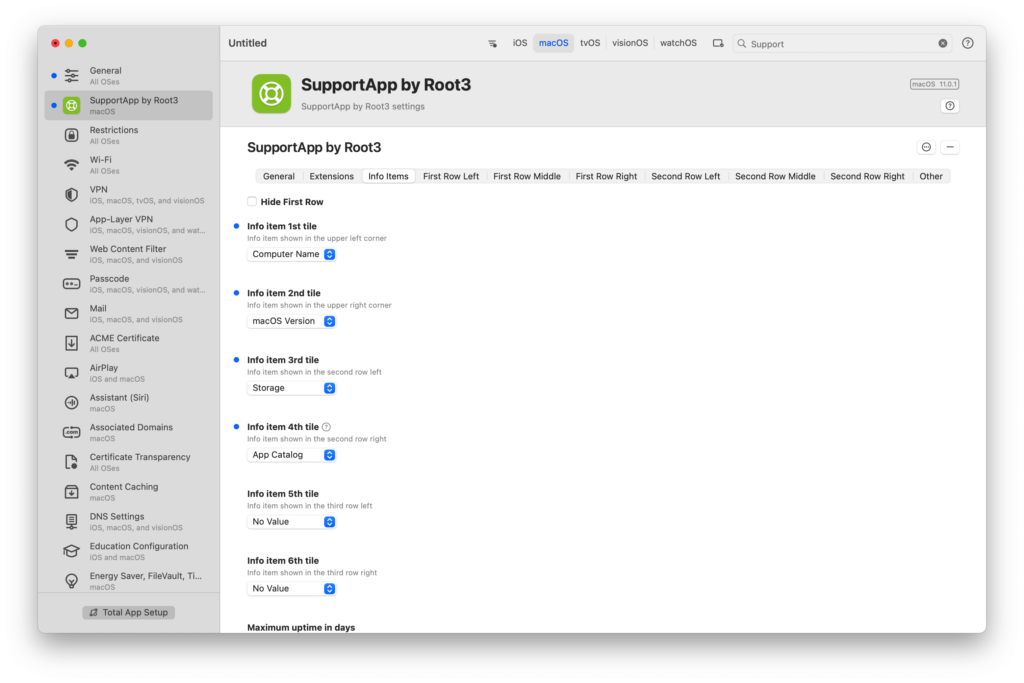
If you do not want to deal with editing the mobileconfig document one by one, the iMazing Profile Editor application — the magic wand that should be in every Apple system administrator’s toolkit — comes to your rescue here too.
There is a second application called Profile Creator as an alternative to iMazing Profile Editor. If you want to try Profile Creator, you can download it at this address. It is worth installing both. Because sometimes the configuration of one application can be found in one and the configuration of another application in the other.
When you type Support in the search box of iMazing Profile Editor, you will see that there is a payload named SupportApp by Root3. Through it, you can see that you can shape all the fields of the Support App according to your needs.
After shaping the configuration profile as you wish, you must distribute both the mobileconfig document you saved and the Support App itself as a PKG with the MDM solution you use. If you first distribute only the application itself, the application will initially open with its own default preferences. When you then also deliver the configuration document for the application, it opens with the settings you have determined.
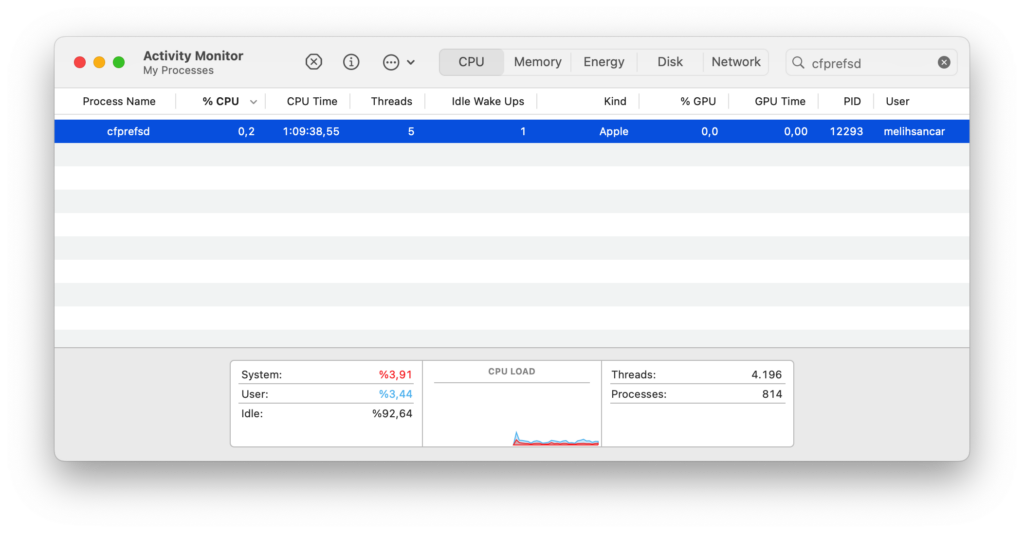
If the Support App still opens with its own original settings even though you have sent the application’s settings, it may be seeing old preferences that have remained in the cache. There is a daemon called cfprefsd in macOS that manages system-wide preferences. You can reach this daemon by opening the Activity Monitor application and typing cfprefsd in the search box. Then, if you force it to quit, the preferences kept in the cache will also be deleted.
Leave a Reply