

You were curious about the new operating systems Apple announced at the WWDC conference and wanted to try them out. You installed one eagerly, and now you want to return to your device’s own operating system version. When upgrading your system, you were able to do it easily from the Settings > General > Software Update section. You assumed you could return to your old system right from the same place. But unfortunately, it is not that easy. It’s not very difficult either — let’s not scare you off. But it does involve a process of several steps. In this article, we explain this process specifically for an iPad. The process is the same for iPhones as well.
Step by Step
1. First, you need to download the latest version of iOS 18 or iPadOS 18 as a .ipsw file to your computer. If you have an Apple Developer account, you can download it from this address; if not, you can download it from this address. It is important to select the model of the device you are using here. The build numbers of operating systems can differ.
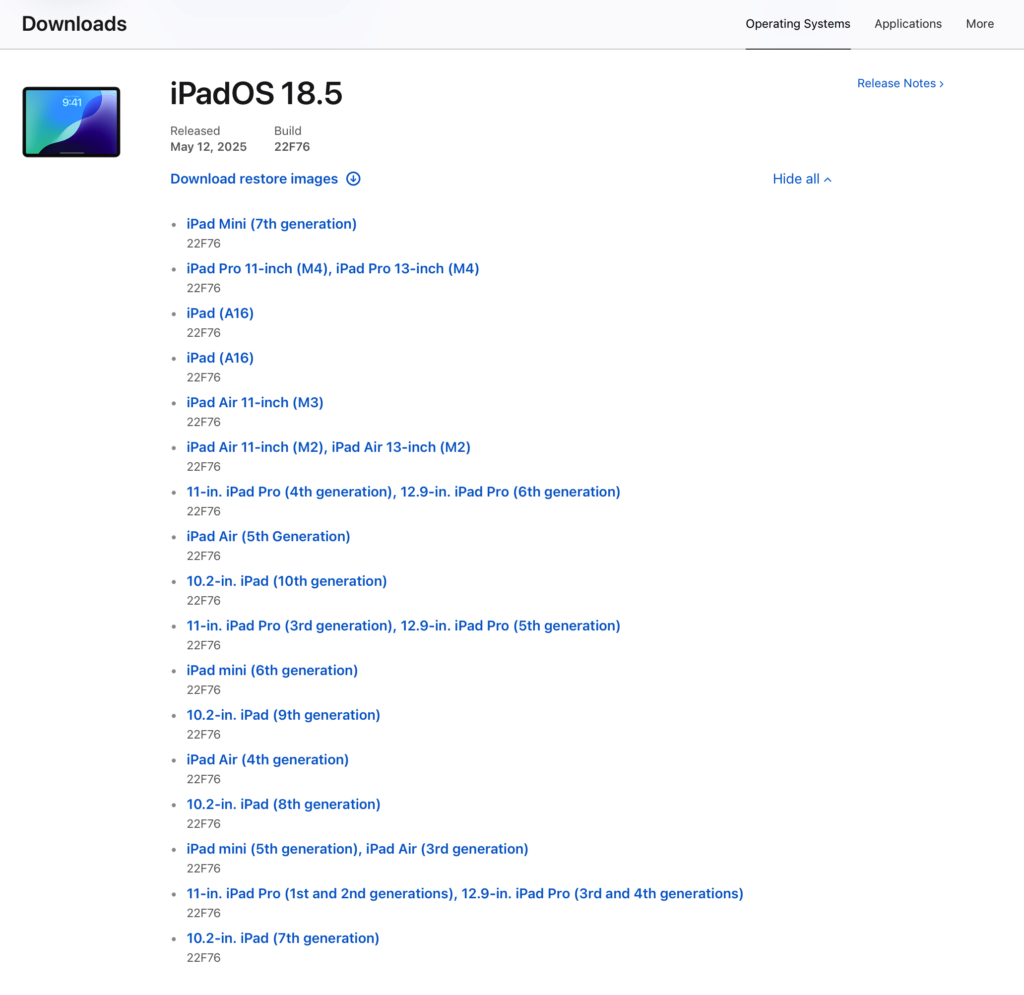
2. Let us share a little additional information about the ipsw.me page. You may have some doubts in mind about whether the operating system versions you download from this site are safe. This site publishes the operating systems released by Apple in their original form. An OS that is not signed by Apple cannot be installed on any Apple device anyway. Because it goes through a verification by Apple before the installation process.
3. Connect your device to your computer with a USB cable. You will see your device’s name on the left side of the Finder window. Select your device from there.
4. In the window that opens, there is a button called Restore iPad. Click this button while pressing the Option key on the keyboard, and select the .ipsw file you downloaded from the window that opens.
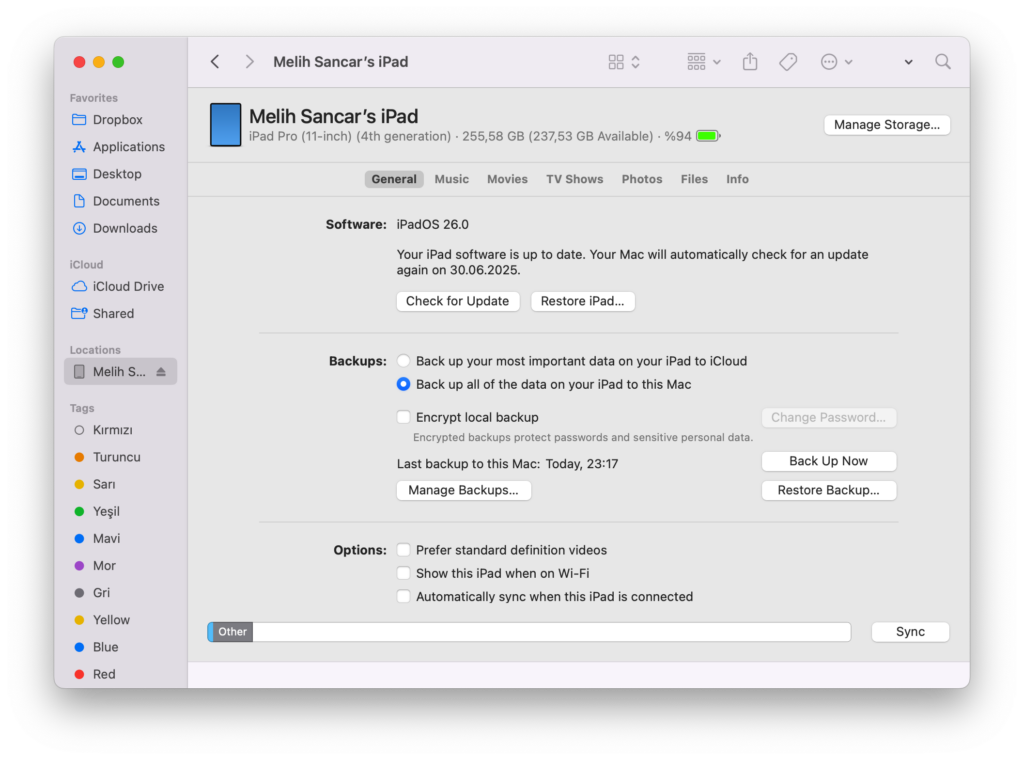
5. As a result of this operation, a warning will appear on the screen stating that the device will be reset and a new iPadOS will be installed. The moment you confirm it, the Restore process begins with a fresh operating system. You can see that the iPad’s screen turns off and a status progress bar appears along with the Apple logo. This process can take approximately 5-6 minutes.
6. When the process is complete, your device boots up with its old system, and you can complete your setup by following the Setup Assistant steps. If you have a previously taken backup, you can perform a restore using it.
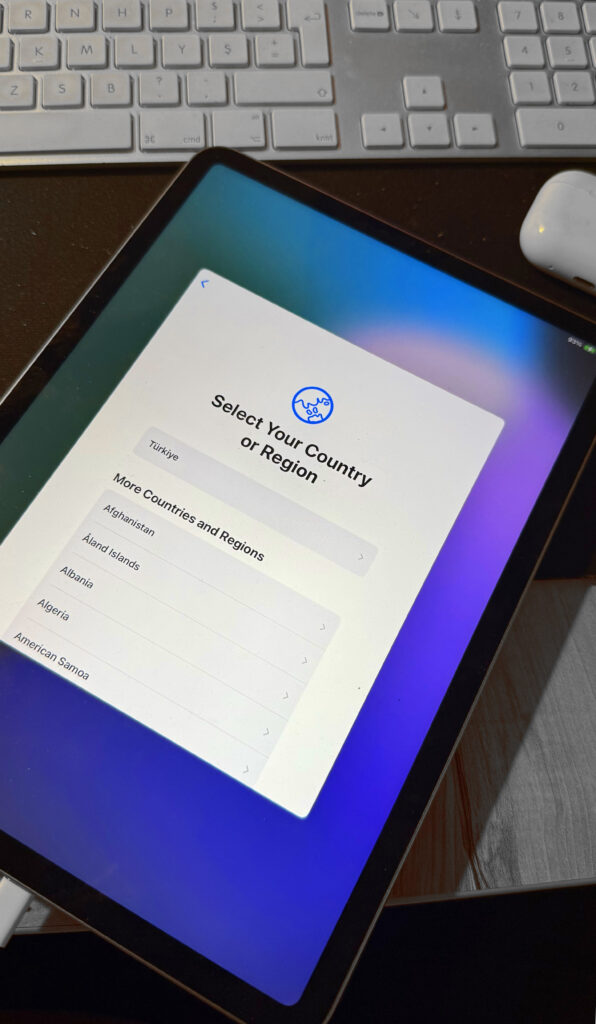
Photo by Daniel Romero on Unsplash
Leave a Reply