

It is almost a necessity for every organization with an Apple device fleet to have an Apple Business Manager (or Apple School Manager) account. Creating a membership on these portals is free. It requires a DUNS number to verify the organization, but obtaining one is also free. Therefore, for an IT administrator to go down the rough road of managing an Apple device fleet without ABM can be considered entirely pointless.
Having your Apple Business Manager account open and verified is also not sufficient on its own. The devices in your company inventory need to be registered in the Devices section there. There are two methods to accomplish this:
1- Purchasing your devices from one of Apple’s DEP Reseller partners
This is the easiest method from an IT perspective. It is used to automatically enroll purchased devices into MDM by delivering them directly to the user without the IT team ever touching them, using the Zero Touch Deployment method.
2- Adding them yourself using Apple Configurator for iPhone or Apple Configurator for Mac software
If for any reason you cannot work with DEP Reseller partners, or if you have devices that were previously purchased through different channels, you can add these devices to Apple Business Manager on your own. This article explains exactly that.
Requirements
To add a Mac to Apple Business Manager, you first need the following:
- The device to be added must be factory reset
- An iPhone with Apple Configurator installed
- An active and verified Apple Business Manager account
- A user with Administrator or Device Manager privileges on ABM
- Wi-Fi
Step by Step
1. Download the Apple Configurator application on the iPhone you will use to add devices.
2. On first launch, the app will request access to the camera and to find Bluetooth devices. Grant these permissions.
3. It will then ask you to enter the account of a user with Administrator or Device Manager privileges in Apple Business Manager. Enter the email address and password of this account and click the Continue button.

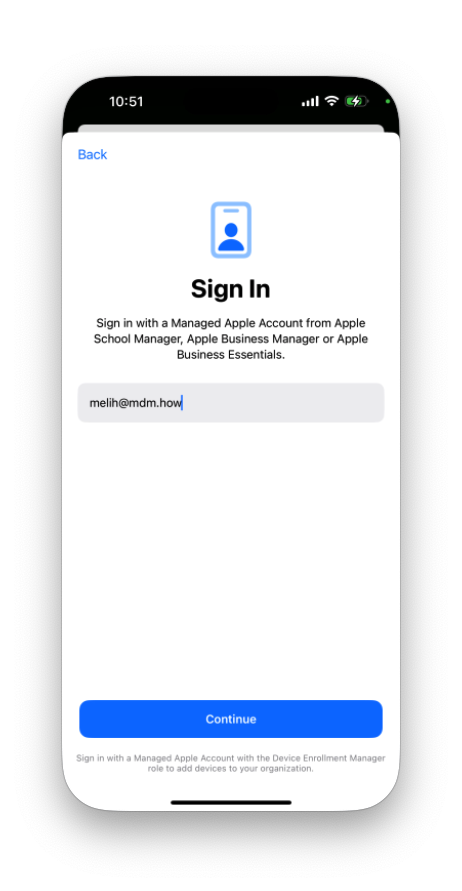
4. After logging in, the Apple Configurator settings screen appears. The most important point to pay attention to here is Wi-Fi sharing. The device you are registering to ABM must have internet access during initial setup. You can provide this in two ways: either by sharing the internet from the iPhone you are using for the process, or by preparing a configuration profile containing Wi-Fi access credentials. If the iPhone you are using is connected to a Wi-Fi network restricted by various Firewall rules, you may need a third device capable of internet sharing. This could be another iPhone, an Android device, or any device capable of providing mobile data such as a Superbox.
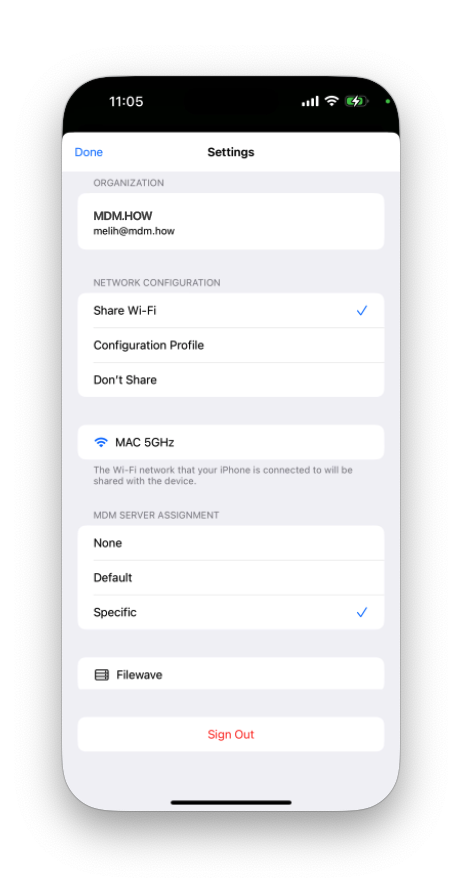
5. On the Apple Configurator Settings screen, you can select Share Wi-Fi under the Network Configuration heading.
6. In the MDM Server Assignment section, if you have previously added some MDM servers to ABM, you can select the Specific option to automatically assign the device to one of them. Making this selection is not mandatory. You can also leave it as None. After the device is added to ABM, you can also make this assignment from within ABM.
7. After making your preferences on the Settings screen, when you press the Done button, a camera screen with a circular area marked in the center appears.

8. From this point, you need to continue on the device you are adding to ABM. If the device has been reset and you see the Hello text in different languages on the screen, you can proceed through the setup steps on the Mac. You should advance until you reach the Mac’s Country Selection screen.
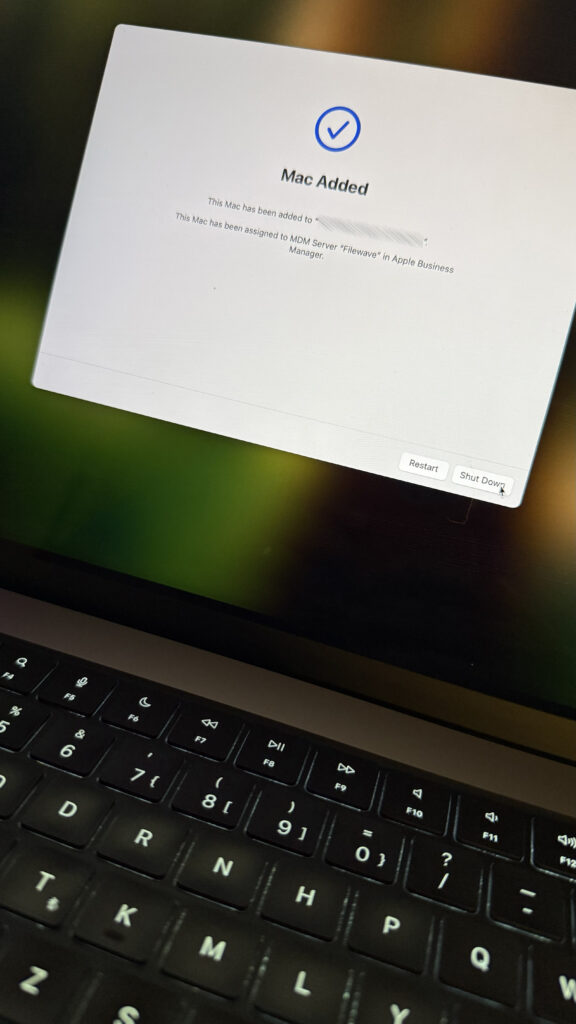
9. When you reach the Wi-Fi selection screen, instead of selecting any network, bring the iPhone with Configurator installed close to it, and a visual code will appear that you can scan with the circular area on the iPhone’s screen. The moment you scan it, a screen saying “Adding Mac” appears. And immediately after, within a few seconds, you will see the text “Mac Added”.
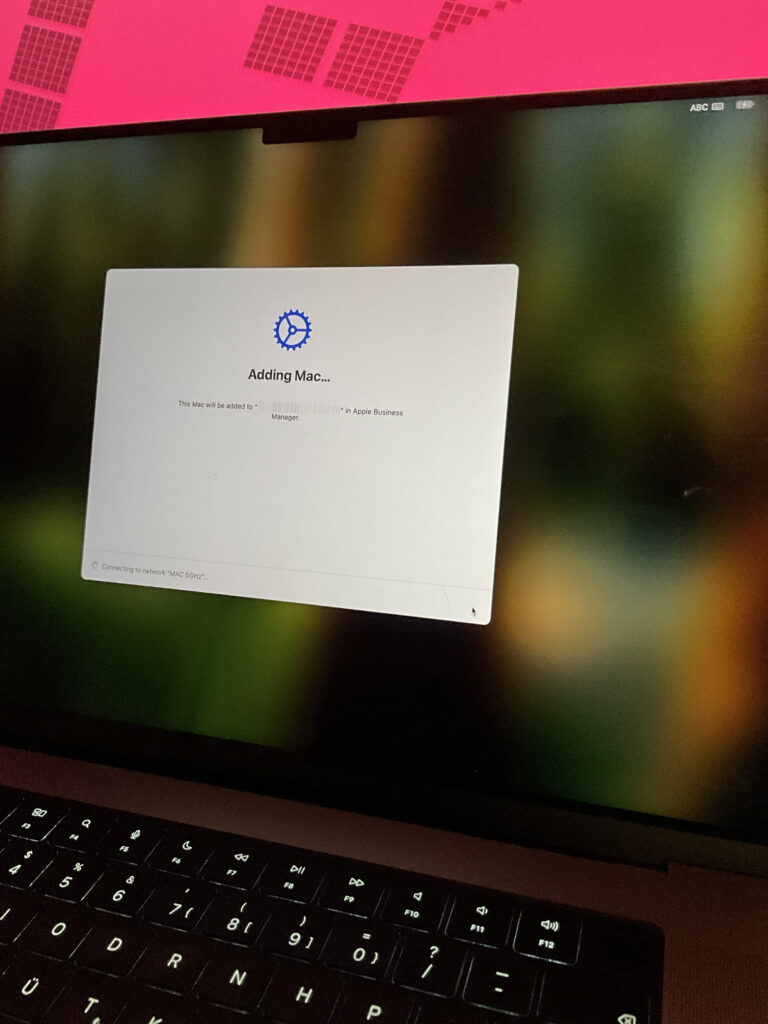
10. If you wait too long on the Adding Mac screen and it does not complete, the issue is most likely related to internet access.
11. After this process is complete, you can click the Erase Mac button and continue setting up the Mac. If you want the computer to continue being set up according to the settings determined by the MDM server, instead of continuing by resetting the device, you should first configure the necessary settings on the MDM server, assign them to this device, and then reset it. This way, when the device restarts, it will boot up as a device managed by the MDM server rather than as an end-user device.
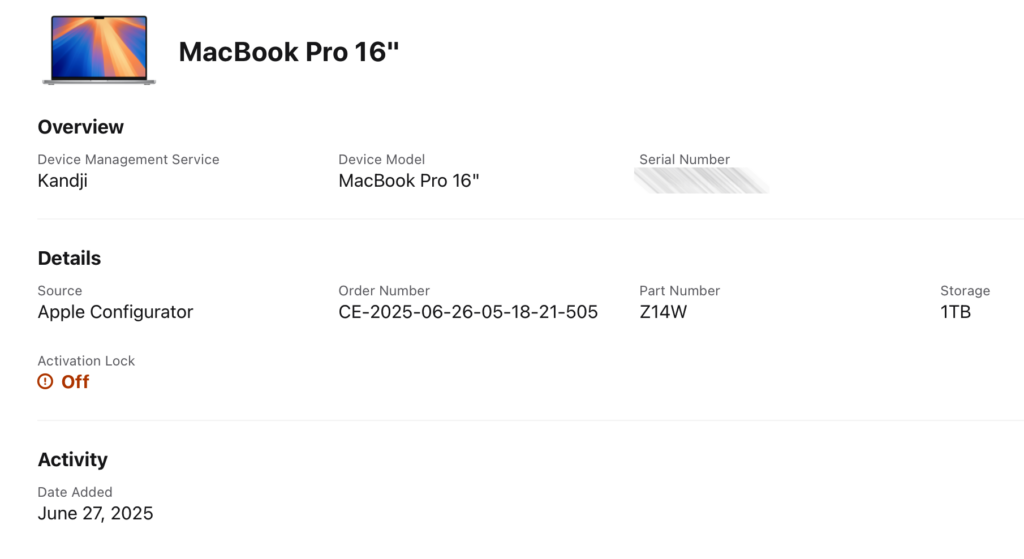
12. You can view your device added to ABM by logging into Apple Business Manager and going to the Devices section. From there, you can remove or change the MDM assignment if desired.
A Small Warning
There is a 30-day opt-out period for devices you register to Apple Business Manager or Apple School Manager using this method. The process described above is technically what is called BYOD — adding devices that users bring with them to the organization into ABM. For this reason, it gives the original owner of the device 30 days to reverse the process and remove their device from ABM and management. Users who wish to opt out can select the MDM enrollment profile in System Settings > General > Device Management within 30 days and click the “-” (minus) button to remove the MDM enrollment profile from their device and Release the device from ABM. For devices added to Apple Business Manager by an authorized reseller, the “-” (minus) button will be inactive from day one when they enroll in MDM via the Automated Device Enrollment method.
If your company device inventory allows for it, it may be beneficial to keep devices registered to ABM in this way in storage for 30 days before putting them into use.
Also Have a Look
This article you are reading explains how to add Macs to Apple Business Manager. If you want to perform the same process for an iPhone or iPad, you can read our article on that topic.
Photo by Daniel Korpai on Unsplash
Leave a Reply