
When you need to manage Apple devices with any MDM system, first and foremost you need to decide how to enroll your devices on the server. Who owns the devices you will manage (user or company) is the key to how they can be enrolled in MDM.
If the devices you are going to manage were purchased by your company from one of the DEP resellers and are listed in your Apple Business Manager portal, then your company owns those devices.
If the devices you will manage are not listed in the Apple Business Managerportal, they are considered BYOD (Bring Your Own Device).
According to Apple, one of the essential rules of an ideal MDM management is Zero Touch Deployment. In other words, purchased devices will not go to the IT department for installation and configuration, but will be delivered to the end user with the cardboard box as it comes from the Apple reseller.
There is a mandatory rule to ensure this: Devices must be purchased under DEP and enrolled in MDM using what Apple calls Automated Device Enrollment.
Let’s do this step by step using Filewave as MDM:
What is needed before you start
- Active and verified Apple Business Manager account
- An active MDM server
Let’s Start
1. First log in to Filewave Anywhere with your Filewave Admin login credentials.
2. Click Sources from the left side menu
3. When the Sources section opens, click on the + icon on the right side of DEP Accounts. Note that you should click on the + icon next to DEP Accounts, NOT DEP Profiles. I will talk about DEP Profiles separately.

4. On the page that is displayed, you must download the Public Key for Filewave by clicking on the Download button on the right side of section 1.

5. We need to upload the .pem file you downloaded to Apple Business Manager. To do this, log in to the Apple Business Manager portal https://business.apple.com 2FA is always required to log in to the portal. Therefore, Apple will send a code to your phone, which is previously configured.
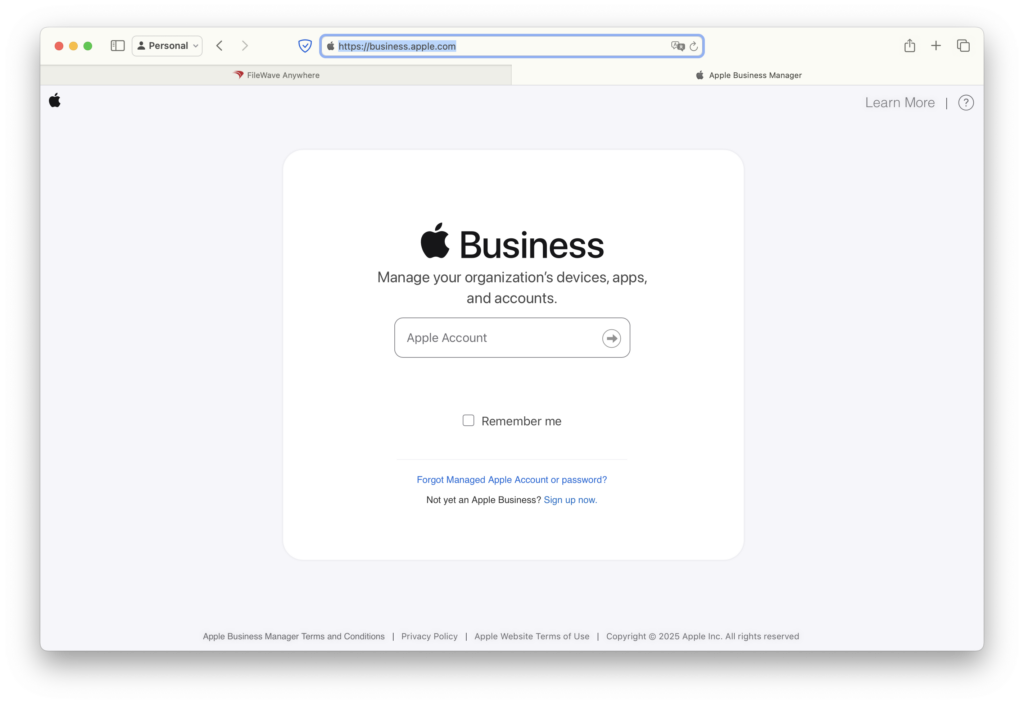
6. After logging in to Apple Business Manager, click on your name in the bottom left corner and select Preferences from the drop-down menu.
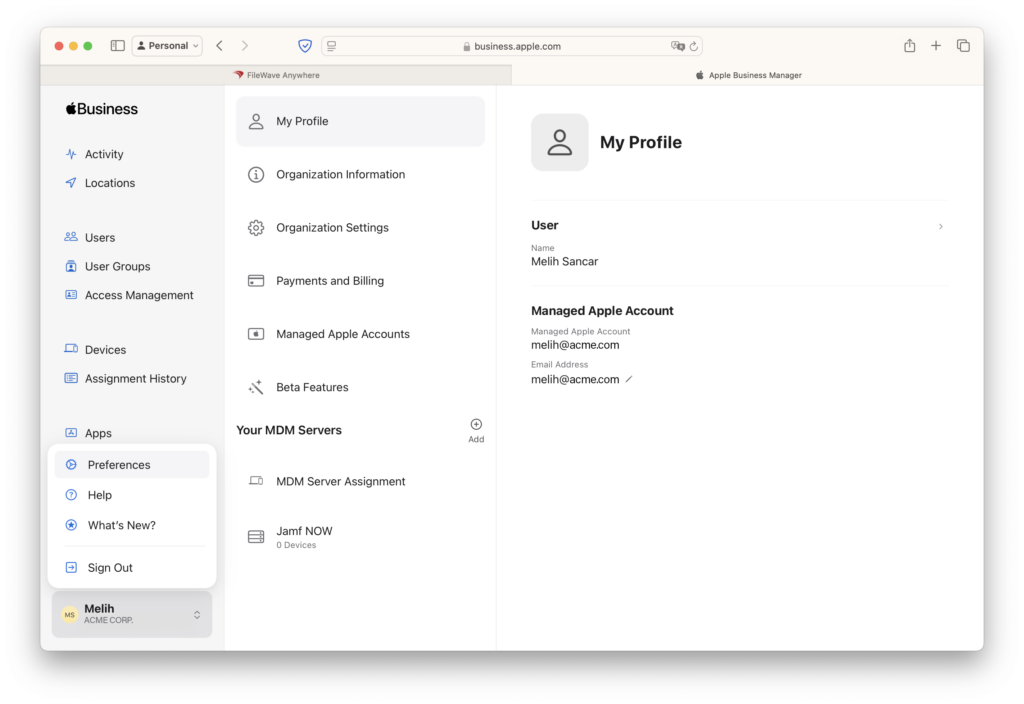
7. When the Preferences screen opens, you should add a new MDM server by clicking the + icon under the Your MDM Servers heading. This will open a new page. Give your MDM server a name at the top.
IMPORTANT: Unless you have a special reason, you should leave Allow this MDM Server to release devices unchecked. With this option selected, when you delete a device to remove it from your MDM server, you also remove it from the Apple Business Manager inventory. You may need to delete devices from your MDM server for various reasons for the organization you are managing MDM for. However, it is important that this does not damage the inventory in ABM.
Upload the certificate named Filewave DEP.pem that you downloaded from Filewave to this field and save it by clicking the Save button..

8. After registering Filewave as an MDM server in Apple Business Manager, you need to download the Server Token for Filewave and install it in Filewave Anywhere. You can do this by clicking the Download MDM Server Token button at the top of the screen.
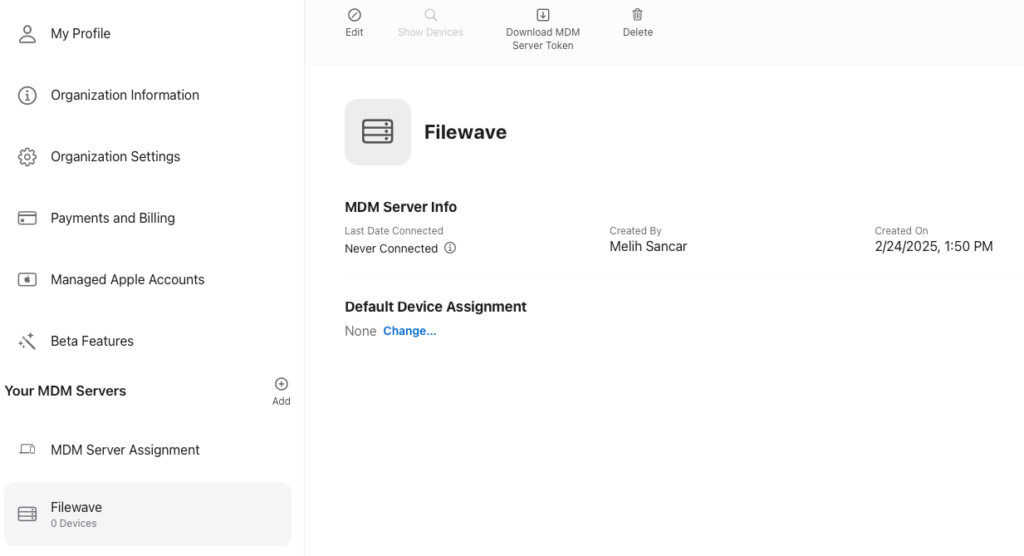
9. From this point, you need to go back to Filewave and install the Token you downloaded from Apple Business Manager. Go to Sources / DEP Accounts section in Filewave again, click the + button and click the Browse button in the section number 3 on the screen that opens and upload the Token with the .p7m extension you downloaded. After uploading, do not forget to save it by clicking the Save button.
10. After saving, a one-line record will appear in the DEP Accounts section. If you see Valid in the Status column, Filewave and Apple Business Manager are communicating properly.

Photo by Hal Gatewood on Unsplash
Leave a Reply