

Let’s say you go to your local Apple Store and buy yourself a new MacBook Pro. When you set up that computer, you will see the Create Your Computer Account screen. The username and password you enter on that screen will make you the only local Administrator user on that computer. Using your personal computer as the sole authorized user, and doing so with Administrator privileges, generally does not pose much of an issue.

However, when it comes to corporate use, many companies do not prefer this approach. Companies manage the computers used by their employees through various centralized management systems. Allowing users to operate their computers with Administrator privileges can create conflicts with the policies implemented by system administrators. For this reason, the Standard User option is typically preferred in corporate environments. This is because ensuring all users have Standard User privileges is crucial for the security of both the corporate computers and the data within them.

Standard User accounts:
• Cannot execute commands starting with sudo in the Terminal
• Cannot change many critical system preference settings
• Cannot install applications that come in .pkg format requiring the Installer application
• Cannot perform any actions on the Recovery Partition of computers with FileVault (full disk encryption) enabled
• Cannot add or delete users
This list can be further expanded. All these restrictions are, of course, important details for security and privacy. On the other hand, some companies may choose not to follow this path and instead provide their users with more freedom, allowing them to remain as Administrators for convenience.
In a managed environment, even if users are Administrators, this does not mean they can use their computers like regular end-users. If the company uses an MDM (Mobile Device Management) solution, it can impose a wide range of restrictions, even on Administrator accounts, in critical areas. In this article, we will focus specifically on restricting application installations among these controls.
But how?
You can prevent an Admin user from installing applications on the computer through the AppStore or any other source.
This process fundamentally relies on Apple’s Gatekeeper technology. Let’s summarize with a small example. Even on a personal computer not managed by any centralized system, if you change the “Allow Applications From” option under Privacy & Security to “App Store only”, you would not be able to install, for instance, the Google Chrome web browser on your computer. This is because Chrome is not available on the AppStore; it is an application you can download from Google’s website. While you can download the googlechrome.dmg file to your computer, you cannot open the downloaded .dmg file or the Google Chrome.app extracted from it. Instead, you will see an alert similar to this:

What can we do with MDM?
To implement this via MDM, you can review the Privacy & Security or Gatekeeper settings within the Configuration Profiles in your MDM solution. Below, you can see the settings for Jamf Pro and Kandji.


In both screenshots, two distinct settings have been configured:
• Allowed applications are restricted to the AppStore only
• The ability to temporarily bypass Gatekeeper settings using Admin privileges is disabled
Under these conditions, even an Admin user cannot install applications from any source other than the AppStore. If you also want to block application installations from the AppStore, you need to apply an additional restriction beyond the Privacy & Security and Gatekeeper settings.
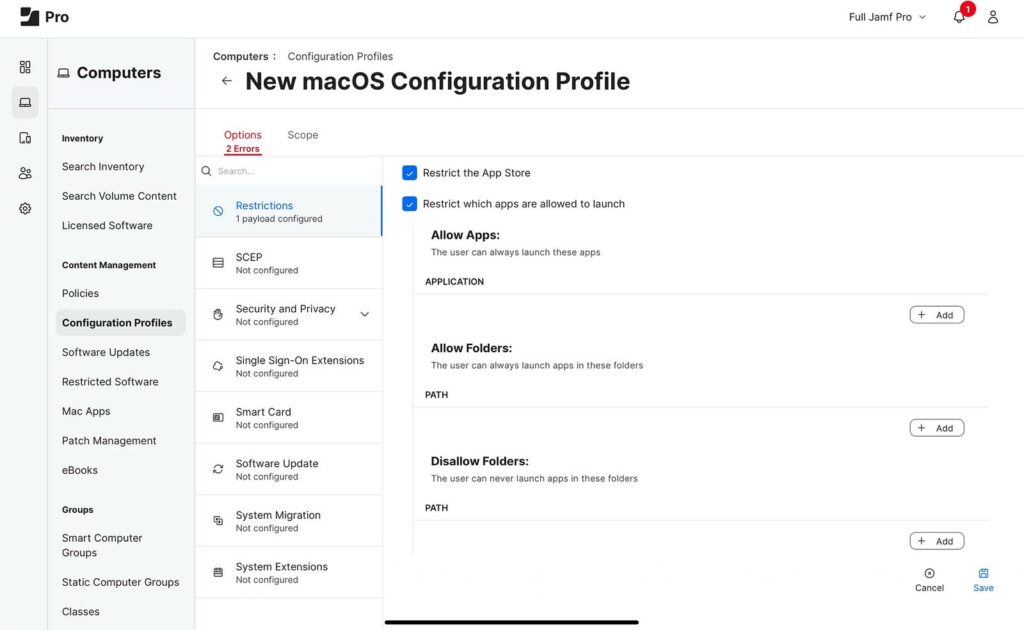

The screenshots from Jamf Pro and Kandji above show that AppStore access for the same user is also restricted.
With these settings, the user is first directed to the AppStore as the sole source for application installation via Gatekeeper. Once AppStore access is disabled, the user is unable to install any applications from there either.
Leave a Reply